> ## Documentation Index
> Fetch the complete documentation index at: https://documentation.claruswms.com/llms.txt
> Use this file to discover all available pages before exploring further.
# Connect Slack to Clarus
> Install the ClarusWMS app in your Slack workspace so your team can ask the AI Assistant about stock, orders, and receipts directly from Slack.
Slack is the quickest channel to connect. You approve the app once, and everyone in your Slack workspace can message the assistant — in a direct message, or by **@mentioning** it in a channel.
**AI accuracy:** AI-generated responses can sometimes be inaccurate, incomplete, or misleading. Always verify the assistant's output before acting on it — especially for stock movements, order changes, or any actions that affect your live warehouse data. The assistant is a tool to help you, not a replacement for your own judgement.
## Before you start
* A Clarus login with **administrator** rights.
* Permission to add apps to your Slack workspace. If your workspace restricts app installation, a Slack admin will need to approve the request.
## Install the app
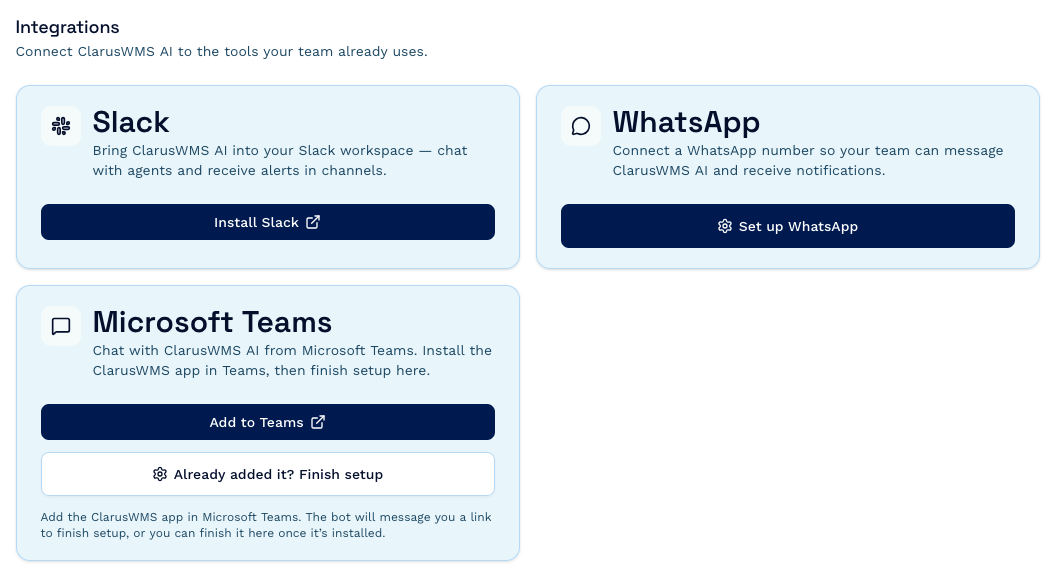
In the AI Assistant, click the **Settings** cog at the bottom of the conversation list, then choose **Integrations**.
On the **Slack** card, click **Install Slack**. This opens the Clarus setup page in a new tab, with your Clarus account already filled in.
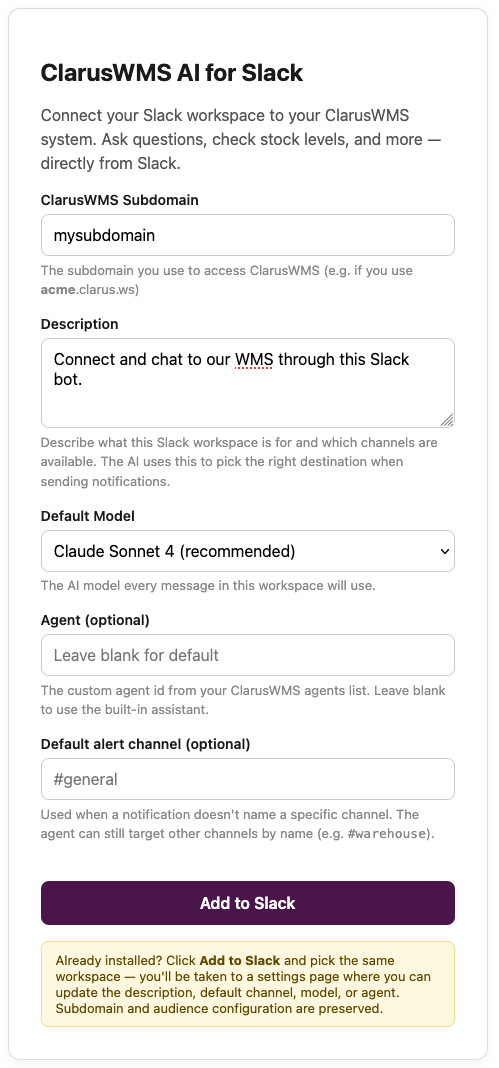
 Fill in the setup form:
* **ClarusWMS Subdomain** — already filled in for you. Check it's right (it's the name you use to reach Clarus, as in `acme`.clarus.ws).
* **Description** — required. Describe what this workspace is for and which channels are available, for example `Stock ops Slack — channels: #stock-management, #ops-alerts`. This isn't just a label: the assistant reads it to decide which channel to send a notification to, so it's worth being specific.
* **Default Model** — leave as **Claude Sonnet** unless you have a reason to change it.
* **Agent** — optional. Leave blank to use the built-in assistant.
* **Default alert channel** — optional. Where Clarus posts notifications that don't name a channel, for example `#warehouse-alerts`.
Fill in the setup form:
* **ClarusWMS Subdomain** — already filled in for you. Check it's right (it's the name you use to reach Clarus, as in `acme`.clarus.ws).
* **Description** — required. Describe what this workspace is for and which channels are available, for example `Stock ops Slack — channels: #stock-management, #ops-alerts`. This isn't just a label: the assistant reads it to decide which channel to send a notification to, so it's worth being specific.
* **Default Model** — leave as **Claude Sonnet** unless you have a reason to change it.
* **Agent** — optional. Leave blank to use the built-in assistant.
* **Default alert channel** — optional. Where Clarus posts notifications that don't name a channel, for example `#warehouse-alerts`.
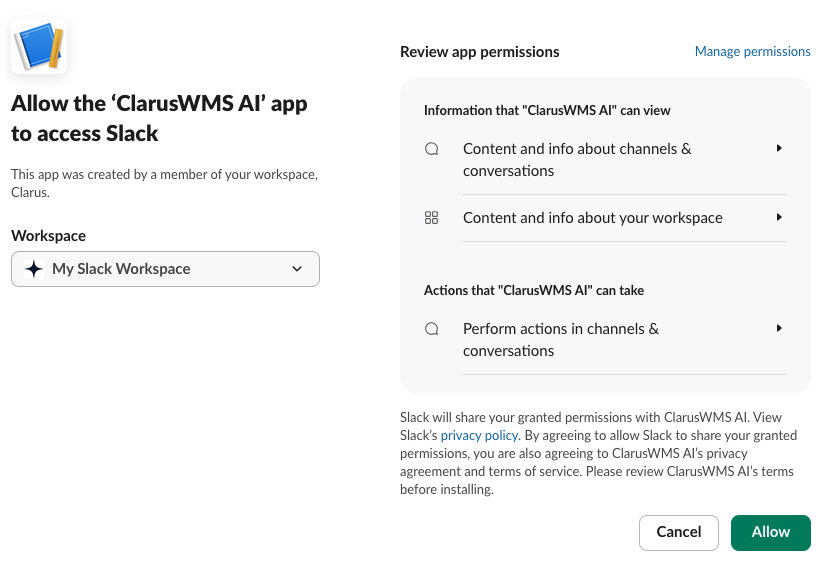
 Click **Add to Slack**. Slack shows you what the app will be able to do — check the workspace at the top is the right one, review the permissions, and click **Allow**.
 The confirmation page tells you the bot's name in your workspace. To use it in a channel, open that channel and type:
```text theme={null}
/invite @ClarusWMS AI
```
Use whichever name the confirmation page shows — a Slack admin can rename the app during installation, so it may not be exactly `@ClarusWMS AI`.
The confirmation page tells you the bot's name in your workspace. To use it in a channel, open that channel and type:
```text theme={null}
/invite @ClarusWMS AI
```
Use whichever name the confirmation page shows — a Slack admin can rename the app during installation, so it may not be exactly `@ClarusWMS AI`.
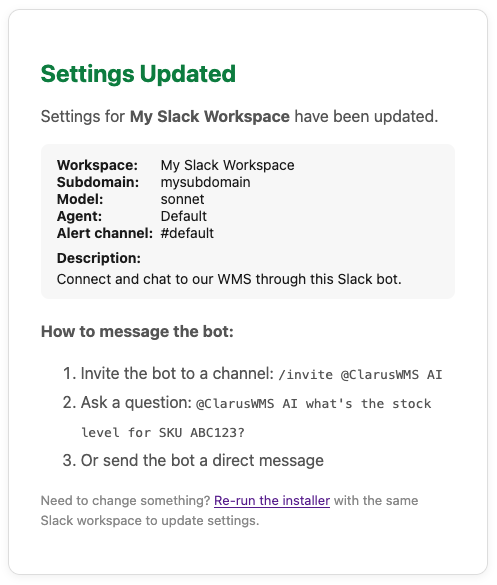 You don't need to invite it anywhere to use direct messages — you can message the bot straight away.
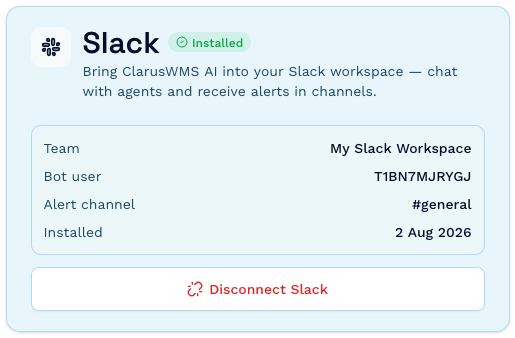
Back in **Settings → Integrations**, the Slack card now shows an **Installed** badge along with your workspace name, the bot user, the alert channel, and the date it was installed.
You don't need to invite it anywhere to use direct messages — you can message the bot straight away.
Back in **Settings → Integrations**, the Slack card now shows an **Installed** badge along with your workspace name, the bot user, the alert channel, and the date it was installed.
 ## Using it in Slack
**In a direct message**, every message you send goes to the assistant. The whole DM is one continuous conversation, so you can follow up naturally:
> **You:** how many units of WIDGET-RED-500 are in stock?
>
> **You:** and which locations are they in?
**In a channel**, the assistant only responds when you **@mention** it — so it stays quiet during normal team chat:
> `@ClarusWMS which goods out orders for Acme are still unpicked?`
Channel replies come back **in a thread**. Each thread is its own separate conversation, so two people can ask about different things in the same channel without the assistant mixing them up. Keep follow-up questions inside the thread.
**Files.** Attach images or documents to your message and the assistant can read them — for example, send a supplier's PDF or a CSV and ask what's in it. You can attach up to 10 files per message: images up to 3 MB, documents up to 10 MB.
**While it's working**, the assistant adds an 👀 reaction to your message, and removes it when the answer arrives. Long answers may arrive as more than one message.
Everyone in your Slack workspace who can message or @mention the bot gets your organisation's full assistant access — it isn't limited to any one person's Clarus permissions, and it can change data as well as read it. Think about which channels you invite it into.
## Change your settings
To change the description, default model, agent, or alert channel, click **Install Slack** again on the Integrations card, click **Add to Slack**, and pick the **same** Slack workspace. Clarus recognises it and takes you to a settings page with your current values filled in — adjust what you need and save. Your subdomain and notification settings are preserved.
## Disconnect Slack
On the Slack card in **Settings → Integrations**, click **Disconnect Slack** and confirm. This removes the app from your Slack workspace and your team can no longer message the assistant from Slack. You can install it again later.
## Troubleshooting
In channels the assistant only replies when it's **@mentioned** — this is deliberate, so it doesn't read everything your team says. Start your message with `@ClarusWMS AI`. Also check the bot has actually been invited to that channel (`/invite @ClarusWMS AI`). Direct messages always work without a mention.
A Slack workspace can be connected to one Clarus account at a time. Someone has already connected this workspace to a different Clarus account — they need to disconnect it there first, then you can connect it here.
Channel replies are threaded off the message that mentioned the bot. If you ask a follow-up as a new channel message rather than inside the thread, it's treated as a brand new conversation with no memory of the earlier exchange. Reply inside the thread to continue.
Check the format and size: images must be PNG, JPEG, GIF, or WebP up to 3 MB; documents must be PDF, CSV, text, Markdown, HTML, DOCX, or XLSX up to 10 MB. A maximum of 10 files per message are read, and anything outside those limits is skipped silently. If files consistently aren't read, reinstall the app from **Settings → Integrations** — that refreshes the permissions Slack has granted Clarus.
Confirm the Slack card shows the **Installed** badge in Settings → Integrations. If it does and messages still go unanswered, check your organisation hasn't run out of AI credits — see [Credits and usage](/knowledgebase/ai-assistant/credits-and-usage).
Not within Clarus — anyone in the workspace who can reach the bot can use it. You can control access indirectly by only inviting the bot to specific private channels, and by asking your Slack admin to restrict who can direct-message apps. If you need a genuine per-person approved list, use [WhatsApp](/knowledgebase/ai-assistant/connect-whatsapp) instead.
## Using it in Slack
**In a direct message**, every message you send goes to the assistant. The whole DM is one continuous conversation, so you can follow up naturally:
> **You:** how many units of WIDGET-RED-500 are in stock?
>
> **You:** and which locations are they in?
**In a channel**, the assistant only responds when you **@mention** it — so it stays quiet during normal team chat:
> `@ClarusWMS which goods out orders for Acme are still unpicked?`
Channel replies come back **in a thread**. Each thread is its own separate conversation, so two people can ask about different things in the same channel without the assistant mixing them up. Keep follow-up questions inside the thread.
**Files.** Attach images or documents to your message and the assistant can read them — for example, send a supplier's PDF or a CSV and ask what's in it. You can attach up to 10 files per message: images up to 3 MB, documents up to 10 MB.
**While it's working**, the assistant adds an 👀 reaction to your message, and removes it when the answer arrives. Long answers may arrive as more than one message.
Everyone in your Slack workspace who can message or @mention the bot gets your organisation's full assistant access — it isn't limited to any one person's Clarus permissions, and it can change data as well as read it. Think about which channels you invite it into.
## Change your settings
To change the description, default model, agent, or alert channel, click **Install Slack** again on the Integrations card, click **Add to Slack**, and pick the **same** Slack workspace. Clarus recognises it and takes you to a settings page with your current values filled in — adjust what you need and save. Your subdomain and notification settings are preserved.
## Disconnect Slack
On the Slack card in **Settings → Integrations**, click **Disconnect Slack** and confirm. This removes the app from your Slack workspace and your team can no longer message the assistant from Slack. You can install it again later.
## Troubleshooting
In channels the assistant only replies when it's **@mentioned** — this is deliberate, so it doesn't read everything your team says. Start your message with `@ClarusWMS AI`. Also check the bot has actually been invited to that channel (`/invite @ClarusWMS AI`). Direct messages always work without a mention.
A Slack workspace can be connected to one Clarus account at a time. Someone has already connected this workspace to a different Clarus account — they need to disconnect it there first, then you can connect it here.
Channel replies are threaded off the message that mentioned the bot. If you ask a follow-up as a new channel message rather than inside the thread, it's treated as a brand new conversation with no memory of the earlier exchange. Reply inside the thread to continue.
Check the format and size: images must be PNG, JPEG, GIF, or WebP up to 3 MB; documents must be PDF, CSV, text, Markdown, HTML, DOCX, or XLSX up to 10 MB. A maximum of 10 files per message are read, and anything outside those limits is skipped silently. If files consistently aren't read, reinstall the app from **Settings → Integrations** — that refreshes the permissions Slack has granted Clarus.
Confirm the Slack card shows the **Installed** badge in Settings → Integrations. If it does and messages still go unanswered, check your organisation hasn't run out of AI credits — see [Credits and usage](/knowledgebase/ai-assistant/credits-and-usage).
Not within Clarus — anyone in the workspace who can reach the bot can use it. You can control access indirectly by only inviting the bot to specific private channels, and by asking your Slack admin to restrict who can direct-message apps. If you need a genuine per-person approved list, use [WhatsApp](/knowledgebase/ai-assistant/connect-whatsapp) instead.