> ## Documentation Index
> Fetch the complete documentation index at: https://documentation.claruswms.com/llms.txt
> Use this file to discover all available pages before exploring further.
# Connect Microsoft Teams to Clarus
> Add the ClarusWMS app to Microsoft Teams and link it to your Clarus account, so your team can ask the AI Assistant about stock and orders from a Teams chat or channel.
Microsoft Teams takes a little more work than the other channels, because the ClarusWMS app has to be added to your Microsoft organisation before it can be linked to Clarus. There are two stages:
1. **Add the ClarusWMS app in Teams** — done in Teams, by someone who can add apps.
2. **Link it to your Clarus account** — done in the AI app, by a Clarus administrator.
Until both are done the bot will answer, but only to say it isn't linked yet.
**AI accuracy:** AI-generated responses can sometimes be inaccurate, incomplete, or misleading. Always verify the assistant's output before acting on it — especially for stock movements, order changes, or any actions that affect your live warehouse data. The assistant is a tool to help you, not a replacement for your own judgement.
## Before you start
* A Clarus login with **administrator** rights.
* Rights in Microsoft Teams to add an app. Adding it just for yourself needs custom app upload to be allowed for your account; rolling it out to everyone needs **Teams administrator** access.
## Stage 1 — Add the app in Teams
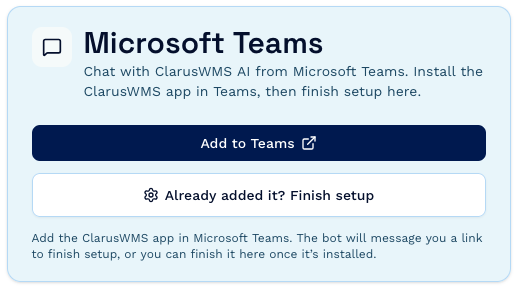
In the AI Assistant, click the **Settings** cog, choose **Integrations**, and find the **Microsoft Teams** card. Follow the instructions on the card to get the ClarusWMS app package, then add it in Teams using whichever route below matches your rollout.
If the card offers **Add to Teams**, the app is already available to your Microsoft organisation — click it, and Teams will open and offer to add ClarusWMS. Once it's added, skip straight to Stage 2 below.
 1. In Teams, go to **Apps** in the left sidebar.
2. Click **Manage your apps** at the bottom.
3. Click **Upload an app**, then **Upload a custom app**.
4. Choose the ClarusWMS app package, then click **Add**.
If **Upload a custom app** is missing or greyed out, your organisation hasn't allowed it. A Teams administrator can enable it under **Teams admin centre → Teams apps → Setup policies → Upload custom apps**, or use the organisation-wide route instead.
A **Teams administrator** does this once, and ClarusWMS becomes available to everyone you choose:
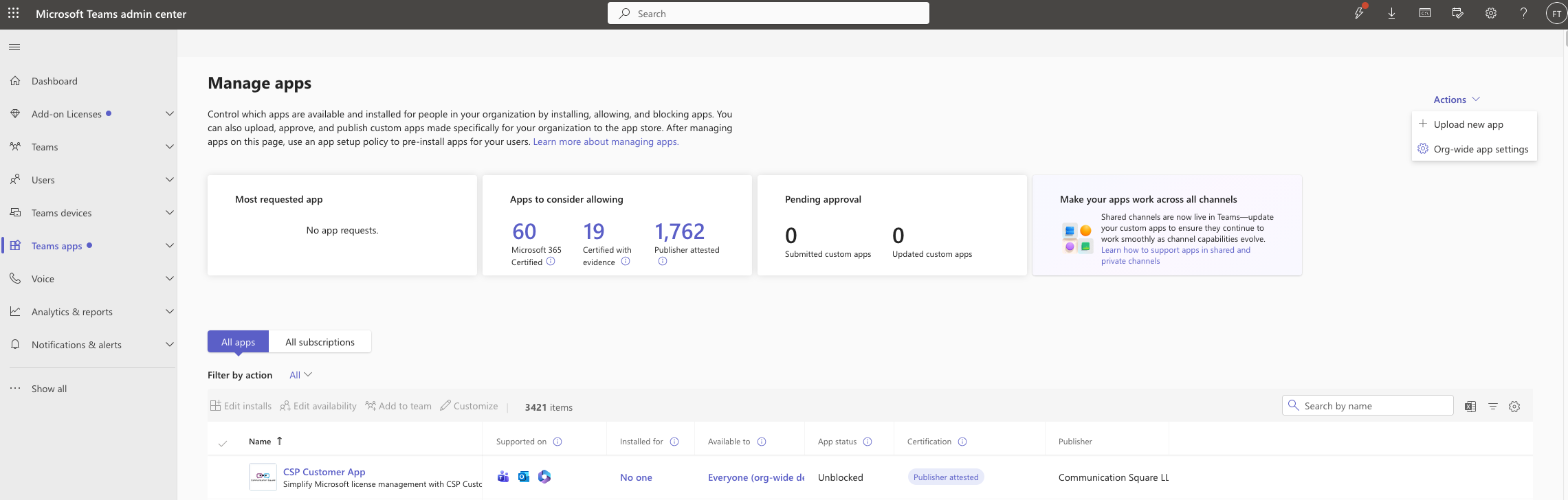
1. Open the **Teams admin centre**.
2. Go to **Teams apps → Manage apps**.
3. Open the **Actions** menu (top right) and choose **Upload new app**.
1. In Teams, go to **Apps** in the left sidebar.
2. Click **Manage your apps** at the bottom.
3. Click **Upload an app**, then **Upload a custom app**.
4. Choose the ClarusWMS app package, then click **Add**.
If **Upload a custom app** is missing or greyed out, your organisation hasn't allowed it. A Teams administrator can enable it under **Teams admin centre → Teams apps → Setup policies → Upload custom apps**, or use the organisation-wide route instead.
A **Teams administrator** does this once, and ClarusWMS becomes available to everyone you choose:
1. Open the **Teams admin centre**.
2. Go to **Teams apps → Manage apps**.
3. Open the **Actions** menu (top right) and choose **Upload new app**.
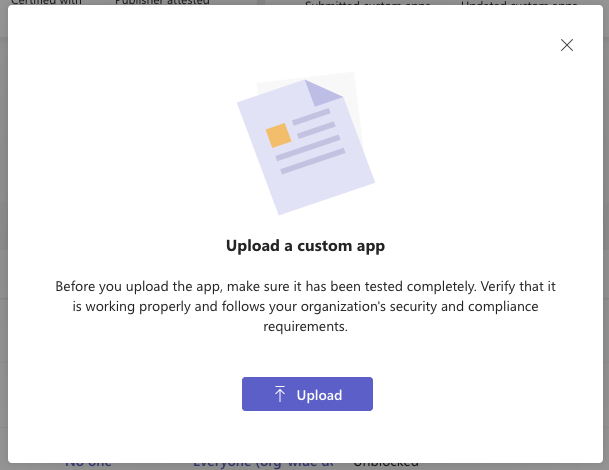
 4. Click **Upload**, choose the ClarusWMS app package, and confirm.
 5. Use **permission policies** and **setup policies** to decide who can use it and who gets it pinned.
Your team can then add ClarusWMS from the Teams app catalogue like any other app.
Add ClarusWMS to whichever of these you need — you can do both:
* **A personal chat**, for one-to-one questions.
* **A team or channel**, so a group can ask it things together. Choose **Add to a team** and pick the channel.
## Stage 2 — Link it to Clarus
As soon as the app is added, the ClarusWMS bot sends you a direct message in Teams with a link to finish setup. That link already knows which Microsoft organisation you're in, so it's much the easiest route.
5. Use **permission policies** and **setup policies** to decide who can use it and who gets it pinned.
Your team can then add ClarusWMS from the Teams app catalogue like any other app.
Add ClarusWMS to whichever of these you need — you can do both:
* **A personal chat**, for one-to-one questions.
* **A team or channel**, so a group can ask it things together. Choose **Add to a team** and pick the channel.
## Stage 2 — Link it to Clarus
As soon as the app is added, the ClarusWMS bot sends you a direct message in Teams with a link to finish setup. That link already knows which Microsoft organisation you're in, so it's much the easiest route.
 Click the link in the bot's message. If you're not already signed in to Clarus, you'll be asked to sign in, and to choose which organisation you're setting up — you'll come straight back to the setup screen afterwards.
The **Microsoft tenant** field is filled in and locked, taken from the link. That's what identifies your Microsoft organisation, and there's nothing to change.
Click the link in the bot's message. If you're not already signed in to Clarus, you'll be asked to sign in, and to choose which organisation you're setting up — you'll come straight back to the setup screen afterwards.
The **Microsoft tenant** field is filled in and locked, taken from the link. That's what identifies your Microsoft organisation, and there's nothing to change.
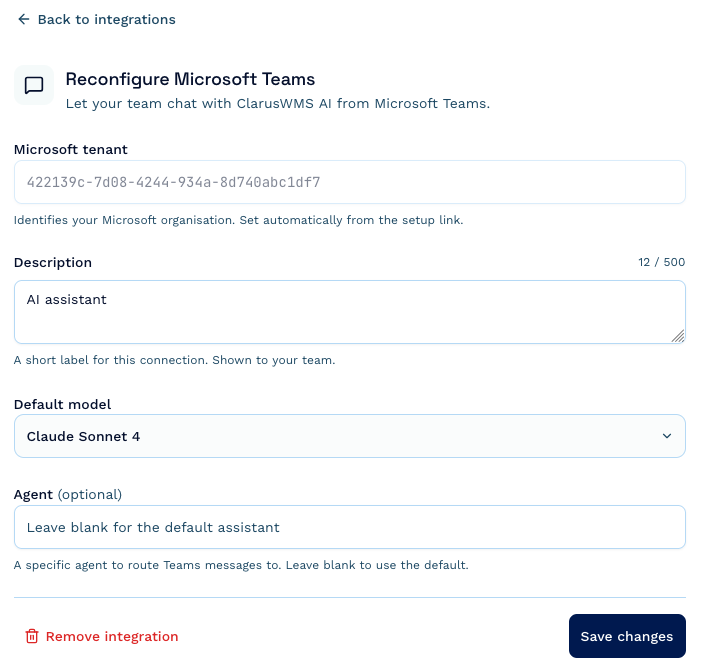 * **Description** — required. A short label such as `Acme Logistics warehouse assistant`.
* **Default model** — leave as **Sonnet** unless you have a reason to change it.
* **Agent** — optional. Leave blank to use the default assistant.
Click **Connect Teams**. Your team can now message the assistant from Teams.
### If you don't have the bot's message
Someone other than you may have added the app. You can finish setup from the AI app instead:
1. Go to **Settings → Integrations** and, on the Microsoft Teams card, click **Already added it? Finish setup**.
2. Enter your **Microsoft tenant** — your Microsoft organisation's ID. It's in the ClarusWMS bot's welcome message, or your Microsoft admin centre. It looks like either `contoso.onmicrosoft.com` or a long ID made of letters, numbers, and hyphens.
3. Fill in the description and model as above, then click **Connect Teams**.
## Using it in Teams
**In a personal chat**, every message you send goes to the assistant, and the chat stays one continuous conversation:
> **You:** which goods out orders for Acme are still unpicked?
**In a channel or group chat**, the assistant only responds when you **@mention** it, so it stays quiet during normal team chat:
> `@ClarusAI how many pallets of WIDGET-RED-500 are left?`
**Files aren't supported on Teams yet.** Attachments sent in Teams aren't read — ask your question in text, or use [Slack](/knowledgebase/ai-assistant/connect-slack) or [WhatsApp](/knowledgebase/ai-assistant/connect-whatsapp) where you need to send a document or photo.
**Notifications.** Clarus can post alerts into a Teams conversation, but only one it has already been part of. Message the bot — or @mention it in the channel — once, and it can post there from then on.
Long answers arrive as more than one message.
Anyone in your Microsoft organisation who can message or @mention the bot gets your organisation's full assistant access — it isn't limited to any one person's Clarus permissions, and it can change data as well as read it. Use Teams permission policies to control who can add ClarusWMS, and think about which channels you add it to.
## Change your settings
On the Microsoft Teams card in **Settings → Integrations**, click **Reconfigure** to change the description, default model, or agent.
## Remove the integration
On the connect screen, click **Remove integration** and confirm. Your team can no longer message the assistant from Teams, and you can reconnect later.
The ClarusWMS app itself stays installed in your Microsoft organisation — to take it out of Teams entirely, remove it in Teams or the Teams admin centre as well.
## Troubleshooting
Stage 1 is done but Stage 2 isn't — the app is in Teams but hasn't been linked to your Clarus account. A Clarus administrator needs to complete the link, either from the bot's setup link or via **Settings → Integrations → Already added it? Finish setup**.
The app package has been altered — most often unzipped and re-zipped, which nests the files inside a folder. Use the original package exactly as supplied, without opening or re-compressing it. If it still fails with an untouched package, contact Clarus support.
Your organisation hasn't allowed custom app upload. A Teams administrator can enable it under **Teams admin centre → Teams apps → Setup policies → Upload custom apps**, or add ClarusWMS organisation-wide via **Teams apps → Manage apps → Upload new app**.
A Microsoft organisation can be connected to one Clarus account at a time. Someone has already linked it to a different Clarus account and needs to remove that connection before you can create yours.
In channels and group chats the assistant only replies when it's **@mentioned** — this is deliberate, so it doesn't read everything your team says. Start your message with `@ClarusAI`. Personal chats always work without a mention.
Clarus can only post into a Teams conversation it has already been part of. @mention the bot in that channel once, then alerts can be delivered there.
It identifies your Microsoft organisation. The quickest source is the ClarusWMS bot's welcome message in Teams, which contains a setup link with it already included. Otherwise a Microsoft administrator can find it in the Microsoft Entra admin centre — it's shown as either your `onmicrosoft.com` domain or a long ID made of letters, numbers, and hyphens.
* **Description** — required. A short label such as `Acme Logistics warehouse assistant`.
* **Default model** — leave as **Sonnet** unless you have a reason to change it.
* **Agent** — optional. Leave blank to use the default assistant.
Click **Connect Teams**. Your team can now message the assistant from Teams.
### If you don't have the bot's message
Someone other than you may have added the app. You can finish setup from the AI app instead:
1. Go to **Settings → Integrations** and, on the Microsoft Teams card, click **Already added it? Finish setup**.
2. Enter your **Microsoft tenant** — your Microsoft organisation's ID. It's in the ClarusWMS bot's welcome message, or your Microsoft admin centre. It looks like either `contoso.onmicrosoft.com` or a long ID made of letters, numbers, and hyphens.
3. Fill in the description and model as above, then click **Connect Teams**.
## Using it in Teams
**In a personal chat**, every message you send goes to the assistant, and the chat stays one continuous conversation:
> **You:** which goods out orders for Acme are still unpicked?
**In a channel or group chat**, the assistant only responds when you **@mention** it, so it stays quiet during normal team chat:
> `@ClarusAI how many pallets of WIDGET-RED-500 are left?`
**Files aren't supported on Teams yet.** Attachments sent in Teams aren't read — ask your question in text, or use [Slack](/knowledgebase/ai-assistant/connect-slack) or [WhatsApp](/knowledgebase/ai-assistant/connect-whatsapp) where you need to send a document or photo.
**Notifications.** Clarus can post alerts into a Teams conversation, but only one it has already been part of. Message the bot — or @mention it in the channel — once, and it can post there from then on.
Long answers arrive as more than one message.
Anyone in your Microsoft organisation who can message or @mention the bot gets your organisation's full assistant access — it isn't limited to any one person's Clarus permissions, and it can change data as well as read it. Use Teams permission policies to control who can add ClarusWMS, and think about which channels you add it to.
## Change your settings
On the Microsoft Teams card in **Settings → Integrations**, click **Reconfigure** to change the description, default model, or agent.
## Remove the integration
On the connect screen, click **Remove integration** and confirm. Your team can no longer message the assistant from Teams, and you can reconnect later.
The ClarusWMS app itself stays installed in your Microsoft organisation — to take it out of Teams entirely, remove it in Teams or the Teams admin centre as well.
## Troubleshooting
Stage 1 is done but Stage 2 isn't — the app is in Teams but hasn't been linked to your Clarus account. A Clarus administrator needs to complete the link, either from the bot's setup link or via **Settings → Integrations → Already added it? Finish setup**.
The app package has been altered — most often unzipped and re-zipped, which nests the files inside a folder. Use the original package exactly as supplied, without opening or re-compressing it. If it still fails with an untouched package, contact Clarus support.
Your organisation hasn't allowed custom app upload. A Teams administrator can enable it under **Teams admin centre → Teams apps → Setup policies → Upload custom apps**, or add ClarusWMS organisation-wide via **Teams apps → Manage apps → Upload new app**.
A Microsoft organisation can be connected to one Clarus account at a time. Someone has already linked it to a different Clarus account and needs to remove that connection before you can create yours.
In channels and group chats the assistant only replies when it's **@mentioned** — this is deliberate, so it doesn't read everything your team says. Start your message with `@ClarusAI`. Personal chats always work without a mention.
Clarus can only post into a Teams conversation it has already been part of. @mention the bot in that channel once, then alerts can be delivered there.
It identifies your Microsoft organisation. The quickest source is the ClarusWMS bot's welcome message in Teams, which contains a setup link with it already included. Otherwise a Microsoft administrator can find it in the Microsoft Entra admin centre — it's shown as either your `onmicrosoft.com` domain or a long ID made of letters, numbers, and hyphens.