

Commercial Invoices and International Shipping
The commercial invoice and international shipping features give you greater control and visibility over your shipments, including automated customs documentation.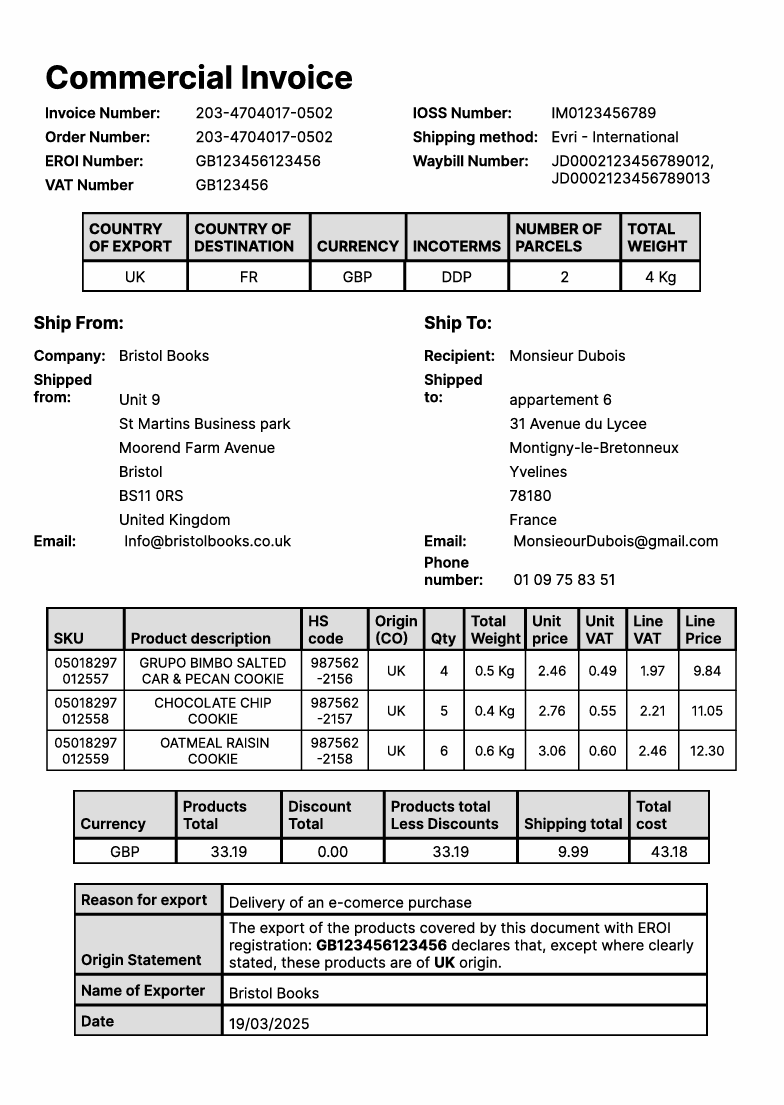
Getting Started
1
Configure account customs information
Navigate to Settings > Accounts and select the account you want to configure. Scroll down to the Customs Information tab.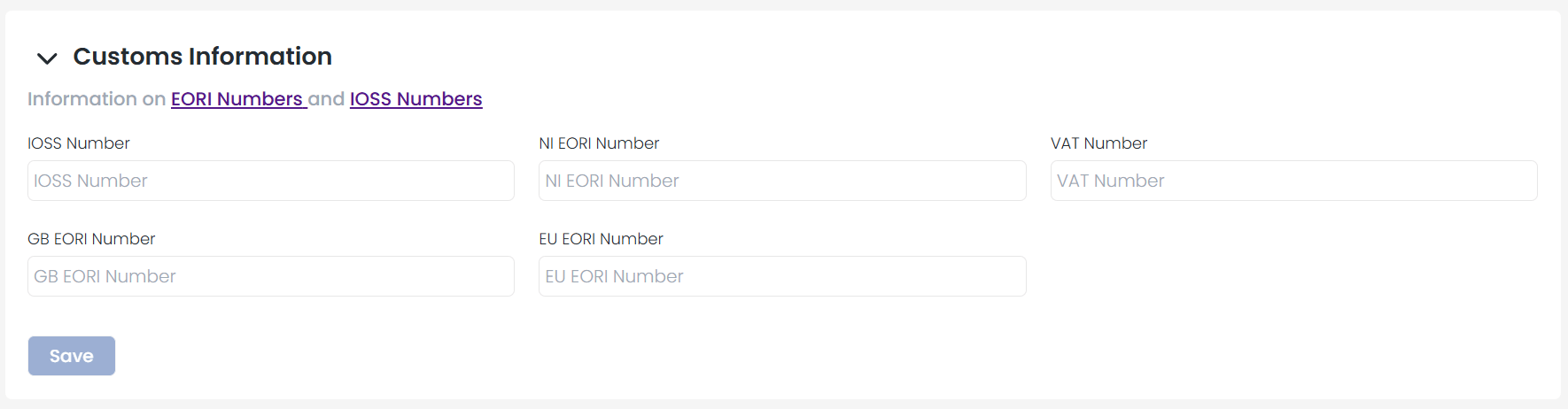
2
Enter product customs details
Open the individual Product record and go to the Customs section. Fill in the following required fields: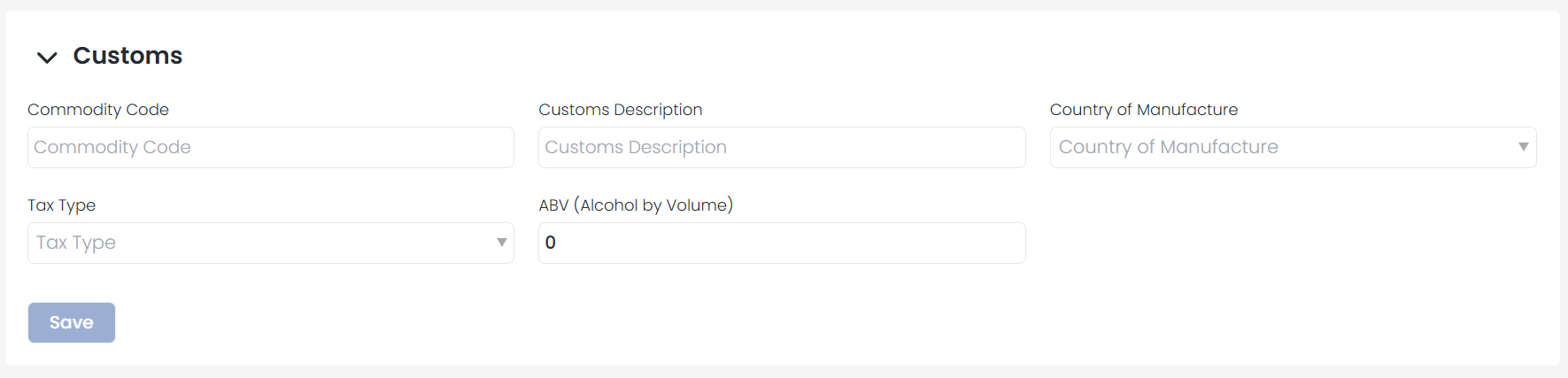
- Country of Manufacture — The country where the product was made.
- Commodity Code — The tariff classification for the product. This code will appear as the HS Code on your commercial invoice.
Entering this information ensures that all necessary customs data is included automatically when generating commercial invoices.
Understanding EORI and IOSS Numbers
Both EORI and IOSS numbers start with a two-character prefix identifying the country or region. This information is automatically added to commercial invoices when applicable.- GB EORI Number — Used when shipping from a UK-based warehouse. Begins with “GB.”
- NI EORI Number — Used when shipping from a Northern Ireland warehouse. Begins with “XI.”
- EU EORI Number — Used for shipments from European warehouses. The prefix varies by country (e.g., “FR” for France).
- IOSS Number — Begins with “IM” and is displayed only when the total product value is below EUR 150. This is why adding the value to products is mandatory for commercial invoices and international shipping.
Using the Feature in Shipments
Once your details are configured, go to the Shipments menu. You will see a new Commercial Invoice column on the far right for any newly created shipments. Click it to download the commercial invoice.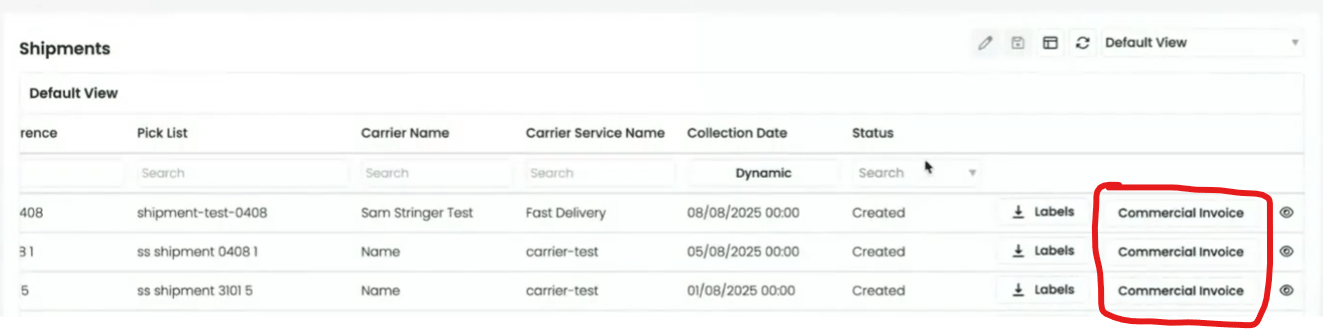
If a shipment has already been completed, the Commercial Invoice column will remain visible but will no longer be interactive.
International Shipments
International shipments follow the same process as standard shipments, but a few mandatory details must be configured beforehand.Product Configuration
Before you can ship products internationally, ensure each product includes: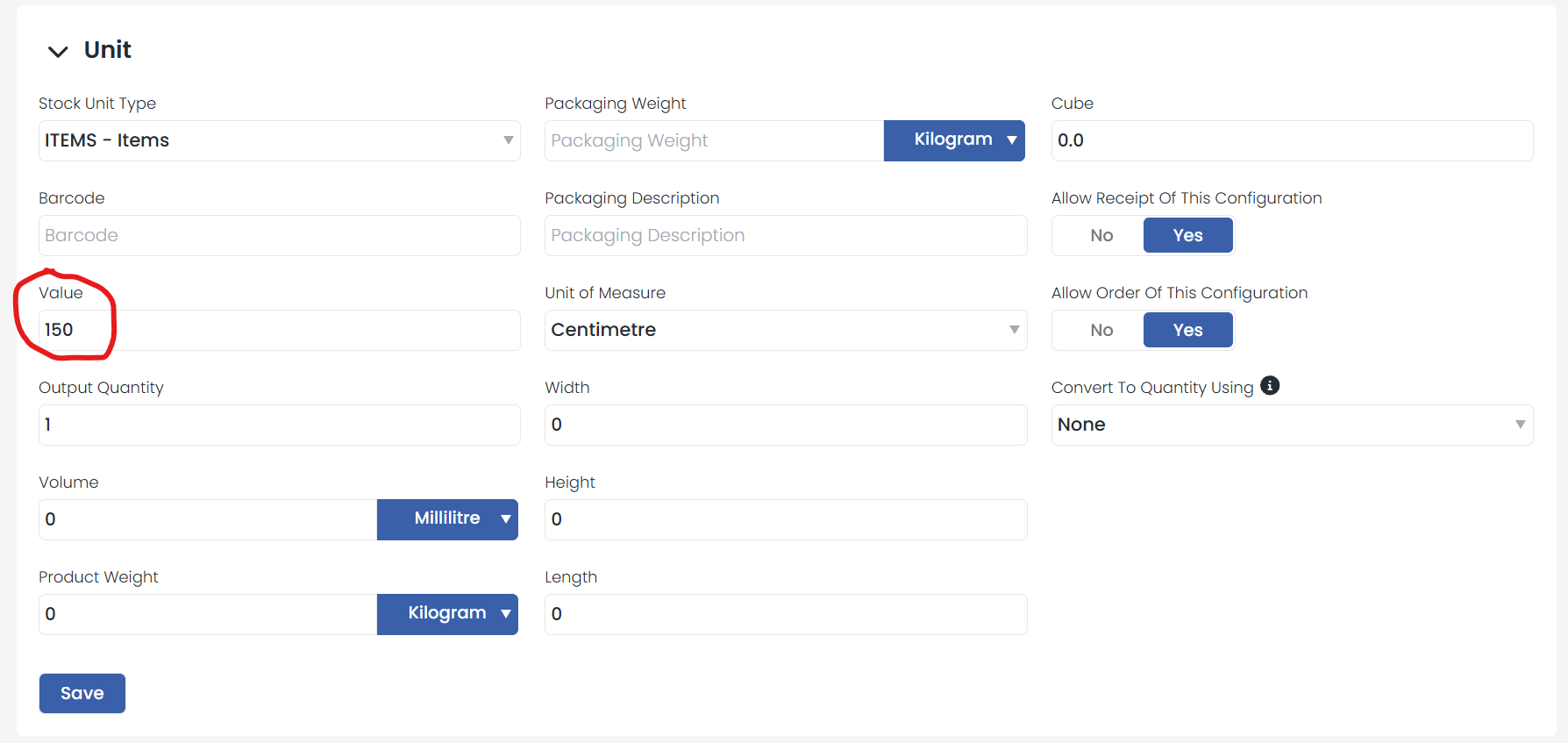
- Value: Added under the relevant product configuration tab (e.g., Unit, Case).
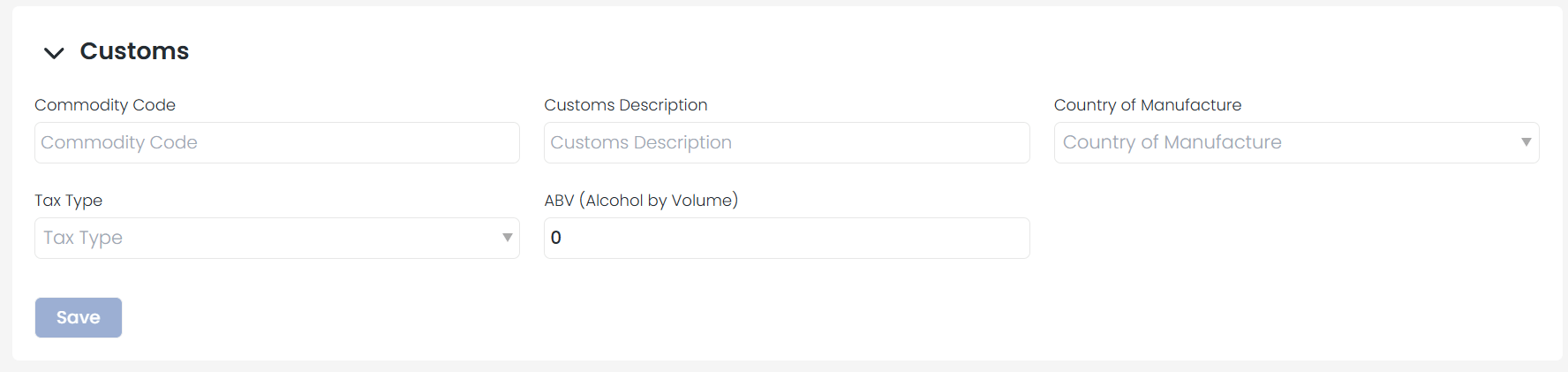
- Customs Details: Under the Customs tab, complete these fields:
- Commodity Code
- Customs Description
- Country of Manufacture
Warehouse Setup
Make sure a country is selected in your warehouse settings. The system automatically uses the correct EORI number based on the warehouse’s assigned country.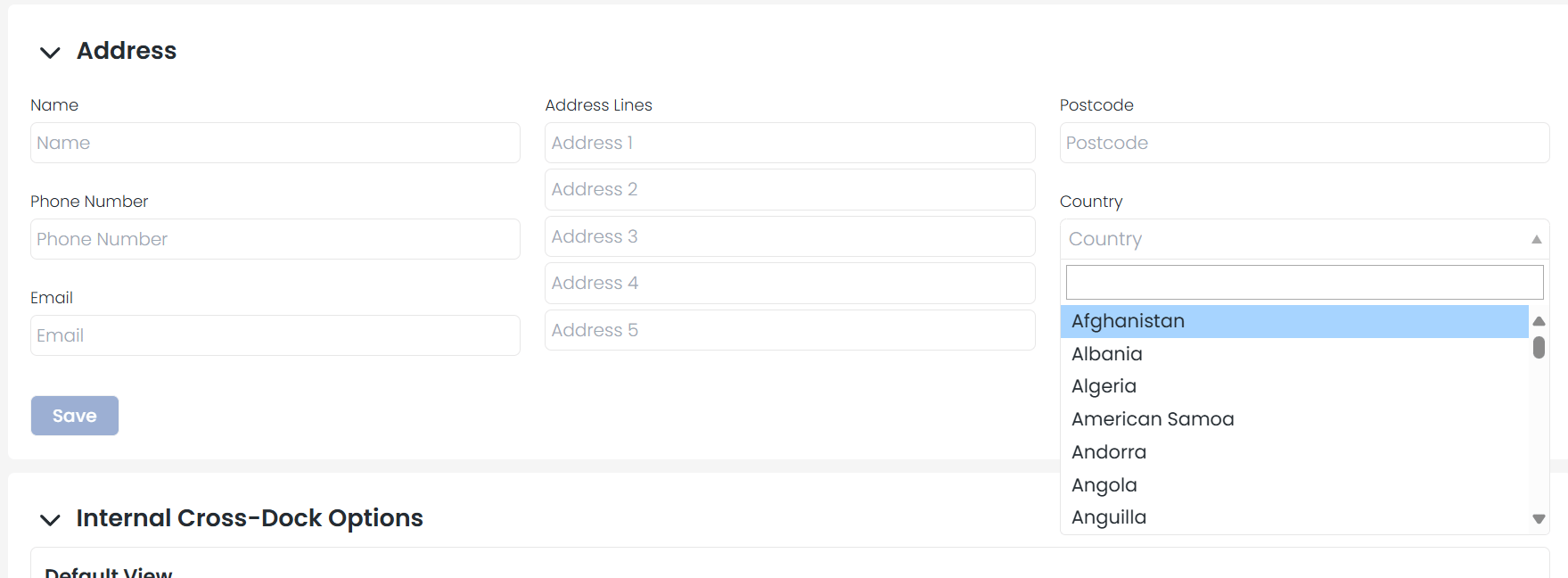
Completing the Shipment
Once your products and warehouse are properly configured, you can:- Select your carrier and carrier service for international shipping.
- Proceed to complete your shipments as usual.