> ## Documentation Index
> Fetch the complete documentation index at: https://documentation.claruswms.com/llms.txt
> Use this file to discover all available pages before exploring further.
# Commercial Invoices and International Shipping
> Set up commercial invoices and configure international shipping with EORI numbers, IOSS numbers, and customs information.
## Commercial Invoices and International Shipping
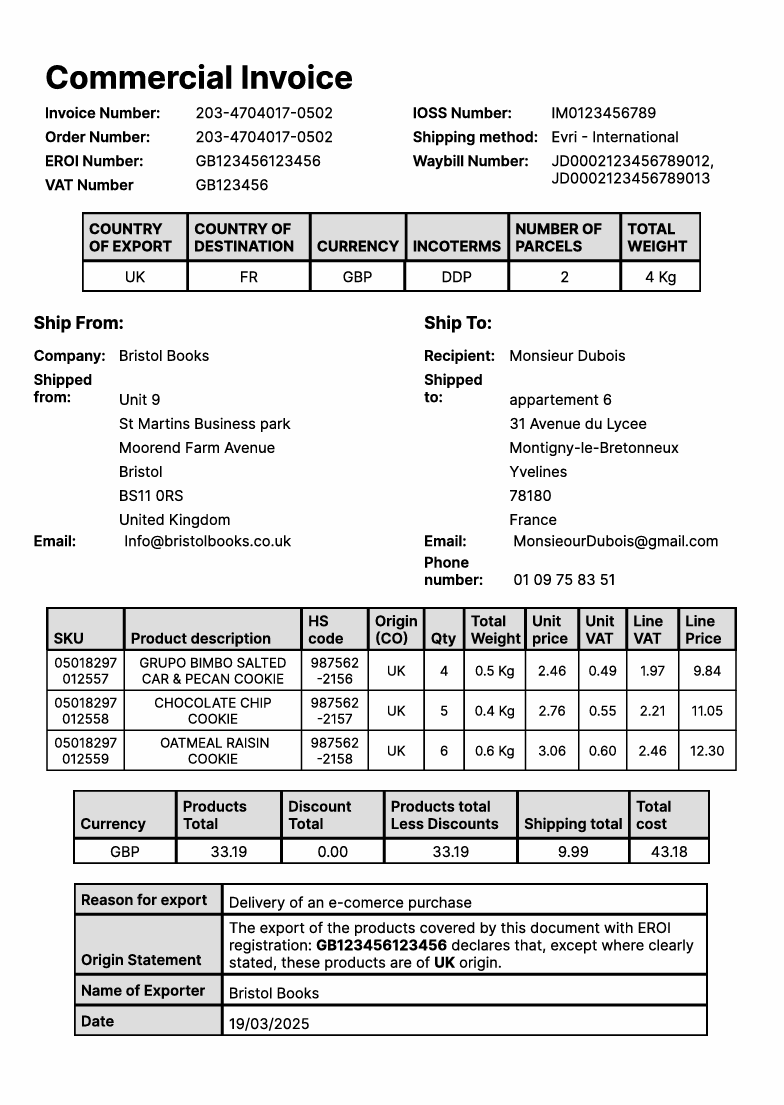
The commercial invoice and international shipping features give you greater control and visibility over your shipments, including automated customs documentation.
 ### Getting Started
Navigate to **Settings** > **Accounts** and select the account you want to configure. Scroll down to the **Customs Information** tab.
### Getting Started
Navigate to **Settings** > **Accounts** and select the account you want to configure. Scroll down to the **Customs Information** tab.
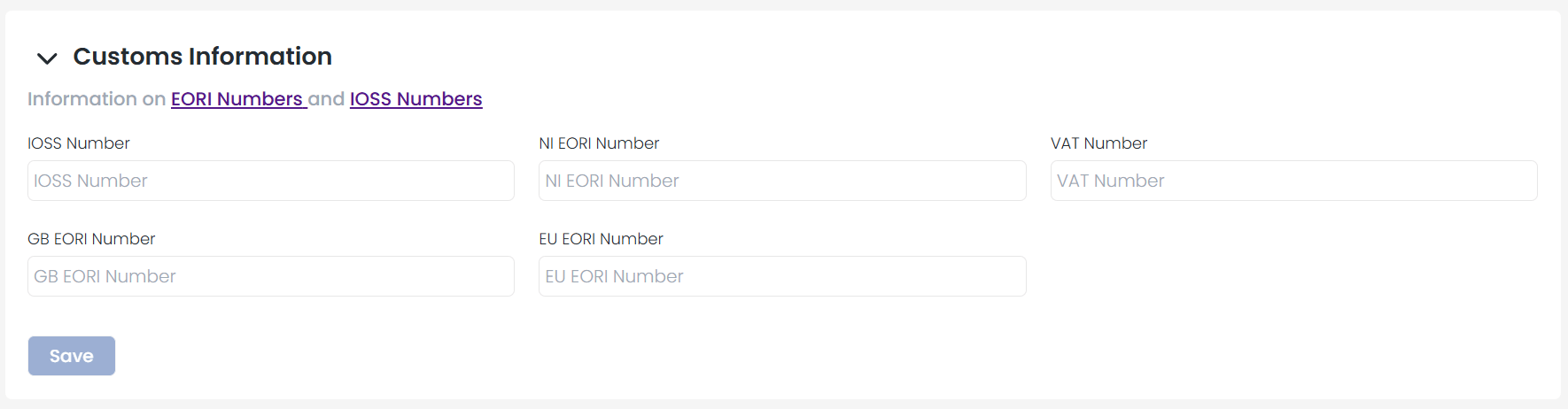 You will find fields for entering your **EORI Numbers** and **IOSS Numbers**. Each includes a hyperlink with additional information about what these numbers are and how they are used.
Open the individual **Product** record and go to the **Customs** section. Fill in the following required fields:
You will find fields for entering your **EORI Numbers** and **IOSS Numbers**. Each includes a hyperlink with additional information about what these numbers are and how they are used.
Open the individual **Product** record and go to the **Customs** section. Fill in the following required fields:
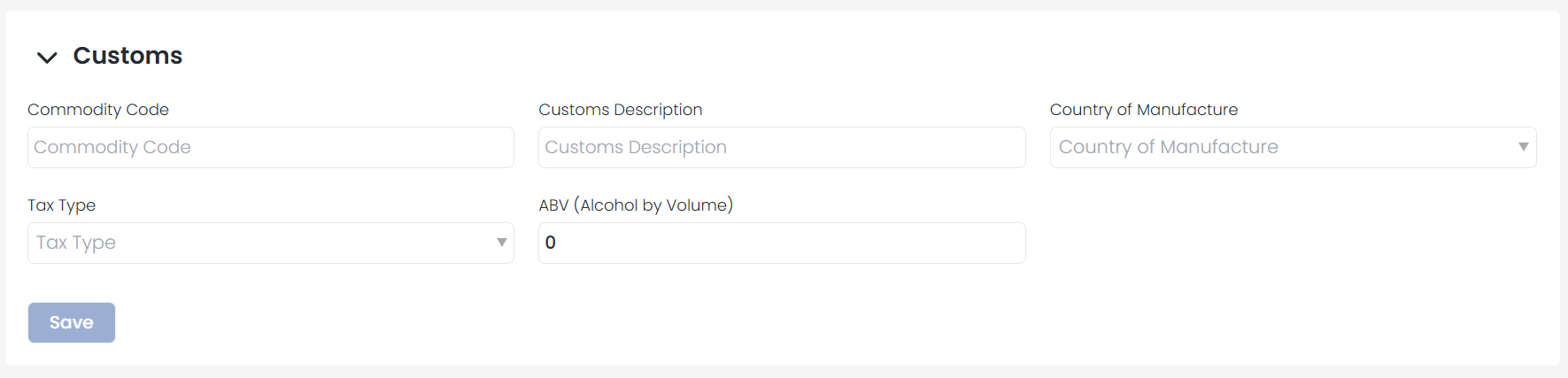 * **Country of Manufacture** -- The country where the product was made.
* **Commodity Code** -- The tariff classification for the product. This code will appear as the **HS Code** on your commercial invoice.
Entering this information ensures that all necessary customs data is included automatically when generating commercial invoices.
### Understanding EORI and IOSS Numbers
Both EORI and IOSS numbers start with a two-character prefix identifying the country or region. This information is automatically added to commercial invoices when applicable.
* **GB EORI Number** -- Used when shipping from a UK-based warehouse. Begins with "GB."
* **NI EORI Number** -- Used when shipping from a Northern Ireland warehouse. Begins with "XI."
* **EU EORI Number** -- Used for shipments from European warehouses. The prefix varies by country (e.g., "FR" for France).
* **IOSS Number** -- Begins with "IM" and is displayed only when the total product value is **below EUR 150**. This is why adding the value to products is mandatory for commercial invoices and international shipping.
### Using the Feature in Shipments
Once your details are configured, go to the **Shipments** menu. You will see a new **Commercial Invoice** column on the far right for any newly created shipments. Click it to download the commercial invoice.
* **Country of Manufacture** -- The country where the product was made.
* **Commodity Code** -- The tariff classification for the product. This code will appear as the **HS Code** on your commercial invoice.
Entering this information ensures that all necessary customs data is included automatically when generating commercial invoices.
### Understanding EORI and IOSS Numbers
Both EORI and IOSS numbers start with a two-character prefix identifying the country or region. This information is automatically added to commercial invoices when applicable.
* **GB EORI Number** -- Used when shipping from a UK-based warehouse. Begins with "GB."
* **NI EORI Number** -- Used when shipping from a Northern Ireland warehouse. Begins with "XI."
* **EU EORI Number** -- Used for shipments from European warehouses. The prefix varies by country (e.g., "FR" for France).
* **IOSS Number** -- Begins with "IM" and is displayed only when the total product value is **below EUR 150**. This is why adding the value to products is mandatory for commercial invoices and international shipping.
### Using the Feature in Shipments
Once your details are configured, go to the **Shipments** menu. You will see a new **Commercial Invoice** column on the far right for any newly created shipments. Click it to download the commercial invoice.
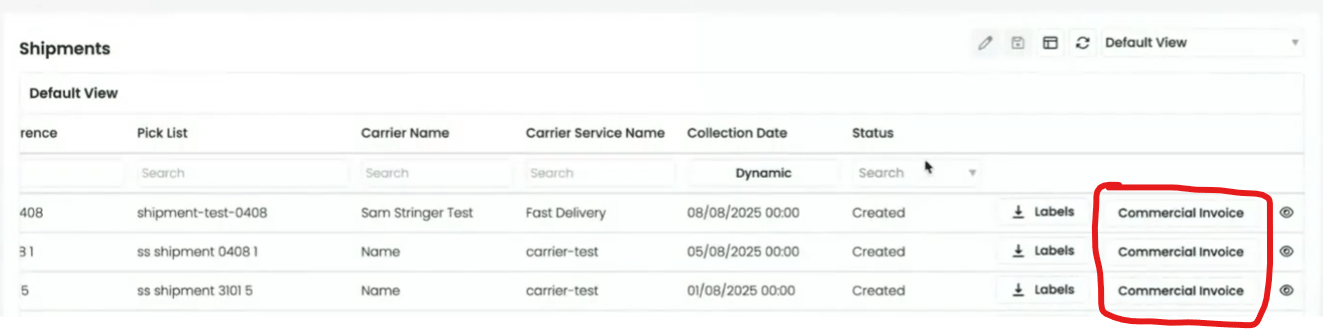 If a shipment has already been completed, the **Commercial Invoice** column will remain visible but will no longer be interactive.
## International Shipments
International shipments follow the same process as standard shipments, but a few mandatory details must be configured beforehand.
### Product Configuration
Before you can ship products internationally, ensure each product includes:
If a shipment has already been completed, the **Commercial Invoice** column will remain visible but will no longer be interactive.
## International Shipments
International shipments follow the same process as standard shipments, but a few mandatory details must be configured beforehand.
### Product Configuration
Before you can ship products internationally, ensure each product includes:
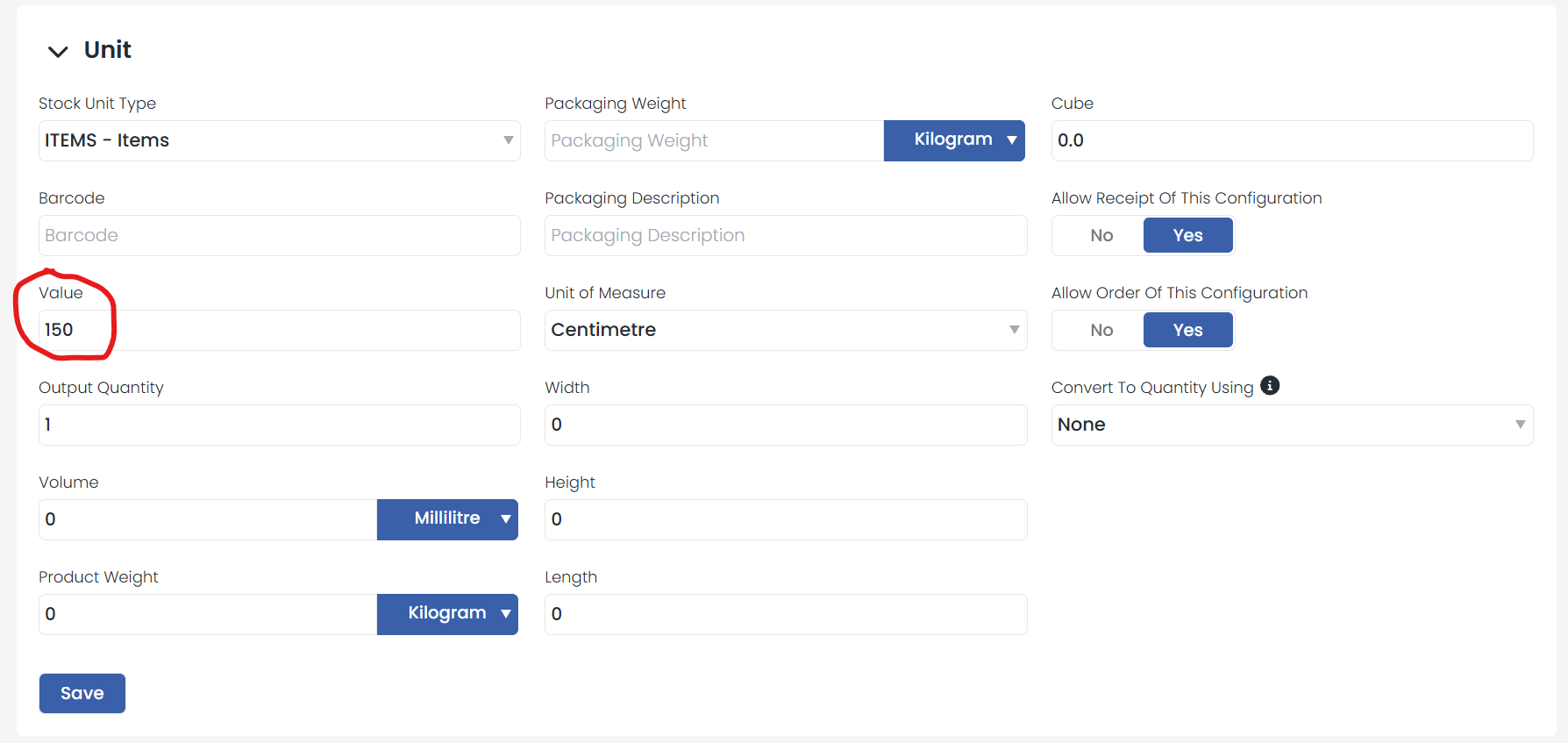 * **Value**: Added under the relevant product configuration tab (e.g., Unit, Case).
* **Customs Details**: Under the **Customs** tab, complete these fields:
* Commodity Code
* Customs Description
* Country of Manufacture
* **Value**: Added under the relevant product configuration tab (e.g., Unit, Case).
* **Customs Details**: Under the **Customs** tab, complete these fields:
* Commodity Code
* Customs Description
* Country of Manufacture
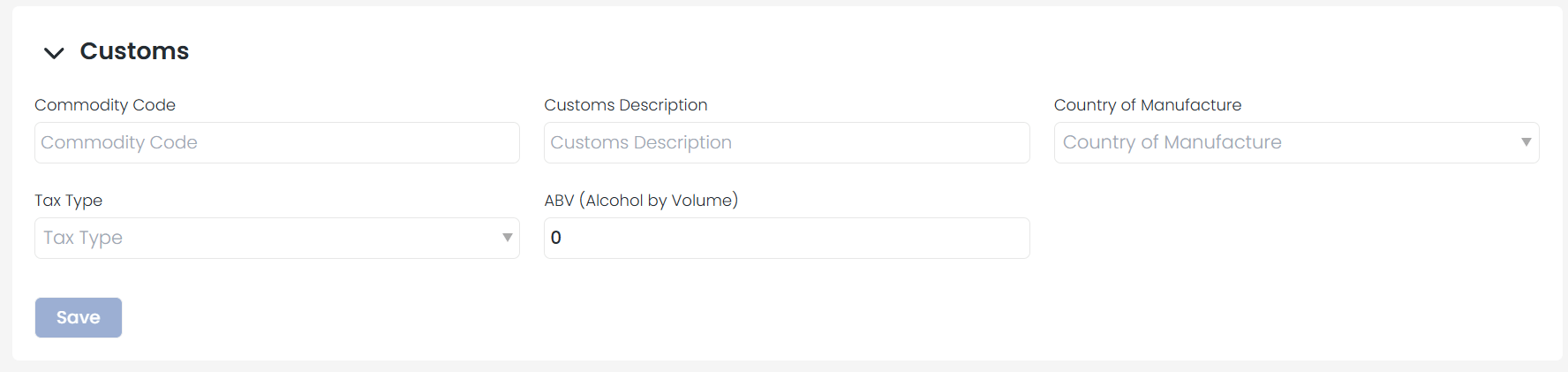 If any of these fields are missing, the product cannot be shipped internationally.
### Warehouse Setup
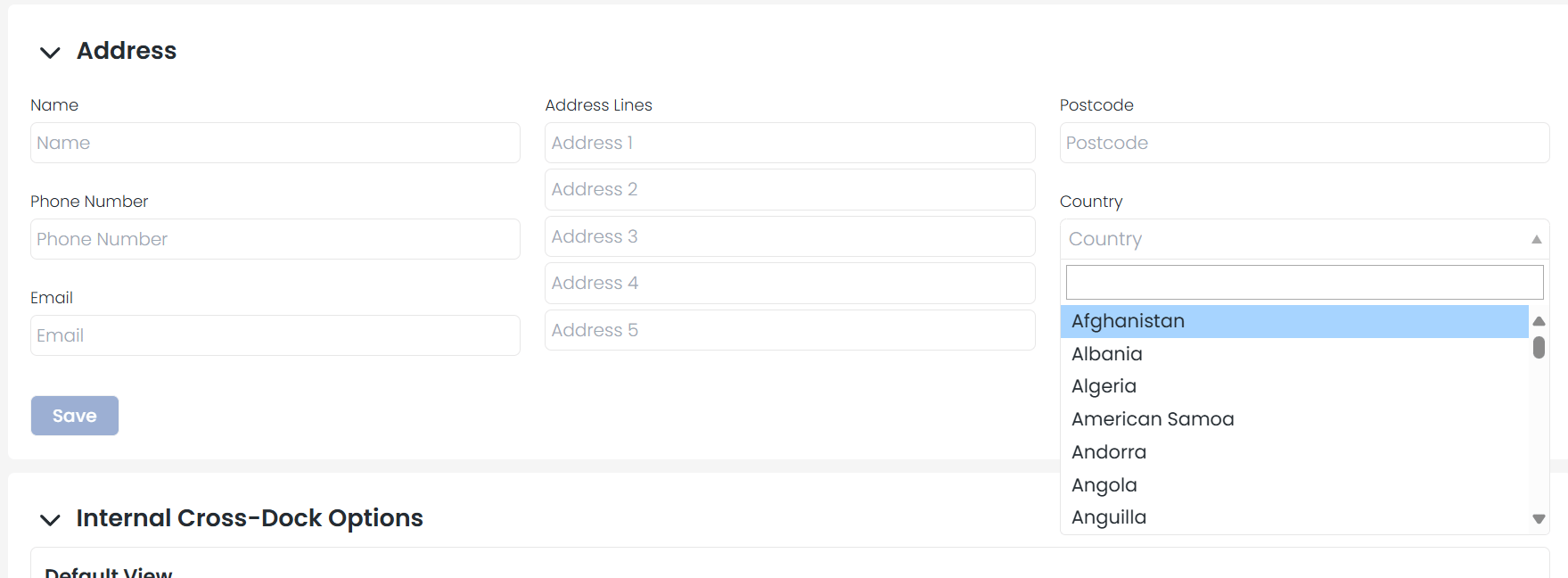
Make sure a **country** is selected in your warehouse settings. The system automatically uses the correct **EORI number** based on the warehouse's assigned country.
If any of these fields are missing, the product cannot be shipped internationally.
### Warehouse Setup
Make sure a **country** is selected in your warehouse settings. The system automatically uses the correct **EORI number** based on the warehouse's assigned country.
 ### Completing the Shipment
Once your products and warehouse are properly configured, you can:
* Select your **carrier** and **carrier service** for international shipping.
* Proceed to complete your shipments as usual.
### Completing the Shipment
Once your products and warehouse are properly configured, you can:
* Select your **carrier** and **carrier service** for international shipping.
* Proceed to complete your shipments as usual.