> ## Documentation Index
> Fetch the complete documentation index at: https://documentation.claruswms.com/llms.txt
> Use this file to discover all available pages before exploring further.
# Granular Billing with Pick Charge Subtypes
> Differentiate pick charges by subtype — full, part, and pickface — so you can automate distinct rates for each type of pick task.
The billing engine supports **pick charge subtypes**, giving you more precision over how warehouse operations are charged. You can apply different rates to full, part, and pickface picks, all automated through your charge cards.
## How it works
The system recognises three distinct pick scenarios:
* **Full**: triggered when the entire contents of a pallet are picked (for example, 10 of 10 items).
* **Part**: applied when only a portion of a pallet's stock is picked (for example, 5 of 10 items).
* **Pickface**: triggered whenever stock is picked from a designated pickface location.
## Applying a subtype
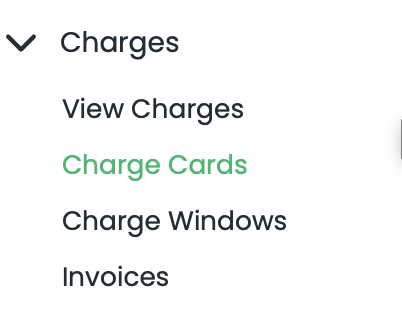
From the left-hand menu, go to **Charges** then **Charge Card**, and select the relevant charge card.
 Scroll down to **Pick Charges** and move to the right to find the new **Subtype** field.
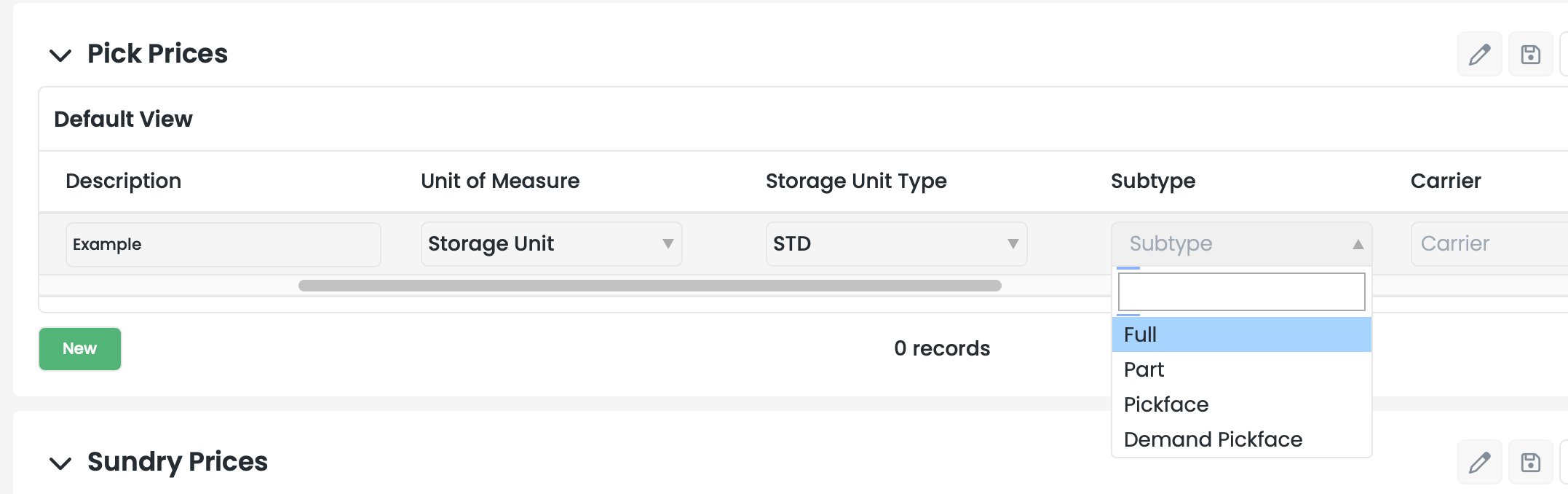 Assign the desired subtype — **Full**, **Part**, or **Pickface** — to your charge line.
## Important considerations
To keep your billing accurate, keep the following in mind:
**Unit of Measure (UoM):** if you set your UoM to **Item**, you lose the ability to charge for full pallet picks separately.
**Rate card alignment:** make sure charges are applied against the correct task type — for example, distinguishing pallet pick rates from case or item pick rates — so they stay aligned with your specific rate cards.
## Related pages
* [Set charges to accounts](/knowledgebase/financial/set-charges-to-accounts)
* [Charge Windows](/knowledgebase/financial/charge-window-and-create-one)
Assign the desired subtype — **Full**, **Part**, or **Pickface** — to your charge line.
## Important considerations
To keep your billing accurate, keep the following in mind:
**Unit of Measure (UoM):** if you set your UoM to **Item**, you lose the ability to charge for full pallet picks separately.
**Rate card alignment:** make sure charges are applied against the correct task type — for example, distinguishing pallet pick rates from case or item pick rates — so they stay aligned with your specific rate cards.
## Related pages
* [Set charges to accounts](/knowledgebase/financial/set-charges-to-accounts)
* [Charge Windows](/knowledgebase/financial/charge-window-and-create-one)