> ## Documentation Index
> Fetch the complete documentation index at: https://documentation.claruswms.com/llms.txt
> Use this file to discover all available pages before exploring further.
# Recurring Charges on Charge Cards
> Configure automated recurring charges — such as minimum pallet agreements or monthly service fees — directly on a charge card so they are billed automatically and flow onto invoices.
Recurring charges let you bill fixed, time-based fees automatically — for example a minimum pallet agreement or a monthly service charge. Once configured on a charge card, these charges are raised on a schedule and flow onto invoices alongside your other charge types, removing manual admin effort and the risk of missed billing.
Unlike operational charges (picking, receipts, rental), recurring charges are not tied to stock movements or balances. They repeat purely on the schedule you define.
## Setting up a recurring charge
You add recurring charges directly from a charge card.
From the left-hand menu, go to **Charges** then **Charge Card**, and select the relevant charge card.
Scroll to the **Recurring Charges** panel and click **Add Line**.
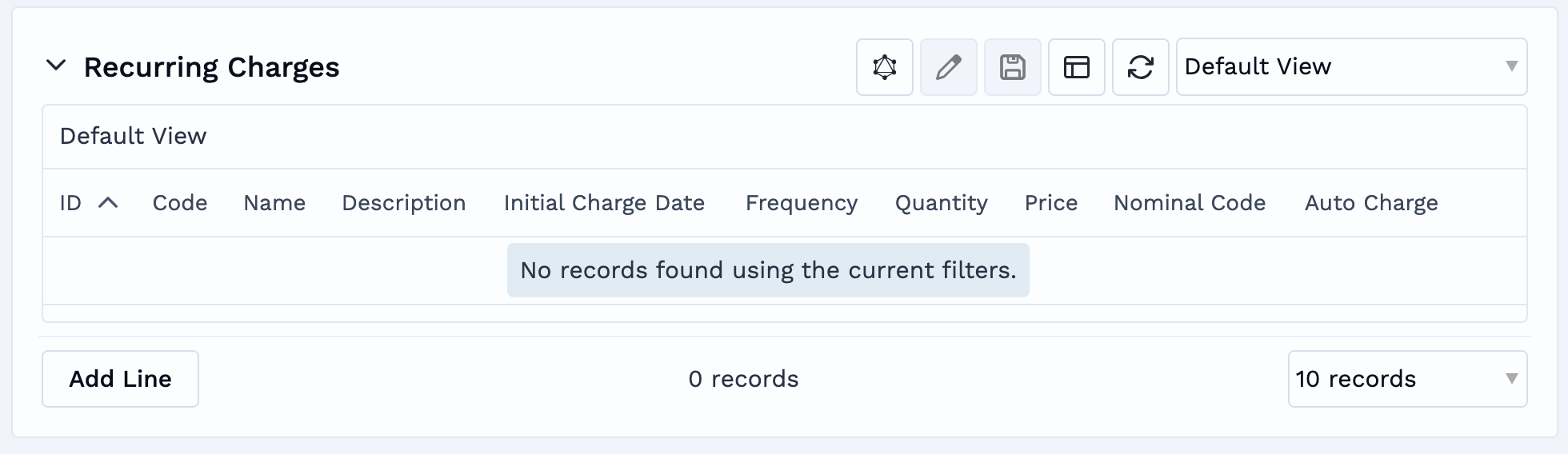 Fill in the fields for the charge (see [Required fields](#required-fields) below), including the **Initial Charge Date** and **Frequency** that define its schedule.
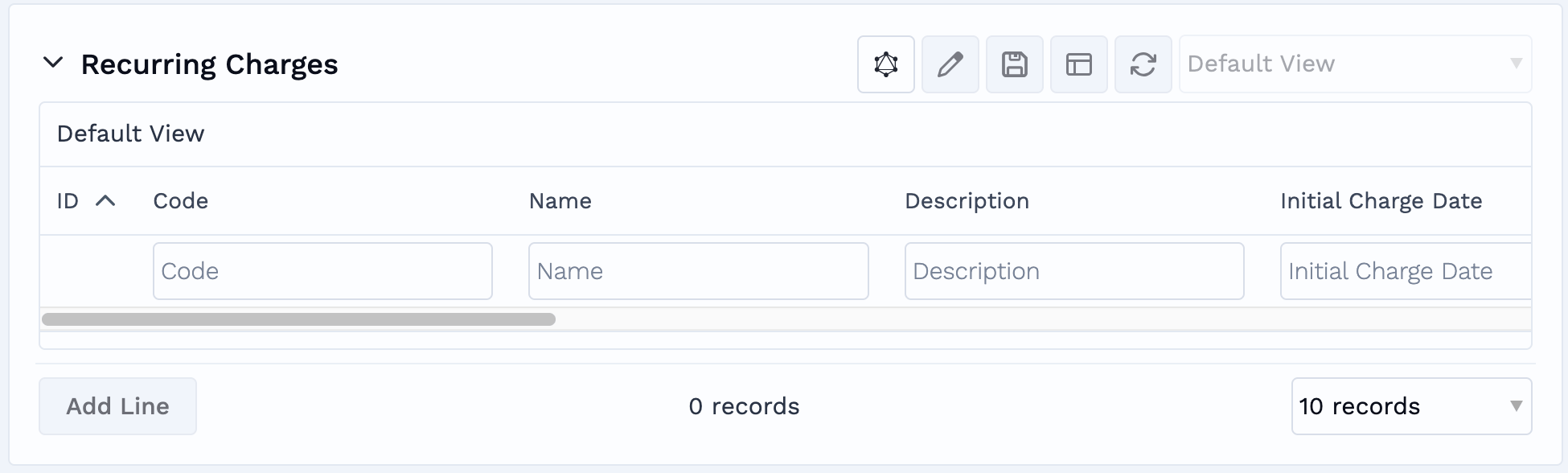 Click **Save** to activate the recurring charge. Charges will start generating automatically from the next scheduled date.
### Required fields
| Field | Description |
| ----------------------------- | -------------------------------------------------------------------------------------------- |
| **Code** & **Name of Charge** | Identifiers for the specific fee. |
| **Description** | Clear text explaining what the charge covers, for internal or customer reference. |
| **Quantity** | Optional. Leave it blank if you prefer — the charge line will then show a quantity of **1**. |
| **Price** | The monetary value of the charge. |
| **Nominal Code** | For financial and accounting routing. |
| **Initial Charge Date** | The start date for the schedule — the first date the charge can be raised. |
| **Frequency** | How often the charge repeats (see below). |
The **Initial Charge Date** should be set in the future. Charges are generated by an overnight process, so setting the date to today will not raise a charge for today.
## Available frequencies
Clarus supports four frequency options, calculating repetitions from your chosen **Initial Charge Date**:
| Frequency | Behaviour |
| ------------------------ | ------------------------------------------------------------------------------------------------------------------------------------ |
| **Daily** | Repeats every day from the initial charge date. |
| **Weekly** | Repeats every week on the same weekday as the initial charge date (e.g. if the initial date is a Tuesday, it repeats every Tuesday). |
| **Monthly** | Repeats on the same calendar day each month. |
| **End of Charge Window** | Generates the charge on the final day of each active [charge window](/knowledgebase/financial/charge-window-and-create-one). |
**Short months and leap years:** if you set a monthly charge for the 29th, 30th, or 31st, Clarus automatically adjusts for shorter months. A charge set for the 31st, for example, will fire on the last day of February.
## How recurring charges appear in charge windows
Once generated, recurring charges behave like any other charge type. They appear on your charge lines, clearly flagged as a **Scheduled Recurring Charge**, and are picked up by the normal invoicing process.
How many times a charge appears depends on how its frequency lines up with the account's [charge window](/knowledgebase/financial/charge-window-and-create-one):
* **Multiple charges in one window:** a recurring charge can appear several times within a single charge window if the frequency allows it. For example, a weekly charge can fall five times inside a monthly charge window.
* **Skipped windows:** if no scheduled recurrence date falls within a particular charge window, no charge is generated for that period. For example, a monthly charge whose date falls outside a short weekly window is simply skipped.
## Controlling how recurring charges appear on invoices
You control how recurring charges are presented on an invoice from the **Charges Appearance on Invoice** panel on the account. Select an option for the recurring charge type:
| Option | Description |
| ------------------ | ------------------------------------------------------------------------------------------------------------------------ |
| **Detailed Lines** | Show every recurring charge line individually. |
| **Summary** | Show a single line with the combined total. |
| **Hidden** | Don't show recurring charges on the invoice at all — use this when the cost is absorbed internally or billed separately. |
See [Set charges to accounts](/knowledgebase/financial/set-charges-to-accounts) for more on invoice appearance settings.
## Frequently asked questions
Any changes or deactivations apply only to **future** scheduled charges. Charges that have already been generated are unaffected.
If a charge card is made inactive or removed from an account, its recurring charges stop generating. Previously generated charge lines and invoice history remain intact.
## Related pages
* [Set charges to accounts](/knowledgebase/financial/set-charges-to-accounts)
* [Charge Windows](/knowledgebase/financial/charge-window-and-create-one)
* [Pick Charge Subtypes](/knowledgebase/financial/pick-charge-subtypes)
Click **Save** to activate the recurring charge. Charges will start generating automatically from the next scheduled date.
### Required fields
| Field | Description |
| ----------------------------- | -------------------------------------------------------------------------------------------- |
| **Code** & **Name of Charge** | Identifiers for the specific fee. |
| **Description** | Clear text explaining what the charge covers, for internal or customer reference. |
| **Quantity** | Optional. Leave it blank if you prefer — the charge line will then show a quantity of **1**. |
| **Price** | The monetary value of the charge. |
| **Nominal Code** | For financial and accounting routing. |
| **Initial Charge Date** | The start date for the schedule — the first date the charge can be raised. |
| **Frequency** | How often the charge repeats (see below). |
The **Initial Charge Date** should be set in the future. Charges are generated by an overnight process, so setting the date to today will not raise a charge for today.
## Available frequencies
Clarus supports four frequency options, calculating repetitions from your chosen **Initial Charge Date**:
| Frequency | Behaviour |
| ------------------------ | ------------------------------------------------------------------------------------------------------------------------------------ |
| **Daily** | Repeats every day from the initial charge date. |
| **Weekly** | Repeats every week on the same weekday as the initial charge date (e.g. if the initial date is a Tuesday, it repeats every Tuesday). |
| **Monthly** | Repeats on the same calendar day each month. |
| **End of Charge Window** | Generates the charge on the final day of each active [charge window](/knowledgebase/financial/charge-window-and-create-one). |
**Short months and leap years:** if you set a monthly charge for the 29th, 30th, or 31st, Clarus automatically adjusts for shorter months. A charge set for the 31st, for example, will fire on the last day of February.
## How recurring charges appear in charge windows
Once generated, recurring charges behave like any other charge type. They appear on your charge lines, clearly flagged as a **Scheduled Recurring Charge**, and are picked up by the normal invoicing process.
How many times a charge appears depends on how its frequency lines up with the account's [charge window](/knowledgebase/financial/charge-window-and-create-one):
* **Multiple charges in one window:** a recurring charge can appear several times within a single charge window if the frequency allows it. For example, a weekly charge can fall five times inside a monthly charge window.
* **Skipped windows:** if no scheduled recurrence date falls within a particular charge window, no charge is generated for that period. For example, a monthly charge whose date falls outside a short weekly window is simply skipped.
## Controlling how recurring charges appear on invoices
You control how recurring charges are presented on an invoice from the **Charges Appearance on Invoice** panel on the account. Select an option for the recurring charge type:
| Option | Description |
| ------------------ | ------------------------------------------------------------------------------------------------------------------------ |
| **Detailed Lines** | Show every recurring charge line individually. |
| **Summary** | Show a single line with the combined total. |
| **Hidden** | Don't show recurring charges on the invoice at all — use this when the cost is absorbed internally or billed separately. |
See [Set charges to accounts](/knowledgebase/financial/set-charges-to-accounts) for more on invoice appearance settings.
## Frequently asked questions
Any changes or deactivations apply only to **future** scheduled charges. Charges that have already been generated are unaffected.
If a charge card is made inactive or removed from an account, its recurring charges stop generating. Previously generated charge lines and invoice history remain intact.
## Related pages
* [Set charges to accounts](/knowledgebase/financial/set-charges-to-accounts)
* [Charge Windows](/knowledgebase/financial/charge-window-and-create-one)
* [Pick Charge Subtypes](/knowledgebase/financial/pick-charge-subtypes)