Image capture overview
You can take photos on your HHD and attach them directly to tasks in Goods In or Goods Out workflows. This makes it easy to record visual evidence during warehouse operations.Using image capture in your workflow
Once the flow is set up, you can use image capture in both Goods In and Goods Out. For example, in the “Receive by Storage Unit” flow:1
Scan the storage unit reference
Scan the storage unit reference for the pallet you are receiving.
2
Select Capture Image
The system takes you to a screen with a Capture Image button. Select it to begin.
3
Take a photo
The HHD’s camera activates, allowing you to take a photo. You will then see the task ID screen, with options for Back, Next, or Capture Image.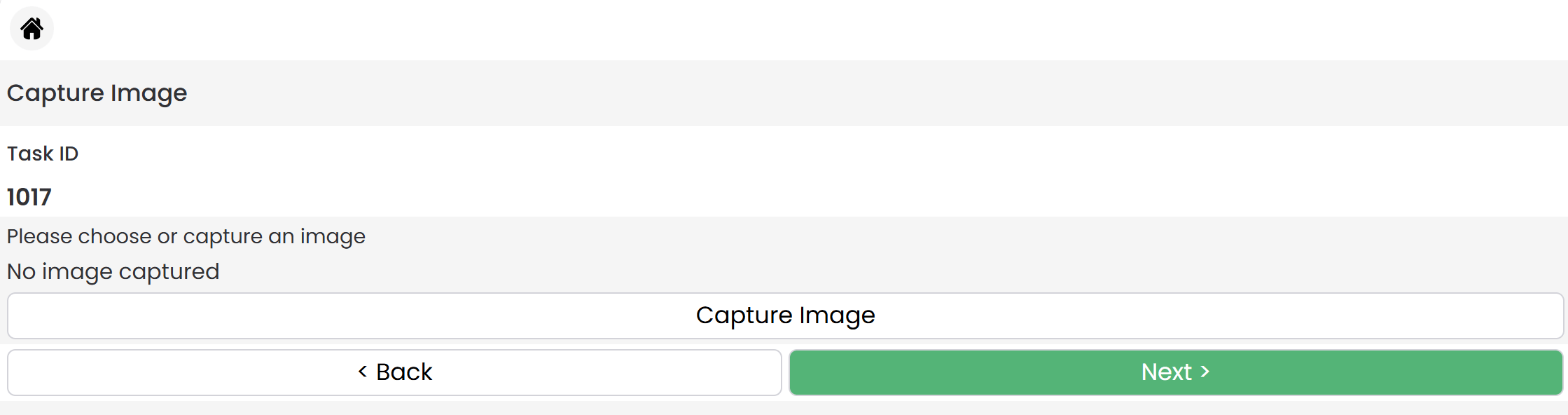
4
Review and confirm
After taking a photo, you have three options: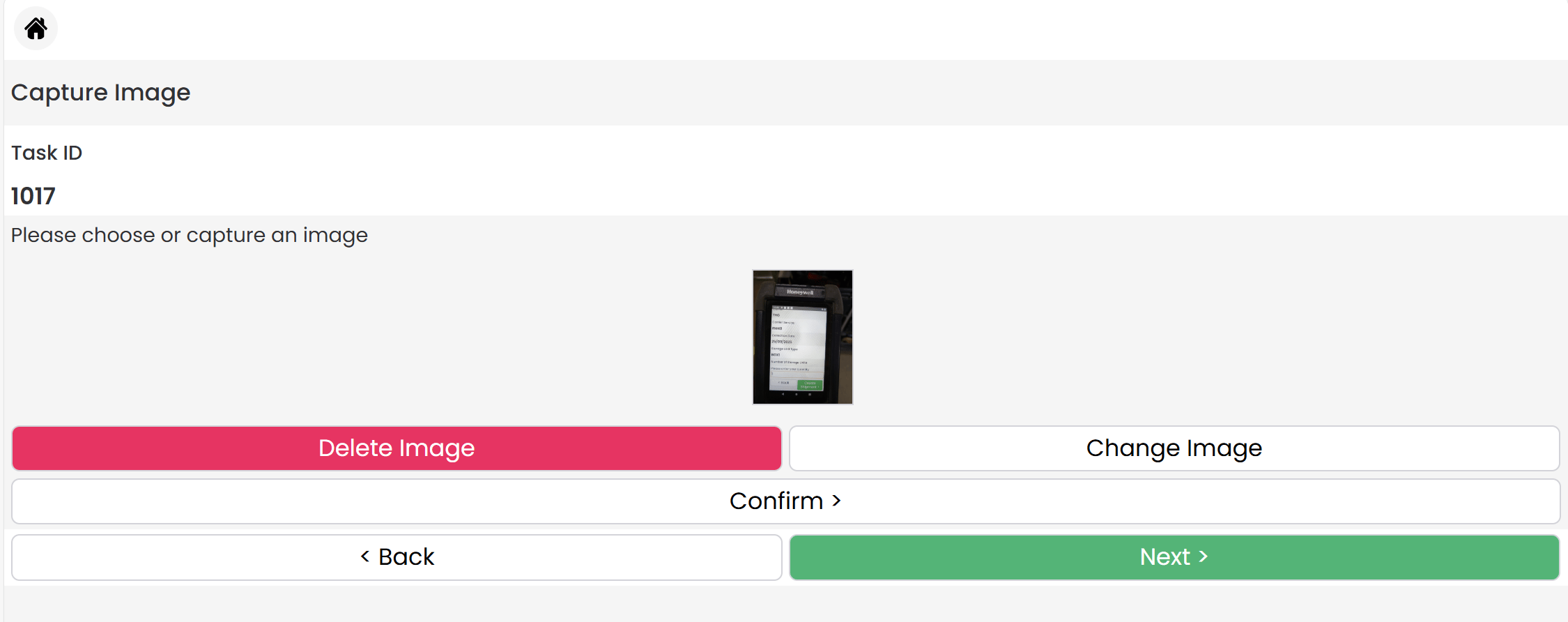
- Delete the image
- Retake the image
- Confirm the image
5
Add more photos (optional)
If you need additional photos for the same task, select Take Another Photo. You can attach up to 10 images per task ID.When you are finished, press Next to continue to the following task. The process repeats for each new task.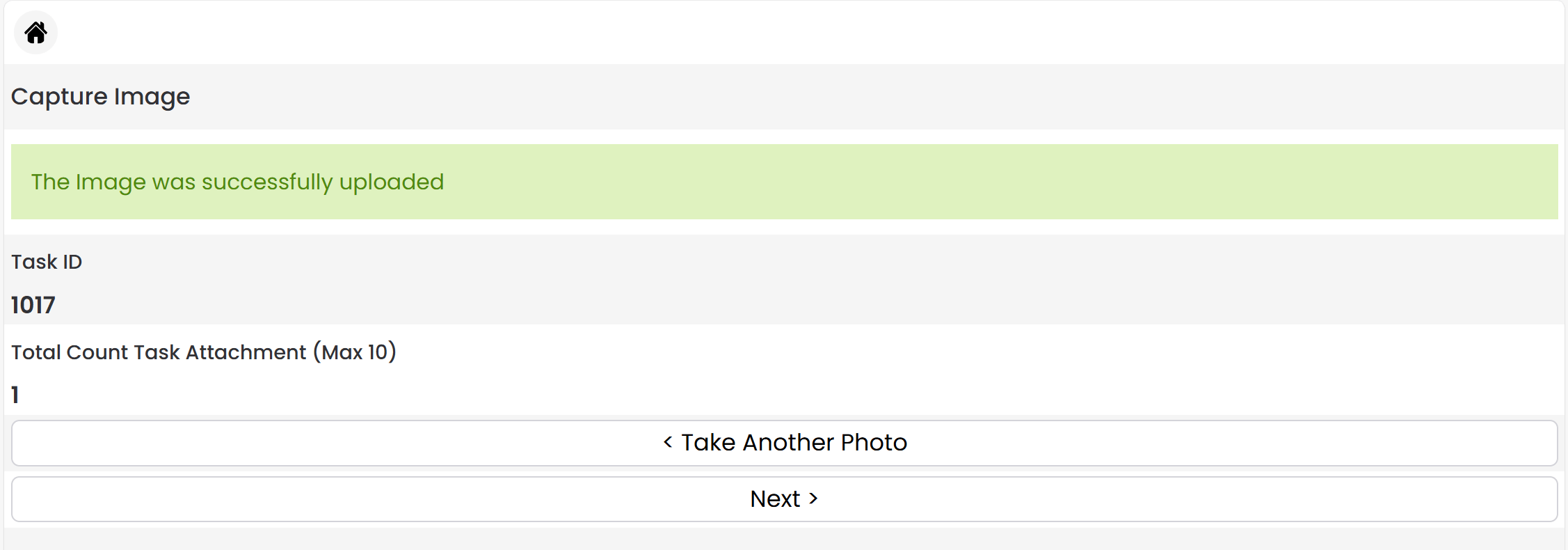
Viewing attached images
To review images from the desktop app:- Navigate to Goods In > Receipts.
- Locate the receipt you processed on the HHD.
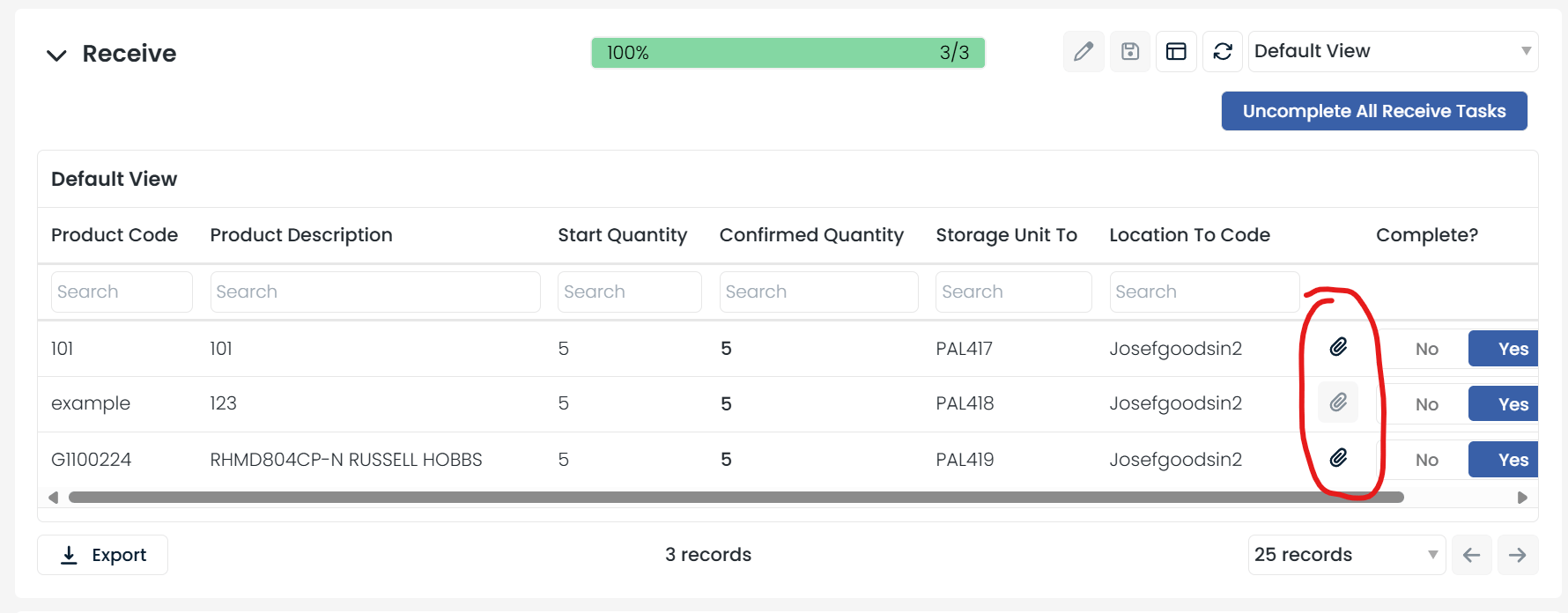
- On each receipt line, you will see a paperclip icon.
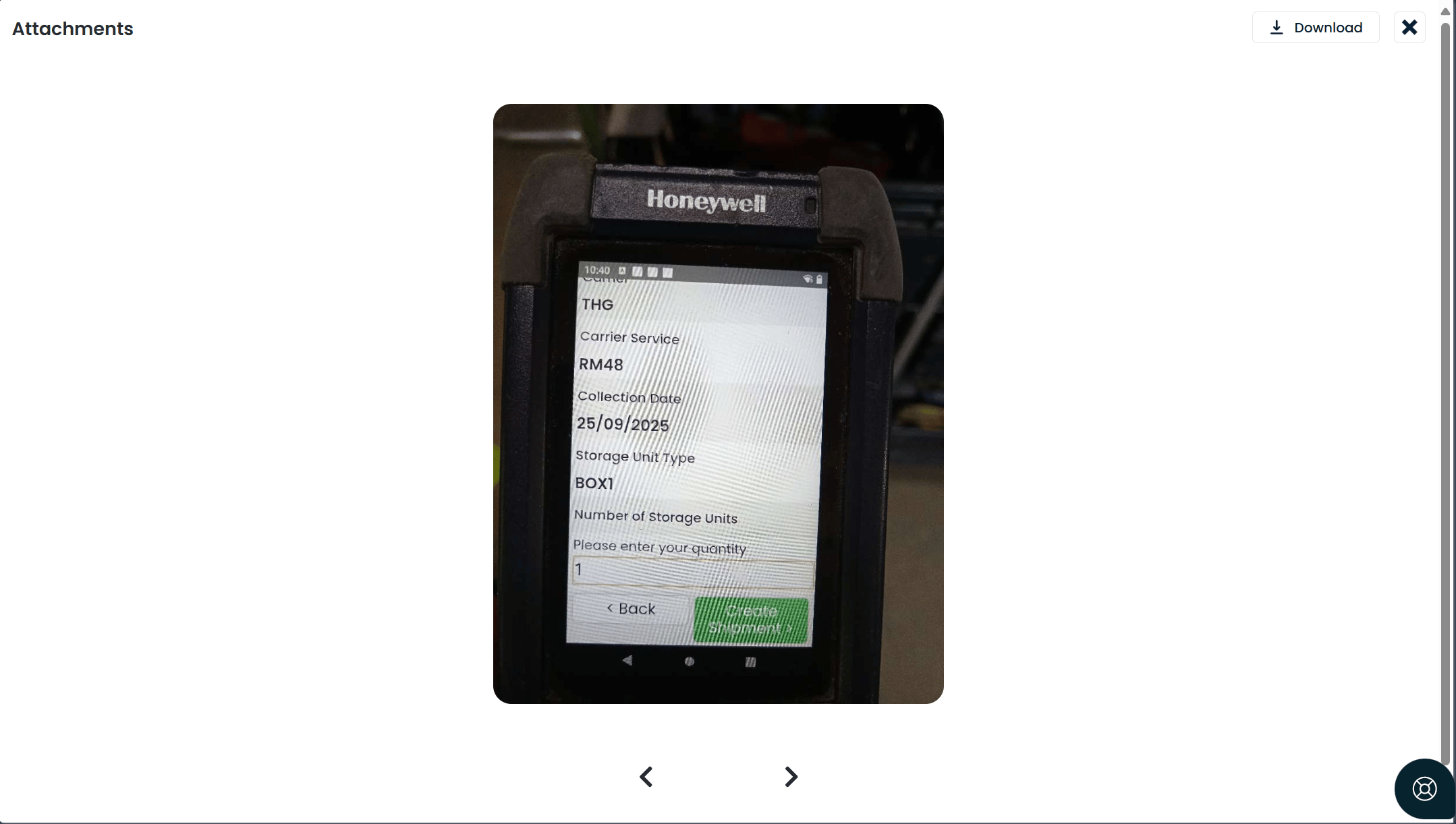
- Click the paperclip to view the images attached to that task.