You can connect AI assistants like Claude and ChatGPT directly to Clarus, then ask them about your warehouse — and have them make changes — in plain English. There are no API keys, files, or developer setup: you paste one address into your assistant and sign in with your normal Clarus login. This works through MCP (Model Context Protocol), an open standard that AI tools use to connect to external systems. You don’t need to know how it works — just follow the setup guide for your tool.
AI accuracy: AI-generated responses can sometimes be inaccurate, incomplete, or misleading. Always verify the assistant’s output before acting on it — especially for stock movements, order changes, or any actions that affect your live warehouse data. The assistant is a tool to help you, not a replacement for your own judgement.

Connect Claude

Set up Clarus in claude.ai or the Claude desktop app.

Connect ChatGPT

Set up Clarus in ChatGPT connectors or developer mode.

Your connection address

Every organisation has its own connection address:
https://agents.claruswms.ai/mcp/{subdomain}
Replace {subdomain} with your Clarus subdomain — your organisation’s short name in Clarus, the same one that appears in your Clarus web address. If you’re not sure what it is, check the address bar while you’re signed in to Clarus, or ask your Clarus administrator. For example, if your subdomain is acme, your connection address is:
https://agents.claruswms.ai/mcp/acme

Signing in

When you add the connection in your AI tool, you’ll be sent to a Clarus sign-in page. Sign in with your normal Clarus username and password and approve access. That’s it — no keys to copy, nothing to configure. The assistant then connects as you: it can see and do exactly what your own Clarus account is allowed to, and nothing more. If your account can’t access a particular account, warehouse, or action, neither can the assistant.
The assistant uses your Clarus permissions, so it can change data as well as read it — for example updating an order or adjusting stock. Be specific about what you ask, and check any changes it proposes before confirming them.

What you can do

Once connected, you can ask the assistant to look things up, for example:
  • “How many units of WIDGET-RED-500 are in stock?”
  • “What’s the status of sales order SO-2026-0042?”
  • “List the open sales orders for the ACME account.”
  • “Which products are below their reorder level in the Manchester warehouse?”
You can also ask it to make changes (within your permissions), for example:
  • “Put the stock for WIDGET-RED-500 on hold in location A-01-01.”
  • “Update the carrier on order SO-2026-0042 to DPD.”
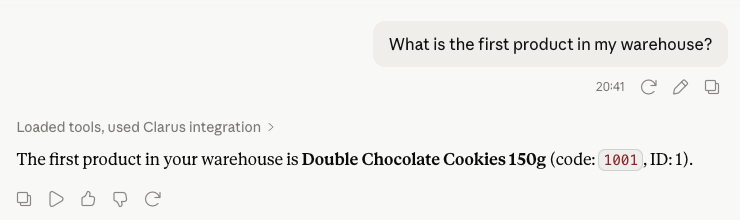
Here’s a simple lookup in action:
An assistant answering 'What is the first product in my warehouse?' using the Clarus connection
Treat the assistant like a colleague: give it the detail it needs (order reference, product code, account, warehouse) and confirm anything important before it acts.

Prerequisites

  • A Clarus user account with permission to do what you’re asking — the assistant inherits your access.
  • A version of Claude or ChatGPT that supports adding custom connectors (see the per-tool guides).
Use a separate, clearly-named Clarus account if you want to keep AI activity easy to identify in your audit history.