> ## Documentation Index
> Fetch the complete documentation index at: https://documentation.claruswms.com/llms.txt
> Use this file to discover all available pages before exploring further.
# Connect ChatGPT to Clarus
> Add Clarus as a custom app in ChatGPT so you can work with your warehouse data in plain English, using your own Clarus login.
Add Clarus to ChatGPT as a custom **app**, then ask ChatGPT about your warehouse — and have it make changes — in plain English. It uses your normal Clarus sign-in; there's nothing to copy or configure.
**AI accuracy:** AI-generated responses can sometimes be inaccurate, incomplete, or misleading. Always verify the assistant's output before acting on it — especially for stock movements, order changes, or any actions that affect your live warehouse data. The assistant is a tool to help you, not a replacement for your own judgement.
Before you start, have your connection address ready:
```text theme={null}
https://agents.claruswms.ai/mcp/{subdomain}
```
Replace `{subdomain}` with your Clarus subdomain. See [Connect AI assistants to Clarus](/knowledgebase/integrations/ai-assistants-overview) if you're unsure what yours is.
Custom apps (connectors) are available on ChatGPT plans that support them and may need enabling by your workspace owner. Menu names can vary between ChatGPT versions.
## Add the Clarus app
In ChatGPT, open **Settings → Apps**.
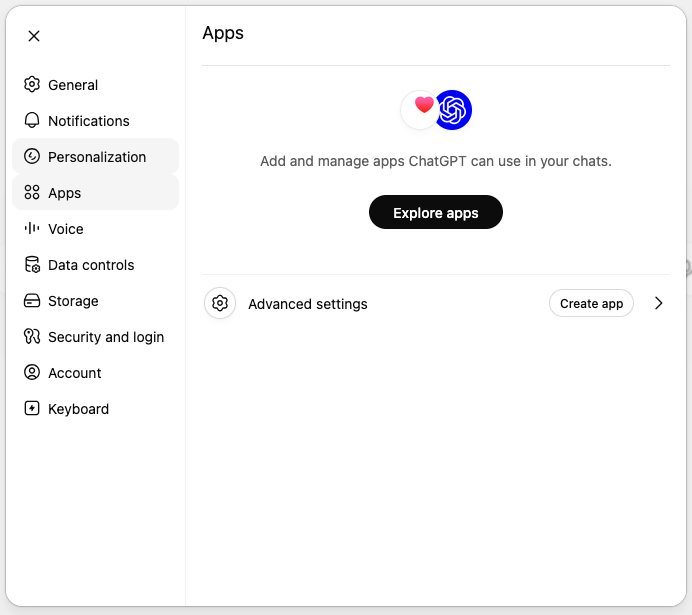 Next to **Advanced settings**, click **Create app**.
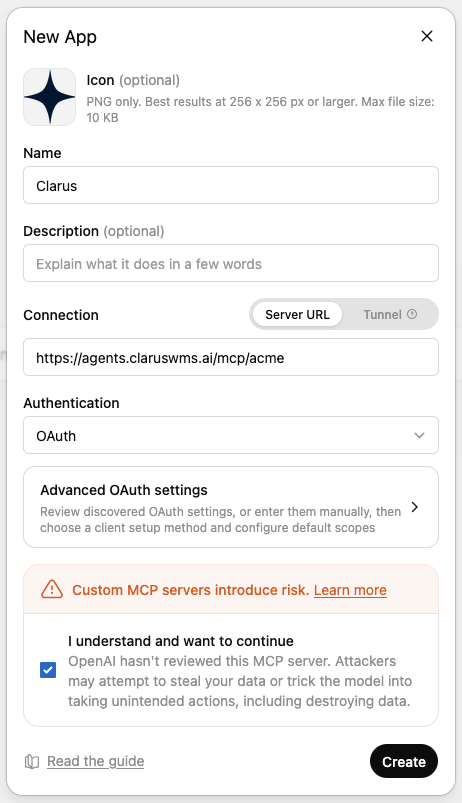
In the **New App** dialog:
* **Name:** `Clarus`. Optionally add a **Description**, and an **Icon** — you can [download the Clarus logo](/images/knowledgebase/integrations/clarus-app-icon.png) (PNG, 256×256 or larger) to use here.
* **Connection:** choose **Server URL** and paste your connection address (`https://agents.claruswms.ai/mcp/{subdomain}`)
* **Authentication:** choose **OAuth**. Leave **Advanced OAuth settings** on the discovered defaults — you don't need to enter a client ID or secret.
* Tick **I understand and want to continue**, then click **Create**.
Next to **Advanced settings**, click **Create app**.
In the **New App** dialog:
* **Name:** `Clarus`. Optionally add a **Description**, and an **Icon** — you can [download the Clarus logo](/images/knowledgebase/integrations/clarus-app-icon.png) (PNG, 256×256 or larger) to use here.
* **Connection:** choose **Server URL** and paste your connection address (`https://agents.claruswms.ai/mcp/{subdomain}`)
* **Authentication:** choose **OAuth**. Leave **Advanced OAuth settings** on the discovered defaults — you don't need to enter a client ID or secret.
* Tick **I understand and want to continue**, then click **Create**.
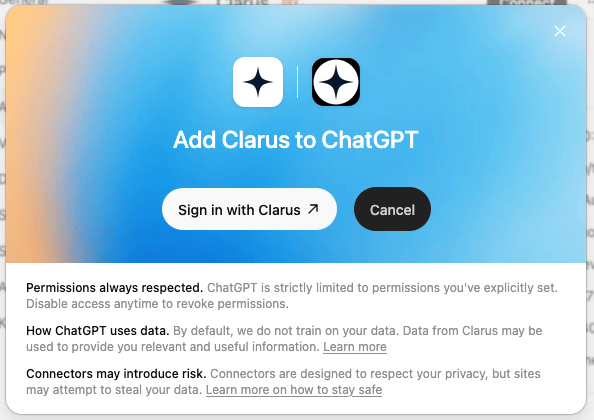
 In the **Add Clarus to ChatGPT** dialog, click **Sign in with Clarus** and complete the Clarus login. ChatGPT only ever has the permissions your Clarus account has.
 Start a chat, make sure the **Clarus** app is enabled, and ask a question such as "What's the status of sales order `SO-2026-0042`?"
ChatGPT connects **as you** and uses your Clarus permissions, so it can change data as well as read it — for example updating an order or adjusting stock. Be specific about what you ask, and review any changes before confirming them.
## Troubleshooting
No. Set **Authentication** to **OAuth** and leave the **Advanced OAuth settings** on the discovered defaults — Clarus sets these up automatically, so you don't create or paste a client ID or secret.
That's ChatGPT's standard notice for any custom app — it just means OpenAI hasn't reviewed it. The Clarus app connects to your own Clarus account over a secure connection. Tick **I understand and want to continue** to proceed, and keep the AI-accuracy guidance above in mind when acting on responses.
Apps may need to be enabled for your workspace by an owner/admin, and they require a ChatGPT plan that supports them. Check with whoever manages your ChatGPT workspace.
Make sure **Connection** is set to **Server URL** (not Tunnel) and the address is exactly `https://agents.claruswms.ai/mcp/{subdomain}` with your real subdomain in place of `{subdomain}` and no trailing spaces. Your subdomain is your organisation's short name in Clarus (see the [overview](/knowledgebase/integrations/ai-assistants-overview)).
The assistant can only see and do what your Clarus account can. If data is missing or an action fails, check your own Clarus permissions for that account, warehouse, or feature — or ask your administrator.
Start a chat, make sure the **Clarus** app is enabled, and ask a question such as "What's the status of sales order `SO-2026-0042`?"
ChatGPT connects **as you** and uses your Clarus permissions, so it can change data as well as read it — for example updating an order or adjusting stock. Be specific about what you ask, and review any changes before confirming them.
## Troubleshooting
No. Set **Authentication** to **OAuth** and leave the **Advanced OAuth settings** on the discovered defaults — Clarus sets these up automatically, so you don't create or paste a client ID or secret.
That's ChatGPT's standard notice for any custom app — it just means OpenAI hasn't reviewed it. The Clarus app connects to your own Clarus account over a secure connection. Tick **I understand and want to continue** to proceed, and keep the AI-accuracy guidance above in mind when acting on responses.
Apps may need to be enabled for your workspace by an owner/admin, and they require a ChatGPT plan that supports them. Check with whoever manages your ChatGPT workspace.
Make sure **Connection** is set to **Server URL** (not Tunnel) and the address is exactly `https://agents.claruswms.ai/mcp/{subdomain}` with your real subdomain in place of `{subdomain}` and no trailing spaces. Your subdomain is your organisation's short name in Clarus (see the [overview](/knowledgebase/integrations/ai-assistants-overview)).
The assistant can only see and do what your Clarus account can. If data is missing or an action fails, check your own Clarus permissions for that account, warehouse, or feature — or ask your administrator.