Key features
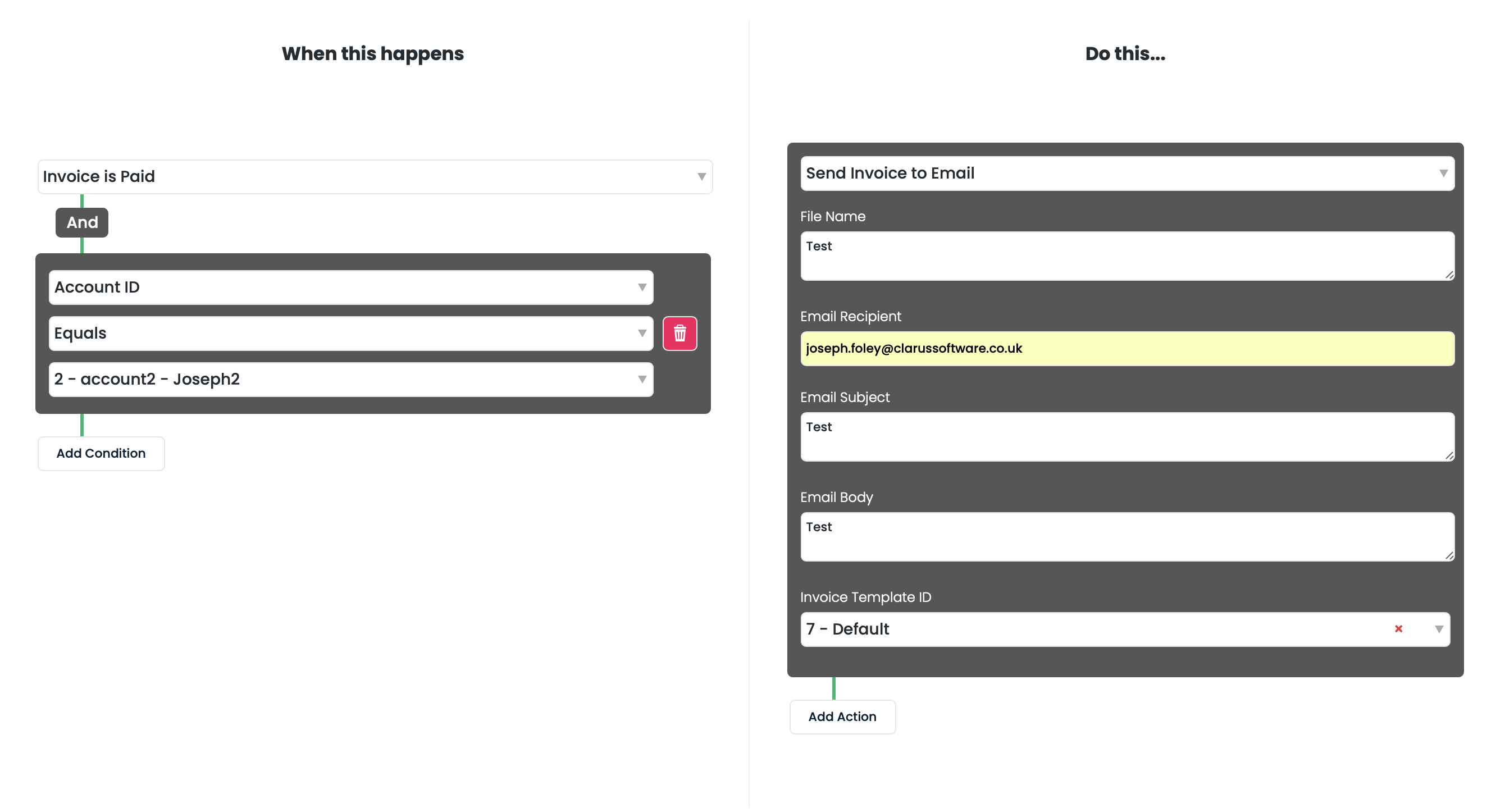
- Trigger-based messaging — automatically dispatch emails based on specific events (for example, payment received or order fulfilment).
- Granular control — set precise conditions for your triggers, such as filtering by a specific Account ID.
- Customisable templates — assign a Template ID so specific clients receive documents with their preferred branding or layout.
Setting up an email automation
1
Start a new workflow
From the Home screen, navigate to the Automations tab and click New.
2
Define the trigger
Under the When this happens section, select the event that should kick off the process.
3
Configure the action
Go to the Do this section and select the email delivery option, then enter the File Name, Recipient, Email Subject/Header, and Body.
4
Assign templates
If prompted, enter the relevant Template ID so the document generates correctly for that automation.
5
Save and activate
Click Save. The system then monitors for your conditions and automatically sends the email the moment they are met.