

Packing Desk Overview
The packing desk provides a visual representation of the packing process, giving you more clarity and information during order fulfilment.1. Accessing the Packing Desk
Navigate to the Goods Out tab in the main menu and select Packing Desk.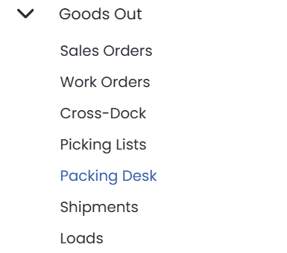
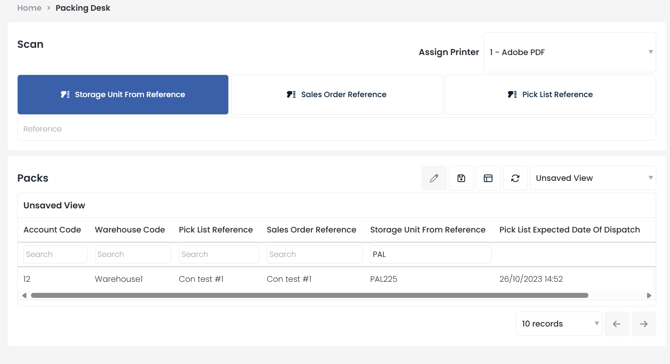
- View current pack tasks — See all pack tasks awaiting processing.
- Assign a printer — Ensure labels and documents print to the correct device.
- Search for pack tasks — Locate orders using Storage Unit Reference, Sales Order Reference, or Pick List Reference. These can also be scanned using a scanner or HHD.
2. Preparing to Pack
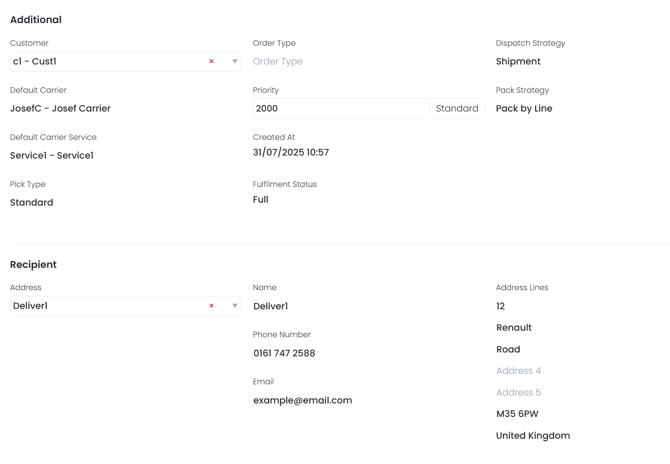
Before packing, ensure the following requirements are met:- Dispatch Strategy: Must be set to Shipment or Auto Shipment. With Auto Shipment and a Manual shipment strategy, the dispatch tasks complete themselves once the shipment is created — see Dispatch and shipment strategies.
- Pack Strategy: Must be set (either Pack by Line or Pack by Unit).
- Complete Delivery Address: Must include address lines, postcode, phone number, and email.
- Pick List Status: All pick tasks must be completed to generate pack tasks.
3. Starting a Pack
1
Locate the pack
Use the search fields to find the order you want to pack.
2
Begin the packing process
Either scroll right and click Begin Pack, or scan the reference to start packing.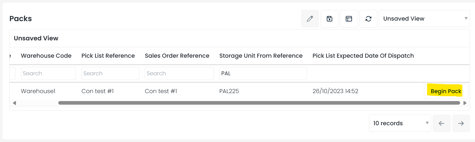
4. Packing Items
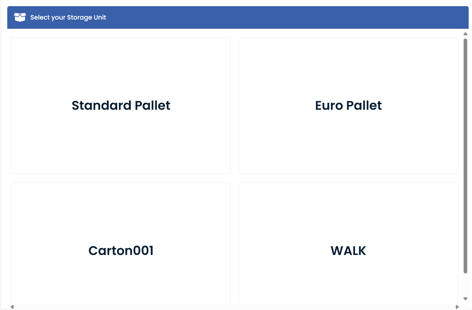
Once you select a storage unit type, you will see the Packing Screen: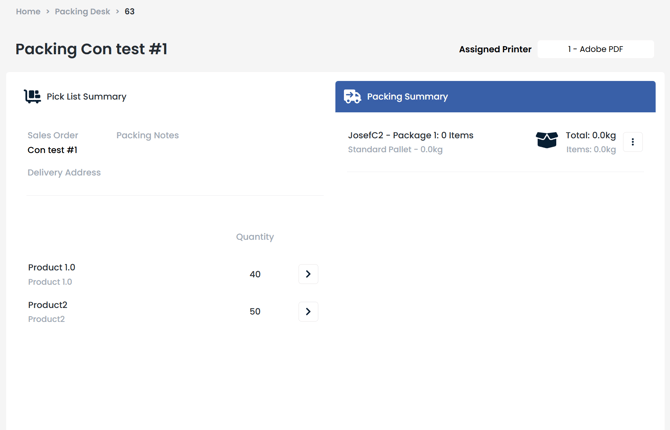
- Left Panel: Displays the sales order reference, delivery address, packing notes, and products with quantities.
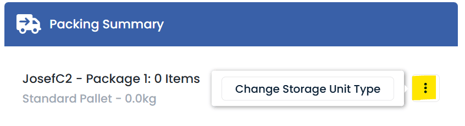
- Right Panel (Packing Summary): Shows the package contents, dimensions, and total weight. You can also change the storage unit type here.
Moving Items into the Package
Scan items to move them into the packing summary, or use the arrows next to items to manually move them across. Repeat until all items are packed.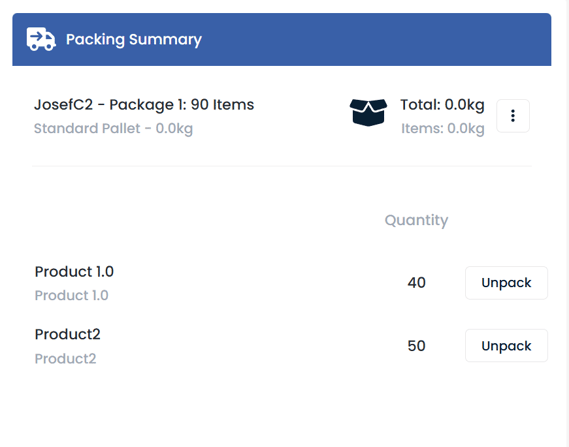
5. Correcting Carrier, Address and Quantity
Details sometimes only turn out to be wrong once the order is in front of you at the bench. You can correct the carrier, the recipient address and the quantity from the packing screen, without cancelling the pick or going back to the sales order.Each of these changes updates the package and writes back to the sales orders it affects. The modal lists the affected sales orders before you confirm, so you can see the full impact of the change.
Changing the carrier or service
Click Change Carrier to open the Change Carrier dialog, then choose a Carrier followed by a Carrier Service. The service list only offers services belonging to the carrier you picked, and choosing a different carrier clears the service so you have to select a valid one. When you confirm:- The sales order is updated with the new carrier and service.
- The shipment and label are generated against the new selection.
- The packing list reflects the new carrier and service.
- The change is recorded in the sales order history, so there is an audit trail of who changed it and when.
Changing the recipient address
Click Change Delivery Address to open the Change Recipient Address dialog. Confirming updates the recipient for the package and, as with the carrier, automatically updates the associated sales orders listed in the dialog.Changing the quantity to pack
Use Change Quantity to pack a different quantity from the one expected — for example where a short pick means fewer items are physically present. Clarus asks you to confirm the quantity is correct, shows the expected quantity for comparison, and will not accept a quantity higher than expected.Packing a line assigned to a different carrier
Where several sales orders go to the same delivery address on different carriers, you may scan a line that belongs to a carrier other than the one on the package you are building. Clarus stops and shows a Different Carrier warning rather than silently mixing them, and you choose what happens:- Cancel — nothing changes, and you can pack that line separately later. This is usually the right answer.
- Continue — the item joins the current package and its carrier assignment is updated to match the package.
6. Finalising the Package
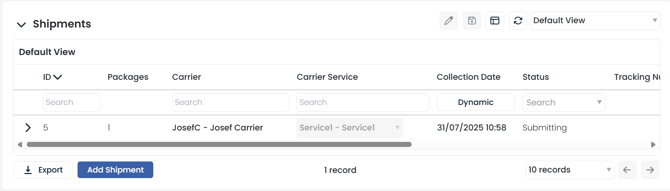
Once all items are packed:- Click Close Package and Print Labels. This completes the packing process, submits the shipment, and prints labels automatically.
- Confirm the package is reflected as shipped in the Sales Order / Pick List screen.

Key Takeaways
- Ensure all order details and pick tasks are complete before starting packing.
- Use the Packing Summary to verify weights, dimensions, and contents.
- Correct the carrier, recipient address or quantity at the desk rather than cancelling the pick — every change is written back to the affected sales orders and logged in the sales order history.
- Close Package and Print Labels finalises the shipment and triggers label printing.