Schedule a stock check
1
Open Locations
From the left-hand menu, expand Settings and click Locations.
2
Select the location
Tick the checkbox next to the location you want to audit. You can select multiple locations to schedule several checks at once.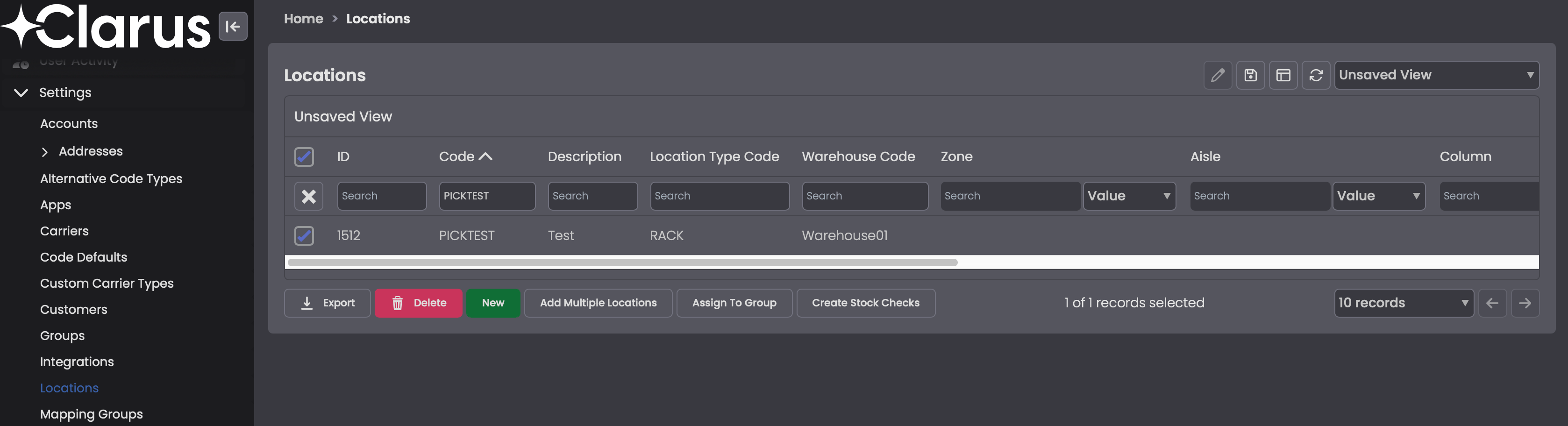
3
Create the check
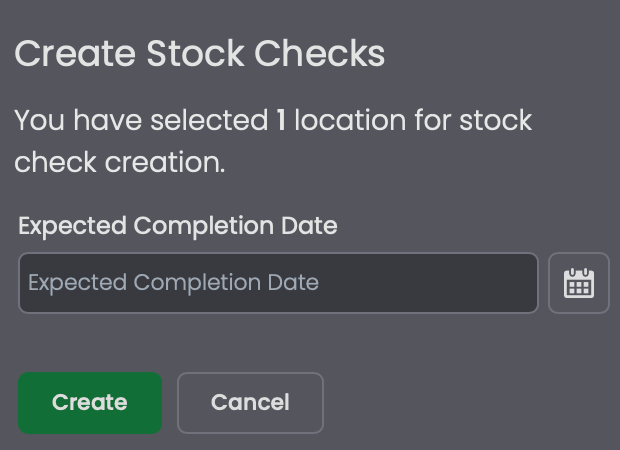
Click Create Stock Checks, set an Expected Completion Date, and click Create.
Show screenshot
Show screenshot
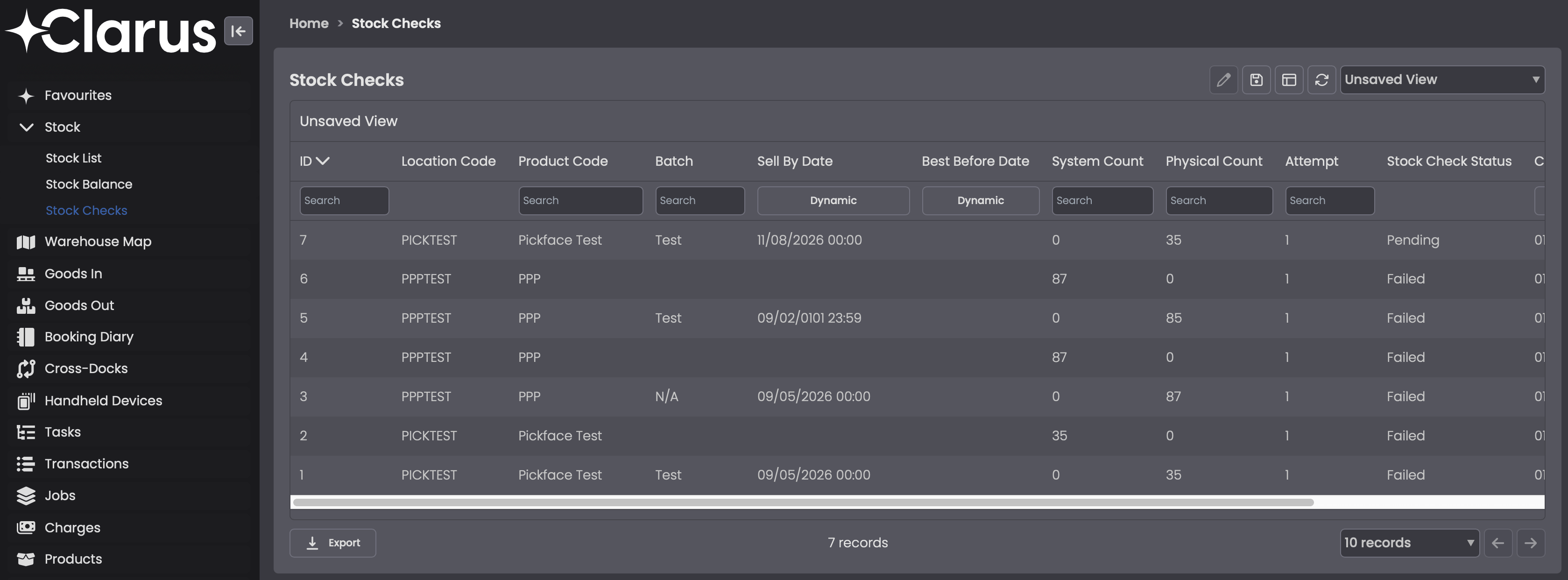
A new stock check cannot be created for a location while another one is Pending for it. You can confirm the current status from the Stock Checks screen.
Run the count on the HHD
1
Open Stock Check on the handheld
From the HHD menu, open Stock Check and tap Stock Check by Location. HHD menus are configurable, so your labels may differ from these defaults.

Show screenshot
Show screenshot
2
Scan the location
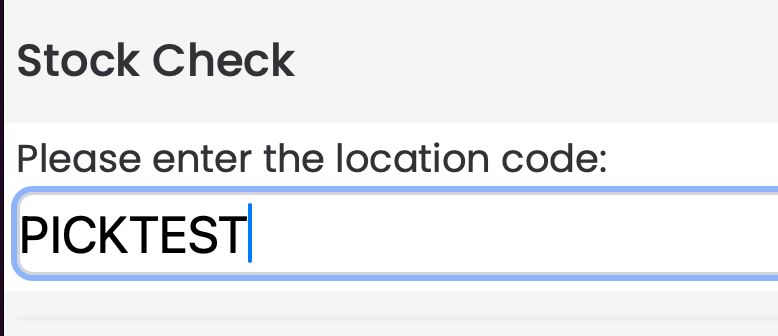
Scan or enter the Location Code you want to count.
Show screenshot
Show screenshot
If no stock check has been scheduled for the location you scan, the HHD returns No Pending Stock Check found in Location. Schedule the check from the desktop before counting.

Show screenshot
Show screenshot
3
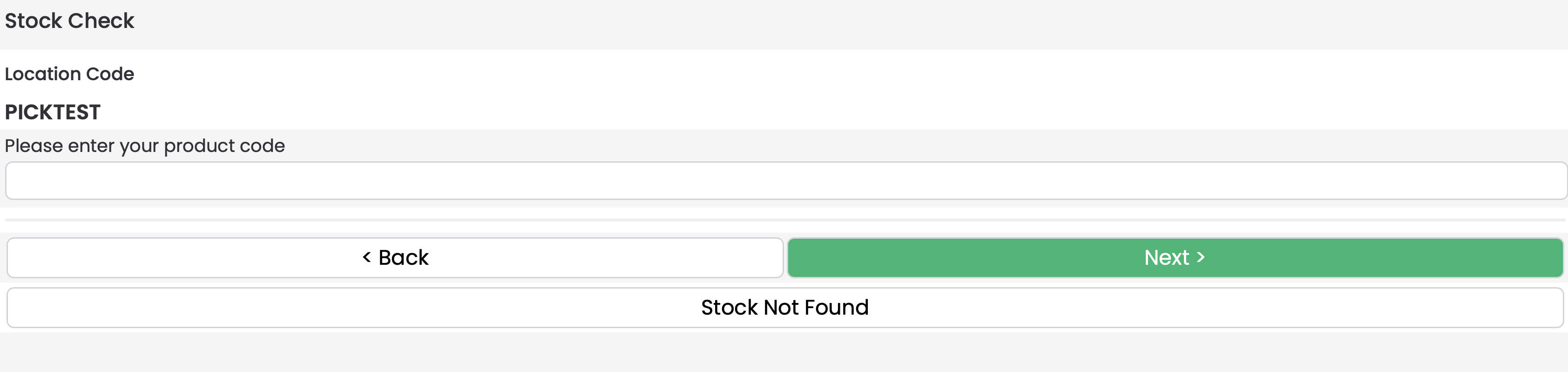
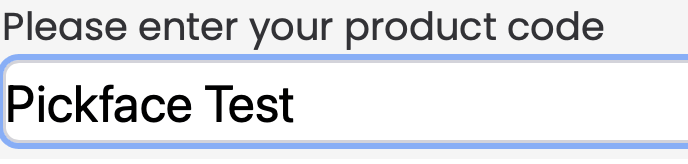
Enter the product
Enter the Product Code found at the location, then tap Next. The HHD confirms the matched product description before continuing.
Show screenshots
Show screenshots
4
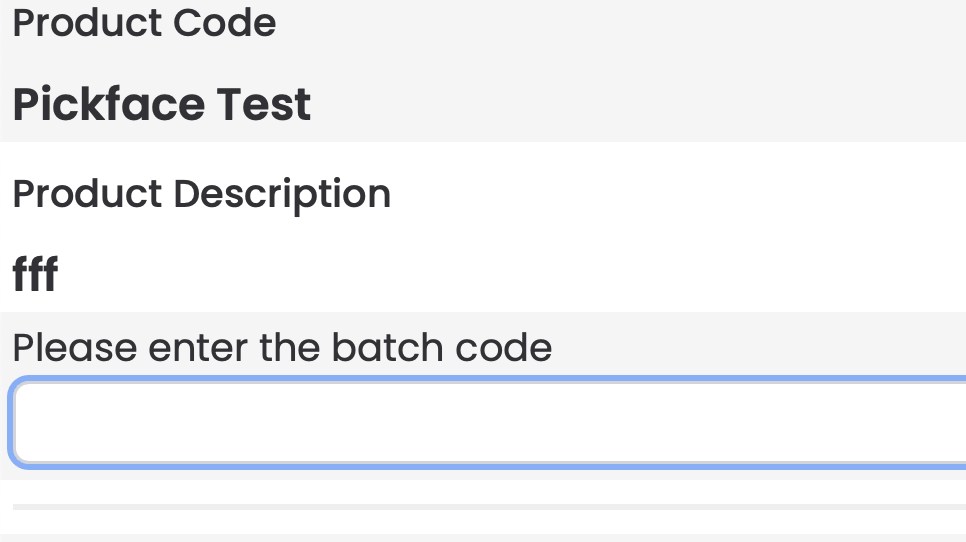
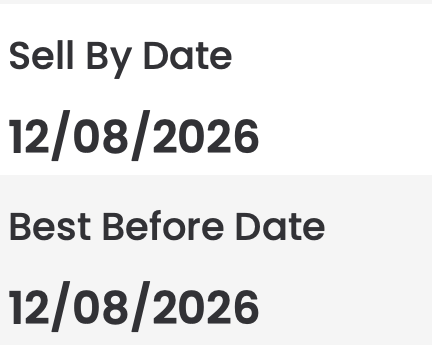
Confirm batch attributes (if applicable)
If the product is batch-tracked, enter the Batch Code when prompted, then confirm the Sell By Date or Best Before Date as prompted by the record.
Show screenshots
Show screenshots
5
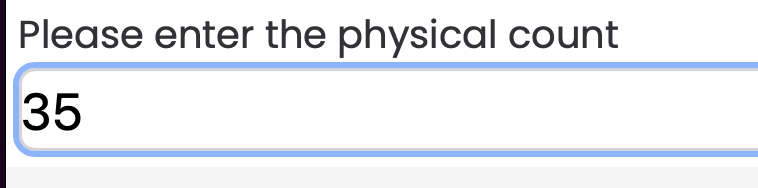
Enter the physical count
Enter the Physical Count you have in the location and confirm.
Show screenshot
Show screenshot
Batch, Sell By, and Best Before prompts only appear on the HHD when the account flags are set to use those attributes.
Handle mismatches and exits
If the physical count does not match the recorded value, the HHD shows a warning and offers a second attempt. Only two attempts are allowed before the check fails.Show screenshot
Show screenshot

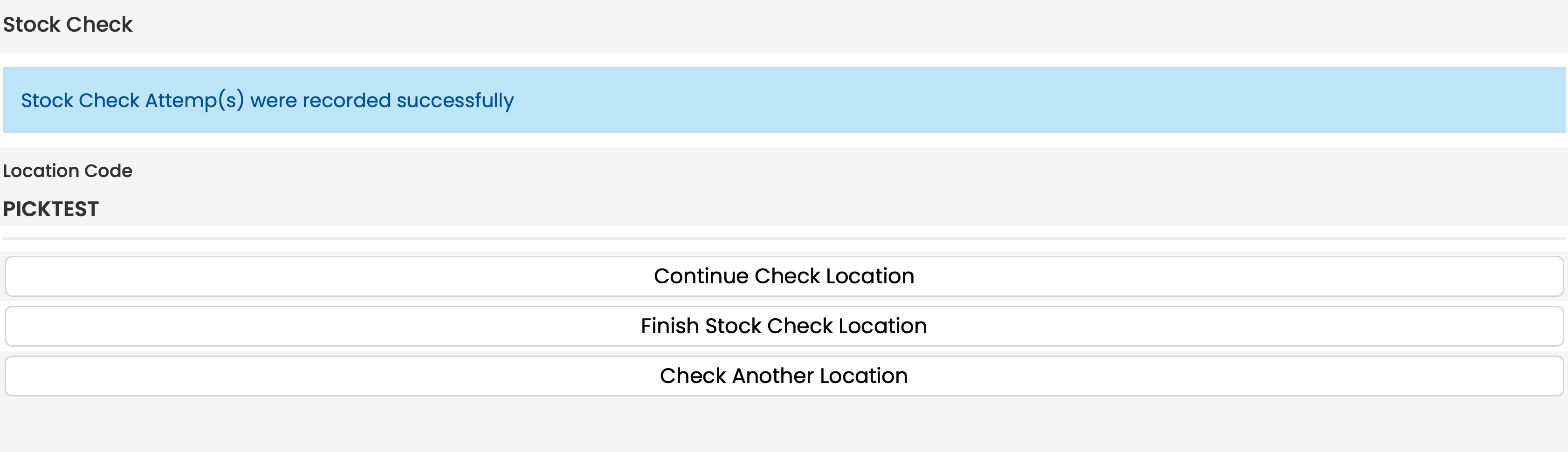
Once attempts have been recorded, the HHD lets you continue the location, finish it early, or move to another one.
Show screenshot
Show screenshot
Review stock check history
From the left-hand menu, expand Stock and open Stock Checks. The grid shows the history of each attempt with its location, product, counts, attempt number, and status.