> ## Documentation Index
> Fetch the complete documentation index at: https://documentation.claruswms.com/llms.txt
> Use this file to discover all available pages before exploring further.
# Stock Check
> Schedule stock checks on the desktop and execute them on the handheld to keep inventory counts accurate.
A stock check is a scheduled physical count of a location, run on the handheld device to verify recorded stock. Schedule the check from the desktop, count on the HHD, then review the results from the Stock tab.
## Schedule a stock check
From the left-hand menu, expand **Settings** and click **Locations**.
Tick the checkbox next to the location you want to audit. You can select multiple locations to schedule several checks at once.
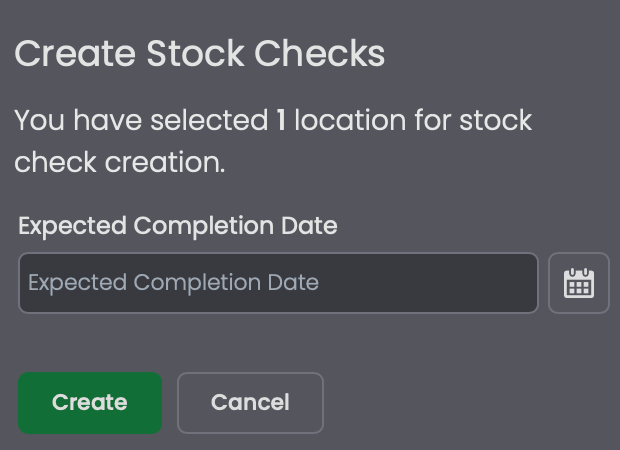
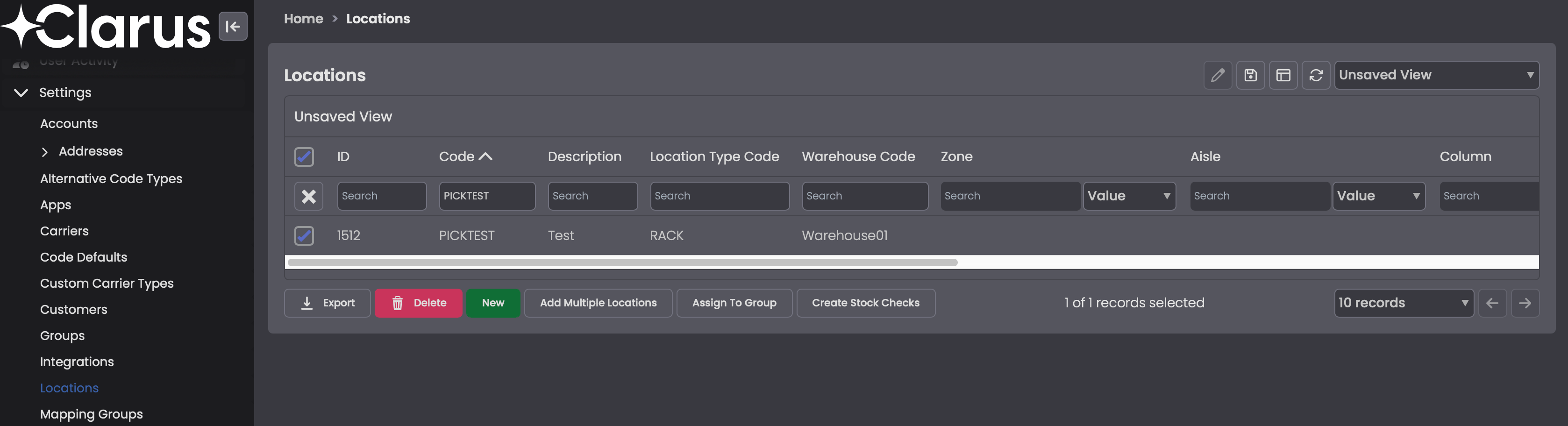 Click **Create Stock Checks**, set an **Expected Completion Date**, and click **Create**.
 A new stock check cannot be created for a location while another one is **Pending** for it. You can confirm the current status from the Stock Checks screen.
## Run the count on the HHD
From the HHD menu, open **Stock Check** and tap **Stock Check by Location**. HHD menus are configurable, so your labels may differ from these defaults.
A new stock check cannot be created for a location while another one is **Pending** for it. You can confirm the current status from the Stock Checks screen.
## Run the count on the HHD
From the HHD menu, open **Stock Check** and tap **Stock Check by Location**. HHD menus are configurable, so your labels may differ from these defaults.
 Scan or enter the **Location Code** you want to count.
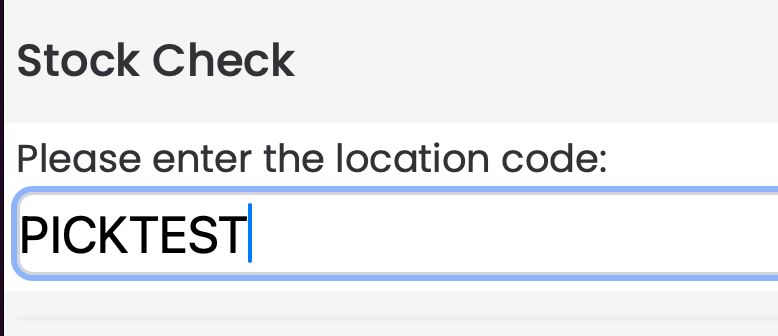 If no stock check has been scheduled for the location you scan, the HHD returns **No Pending Stock Check found in Location**. Schedule the check from the desktop before counting.
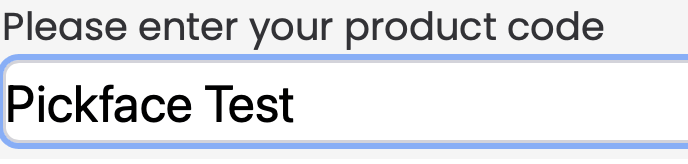
 Enter the **Product Code** found at the location, then tap **Next**. The HHD confirms the matched product description before continuing.
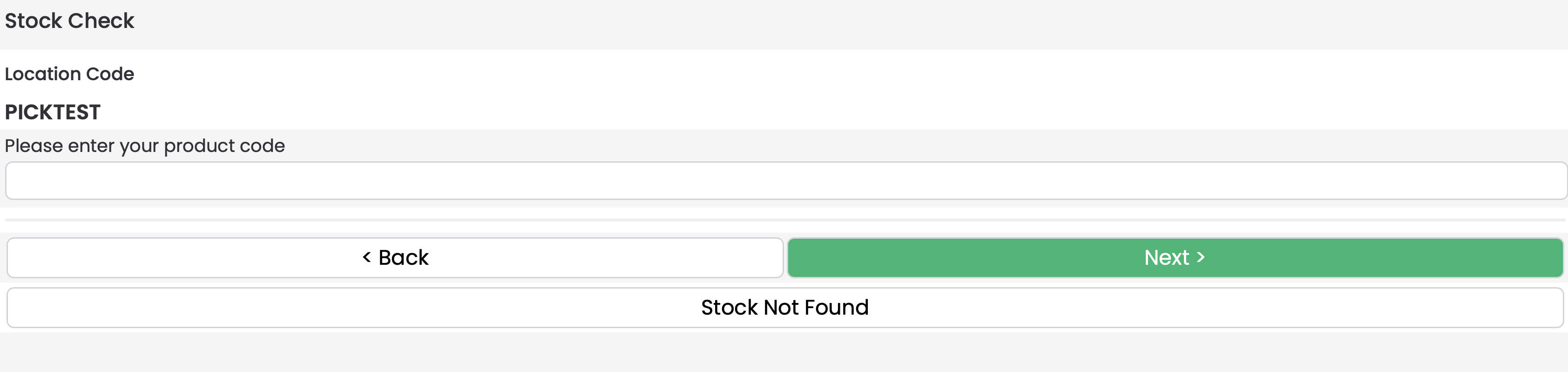
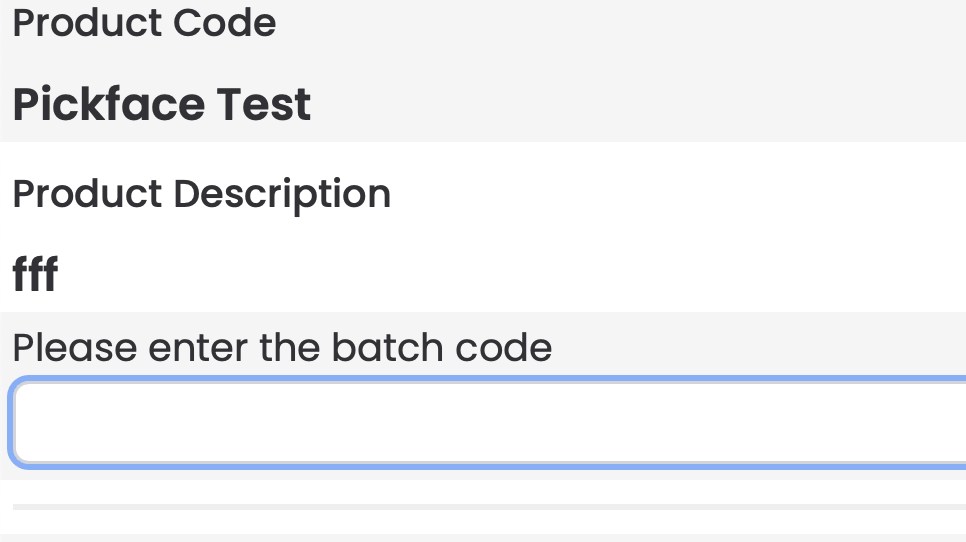
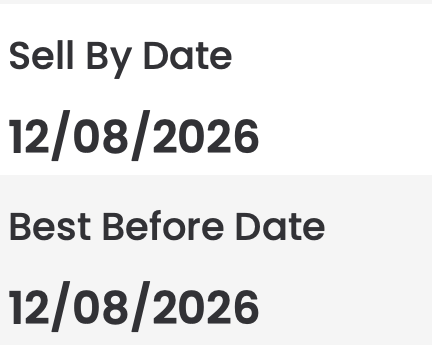
 If the product is batch-tracked, enter the **Batch Code** when prompted, then confirm the **Sell By Date** or **Best Before Date** as prompted by the record.
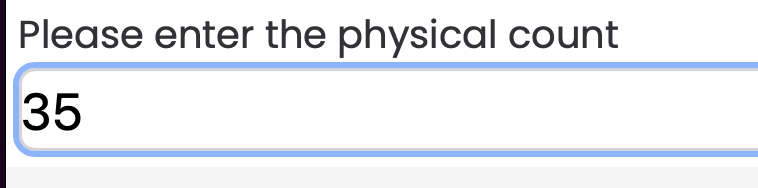
 Enter the **Physical Count** you have in the location and confirm.
 Batch, Sell By, and Best Before prompts only appear on the HHD when the account flags are set to use those attributes.
## Handle mismatches and exits
If the physical count does not match the recorded value, the HHD shows a warning and offers a second attempt. Only two attempts are allowed before the check fails.
Batch, Sell By, and Best Before prompts only appear on the HHD when the account flags are set to use those attributes.
## Handle mismatches and exits
If the physical count does not match the recorded value, the HHD shows a warning and offers a second attempt. Only two attempts are allowed before the check fails.
 | Scenario | Action |
| ----------------- | --------------------------------------------------------------------------------------------------------------------- |
| Count mismatch | Tap **Count Again** to restart the count for that item. Only two attempts are allowed before the check fails. |
| Empty location | Tap **Stock Not Found** to complete the check for that location. Only use this when the location is genuinely empty. |
| Leaving mid-check | Tap **Back** to choose between continuing the current check, finishing the location early, or switching to a new one. |
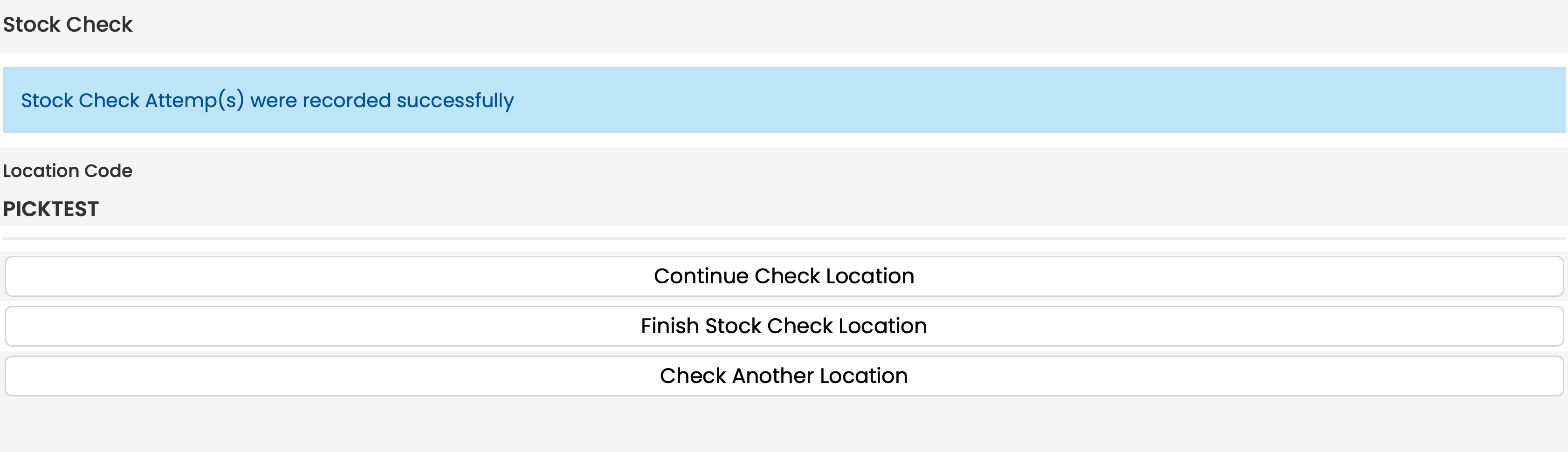
Once attempts have been recorded, the HHD lets you continue the location, finish it early, or move to another one.
| Scenario | Action |
| ----------------- | --------------------------------------------------------------------------------------------------------------------- |
| Count mismatch | Tap **Count Again** to restart the count for that item. Only two attempts are allowed before the check fails. |
| Empty location | Tap **Stock Not Found** to complete the check for that location. Only use this when the location is genuinely empty. |
| Leaving mid-check | Tap **Back** to choose between continuing the current check, finishing the location early, or switching to a new one. |
Once attempts have been recorded, the HHD lets you continue the location, finish it early, or move to another one.
 ## Review stock check history
From the left-hand menu, expand **Stock** and open **Stock Checks**. The grid shows the history of each attempt with its location, product, counts, attempt number, and status.
## Review stock check history
From the left-hand menu, expand **Stock** and open **Stock Checks**. The grid shows the history of each attempt with its location, product, counts, attempt number, and status.
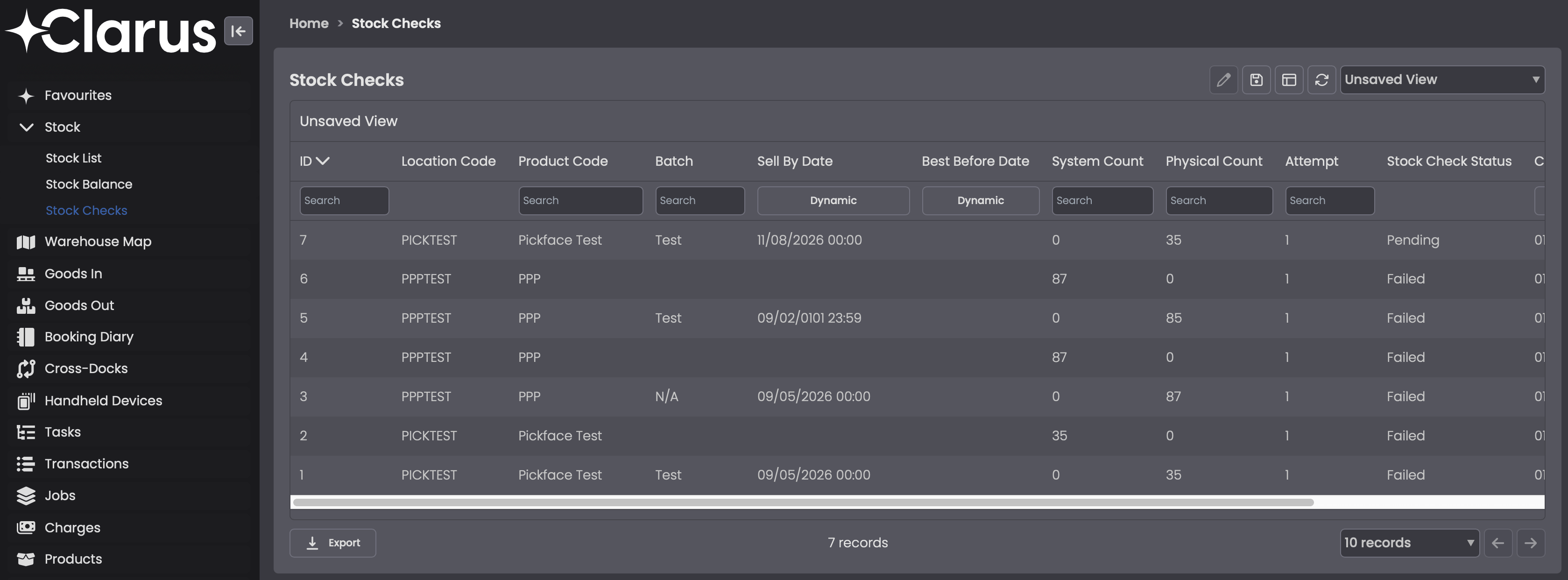 Stock checks only appear in this grid once the count has been started on the HHD. Scheduling a check from the Locations screen is not enough to make it visible here.