> ## Documentation Index
> Fetch the complete documentation index at: https://documentation.claruswms.com/llms.txt
> Use this file to discover all available pages before exploring further.
# Set Up MFA with an Authenticator App
> Step-by-step instructions to set up multi-factor authentication using an authenticator app and QR code.
Setting up MFA takes about two minutes. After you click **Set up MFA** on the [sign-in prompt](/knowledgebase/security/mfa-login-prompt), Clarus WMS shows the **Set Up Authenticator** screen. You scan its QR code with an authenticator app on your phone, then enter a verification code to confirm.
**Gradual rollout:** Multi-factor authentication is being rolled out gradually, organisation by organisation. You may not see it on your account yet — that's expected. Once it's available, you'll be prompted on your next sign-in.
## Before you start
You'll need:
* Your phone or tablet, unlocked and within reach
* An authenticator app installed on that device
Popular authenticator apps:
* **1Password** — if your team already uses it as a password manager, it works as an authenticator too
* **Authy** — free, supports backups across devices
* **Google Authenticator** — free, simple
* **Microsoft Authenticator** — free, supports backups via your Microsoft account
Any TOTP-compatible authenticator app will work. Pick the one your organisation already uses if there's a preference.
## How to start setup
Most people reach setup via the sign-in prompt — once MFA is available on your account, you'll see it the next time you log in. Click **Set up MFA** to be taken to the **Set Up Authenticator** screen.
If you previously chose **Remind me later** or **I don't want MFA**, you can also start setup from [Enable MFA in Security Settings](/knowledgebase/security/enable-mfa). Both routes lead to the same screen.
## Set up MFA
Click **Set up MFA** on the sign-in prompt. The **Set Up Authenticator** screen appears with a QR code and a manual setup code.
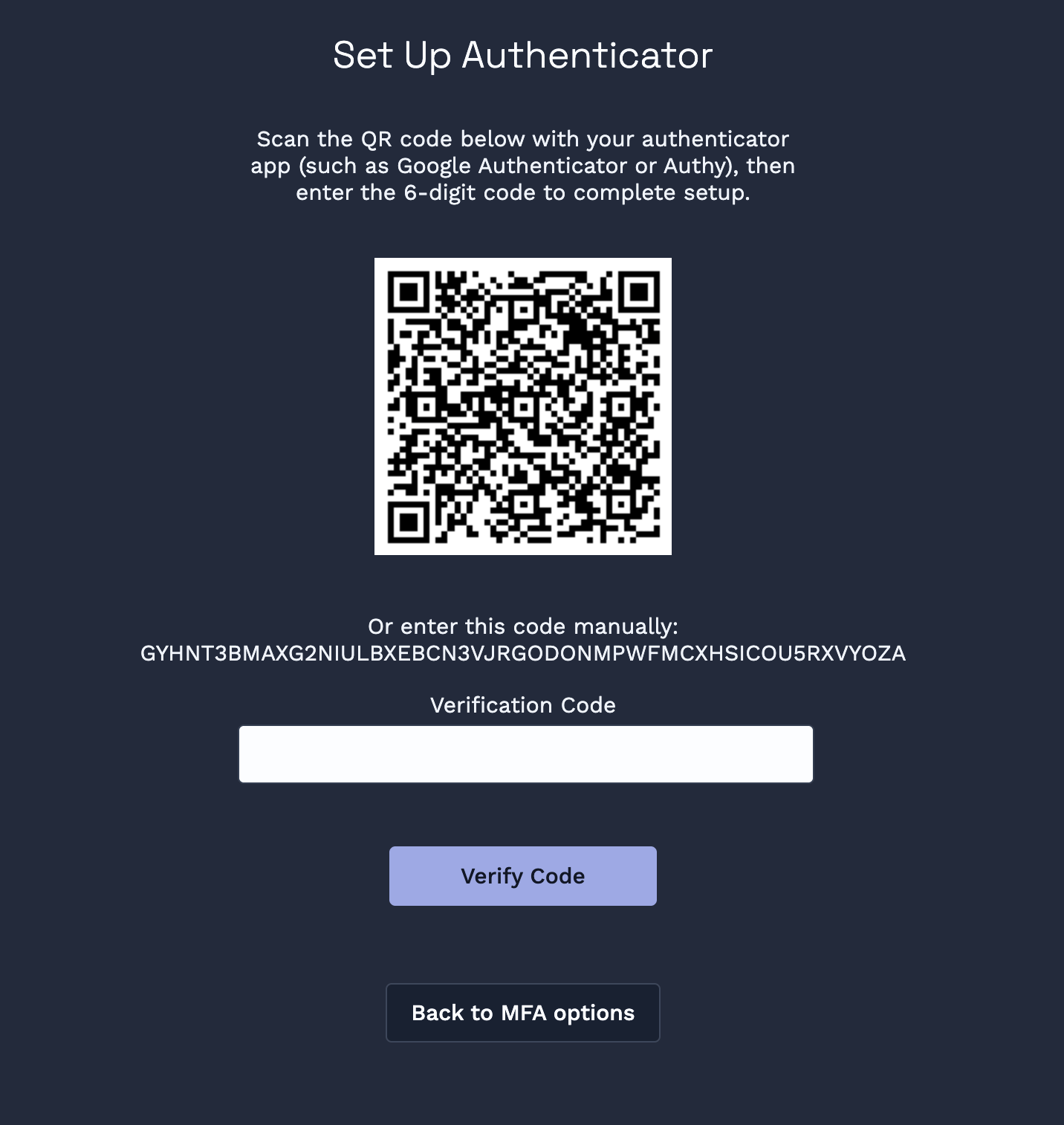 On your phone, open your authenticator app and choose to **add a new account** (the exact wording depends on the app — look for a **+** button or **Add Account**).
Use the app's scanner to point your phone's camera at the QR code on screen. The app will add a new entry for Clarus WMS and start generating six-digit codes that refresh every 30 seconds.
If your phone can't scan the QR code, use the manual setup code shown beneath it. In your authenticator app, choose to add an account by **entering a setup key** (the wording varies by app), then paste in the code from the Clarus WMS screen.
Back in Clarus WMS, type the **six-digit code** currently shown in your authenticator app into the **Verification Code** field, then click **Verify Code**.
MFA is now active on your account. From your next sign-in onward, you'll be asked for a code from your authenticator app after entering your password.
Codes refresh every 30 seconds. If a code is rejected, wait for the next one and try again — you may have entered it just as it expired.
## Next time you sign in
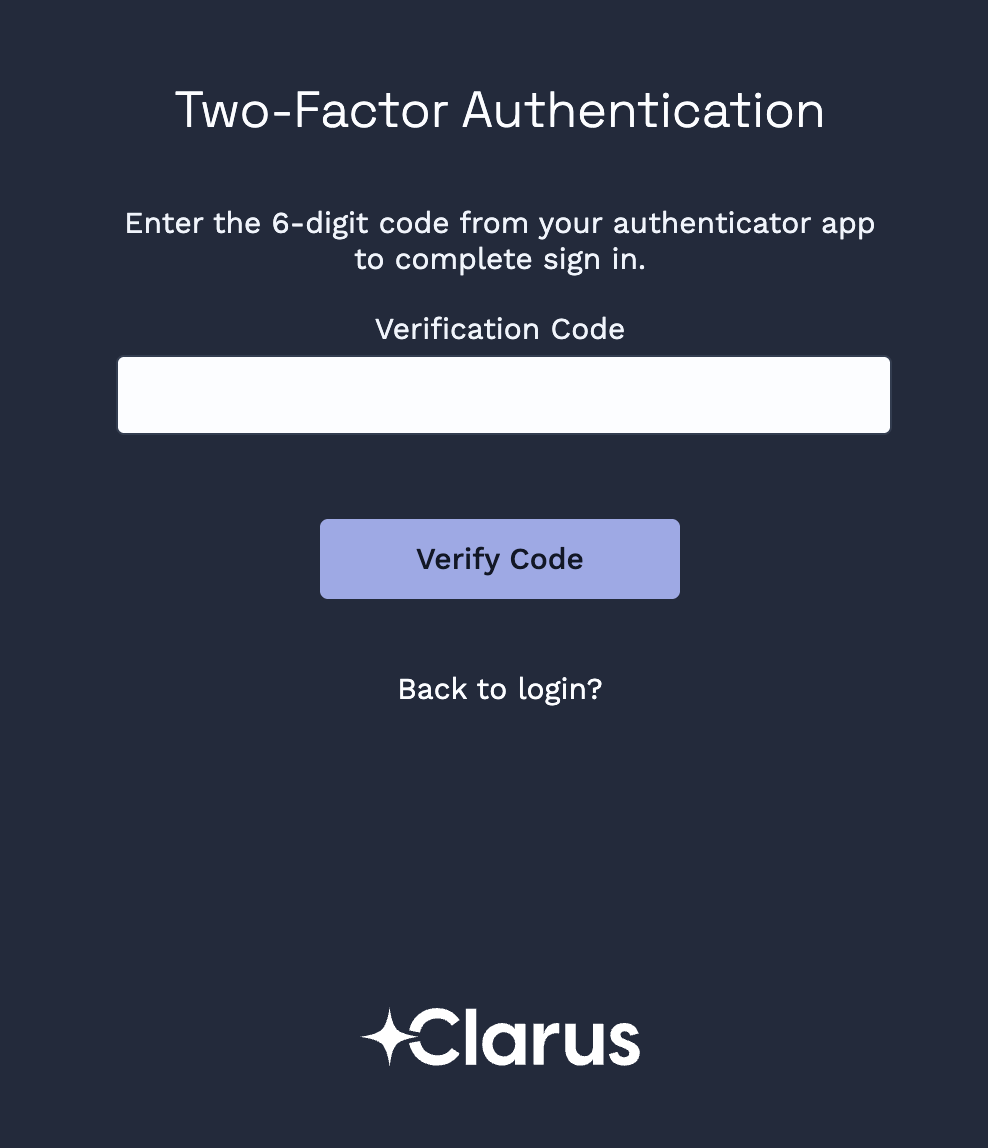
After your password, you'll see the **Two-Factor Authentication** screen. Open your authenticator app, find the **Clarus WMS** entry, and type the current six-digit code into the **Verification Code** field, then click **Verify Code**. The code is valid for about 30 seconds before it refreshes.
On your phone, open your authenticator app and choose to **add a new account** (the exact wording depends on the app — look for a **+** button or **Add Account**).
Use the app's scanner to point your phone's camera at the QR code on screen. The app will add a new entry for Clarus WMS and start generating six-digit codes that refresh every 30 seconds.
If your phone can't scan the QR code, use the manual setup code shown beneath it. In your authenticator app, choose to add an account by **entering a setup key** (the wording varies by app), then paste in the code from the Clarus WMS screen.
Back in Clarus WMS, type the **six-digit code** currently shown in your authenticator app into the **Verification Code** field, then click **Verify Code**.
MFA is now active on your account. From your next sign-in onward, you'll be asked for a code from your authenticator app after entering your password.
Codes refresh every 30 seconds. If a code is rejected, wait for the next one and try again — you may have entered it just as it expired.
## Next time you sign in
After your password, you'll see the **Two-Factor Authentication** screen. Open your authenticator app, find the **Clarus WMS** entry, and type the current six-digit code into the **Verification Code** field, then click **Verify Code**. The code is valid for about 30 seconds before it refreshes.
 No. MFA is tied to your account, not your device. You'll be asked for a code from your authenticator app whenever you sign in, regardless of which browser or device you're using.
No. Clarus WMS supports a single authenticator entry per user. If you want to switch to a different app or a new phone, disable MFA from your Security Settings and set it up again on the new device — see [Disable MFA in Security Settings](/knowledgebase/security/disable-mfa) and then [Enable MFA in Security Settings](/knowledgebase/security/enable-mfa).
See [MFA Issues](/knowledgebase/troubleshooting/mfa-issues) for recovery options.
No. MFA is tied to your account, not your device. You'll be asked for a code from your authenticator app whenever you sign in, regardless of which browser or device you're using.
No. Clarus WMS supports a single authenticator entry per user. If you want to switch to a different app or a new phone, disable MFA from your Security Settings and set it up again on the new device — see [Disable MFA in Security Settings](/knowledgebase/security/disable-mfa) and then [Enable MFA in Security Settings](/knowledgebase/security/enable-mfa).
See [MFA Issues](/knowledgebase/troubleshooting/mfa-issues) for recovery options.