> ## Documentation Index
> Fetch the complete documentation index at: https://documentation.claruswms.com/llms.txt
> Use this file to discover all available pages before exploring further.
# Enhanced Privacy: Restrict User Visibility
> How to hide specific usernames from other users by configuring approved user lists for each profile.
## Overview
You can hide specific usernames from other users within the system. This ensures that clients interact only with the profiles relevant to them, maintaining a secure and organised workspace.
## Setting up restricted visibility
From the home dashboard, navigate to the **Settings** menu.
Within Settings, select the **Users** tab.
Choose an existing user to edit, or select **Create New User**.
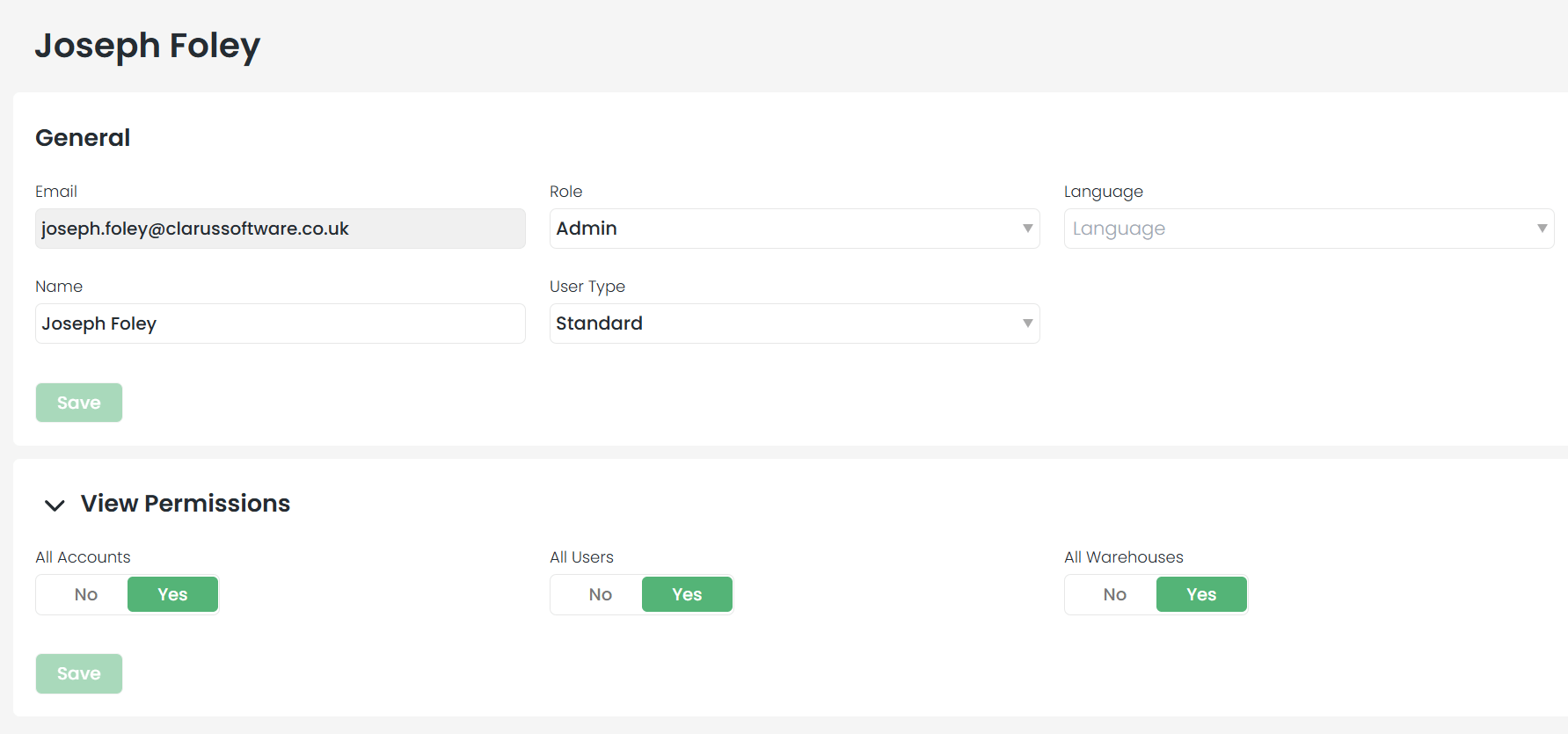
You will see options to view all accounts, warehouses, and users. Switch the **"View All Users"** toggle to **No**.
 Once disabled, a new **Approved Users** tab appears on the user's profile page.
Click the selection box at the bottom of the page to see a list of usernames. You can type to filter the list. Select the desired username and click **Assign**.
Once disabled, a new **Approved Users** tab appears on the user's profile page.
Click the selection box at the bottom of the page to see a list of usernames. You can type to filter the list. Select the desired username and click **Assign**.
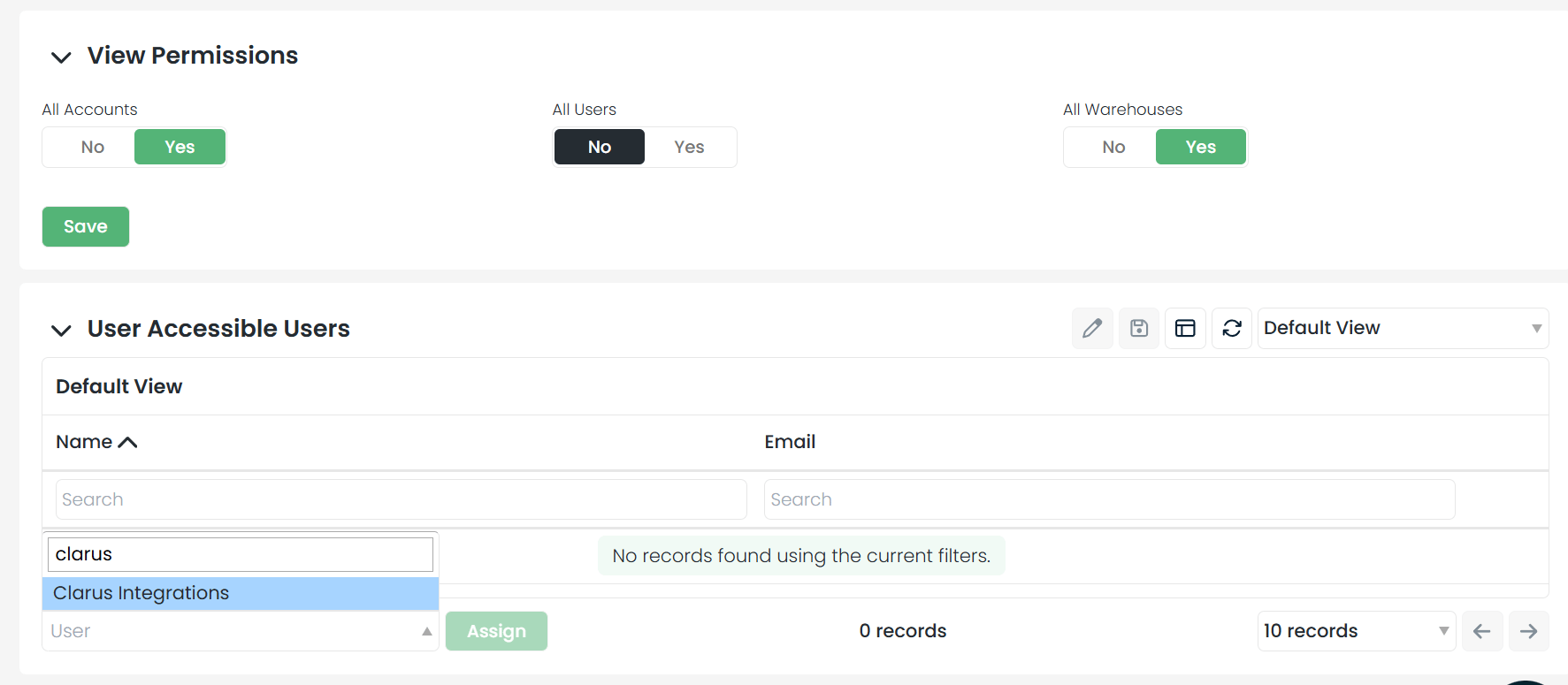 Repeat this process for every individual you want the user to be able to see. Once saved, their visibility will be strictly limited to your approved list.