> ## Documentation Index
> Fetch the complete documentation index at: https://documentation.claruswms.com/llms.txt
> Use this file to discover all available pages before exploring further.
# Demand Replenishment
> Configure demand pickfaces to satisfy order-specific shelf-life requirements that other pickfaces cannot meet.
**Demand Replenishment** is reactive. A replenishment task is only generated when a pick task cannot be fulfilled from any other pickface — typically because the customer requires shelf-life dates that the everyday stock does not meet. Clarus moves a **full pallet** of compliant stock into an empty demand pickface, then releases the pick.
For an overview of both strategies, see [Pickface Replenishment](/knowledgebase/warehouse-setup/replenishment/overview).
## How it works
1. **A pick task is generated.** Clarus first tries to fulfil it from the product's continuous pickface locations.
2. **Stock is checked.** If a continuous pickface has stock that meets the criteria (including shelf-life rules), the pick proceeds normally. If not, Clarus checks whether a demand replenishment location is enabled on the product.
3. **Demand replenishment is triggered.** The pick task goes **On Hold** while Clarus creates a replenishment task to move a full pallet of compliant stock into an empty demand pickface. If no empty demand pickface is available, the replenishment task is placed on hold too, until a location frees up.
4. **The pick task is released.** Once the replenishment is complete, Clarus releases the pick task and it proceeds as normal.
Demand replenishment **hard-allocates** stock — both the replenishment and the pick task are tied to the specific stock identified at the moment the tasks are created. This guarantees the right batch is picked.
## Setting up a demand pickface
From the left-hand menu, click **Products** and select the product you want to configure.
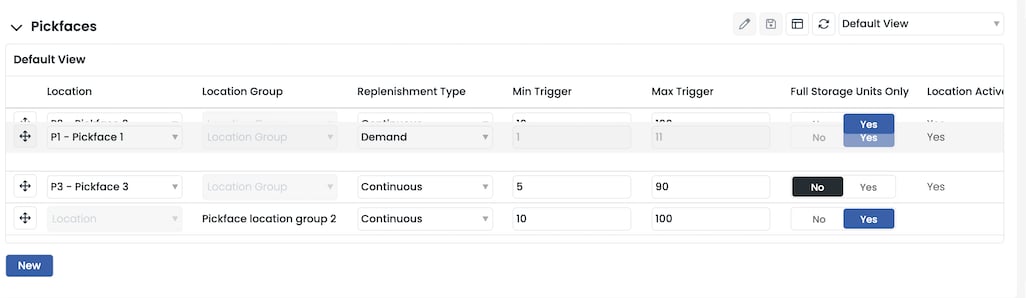
Open the **Pickface** panel and click **New** to add a pickface location. You can also assign a **Location Group** to manage multiple pickfaces in one go — every location in the group must have **Is Pickface** set to **Yes**.

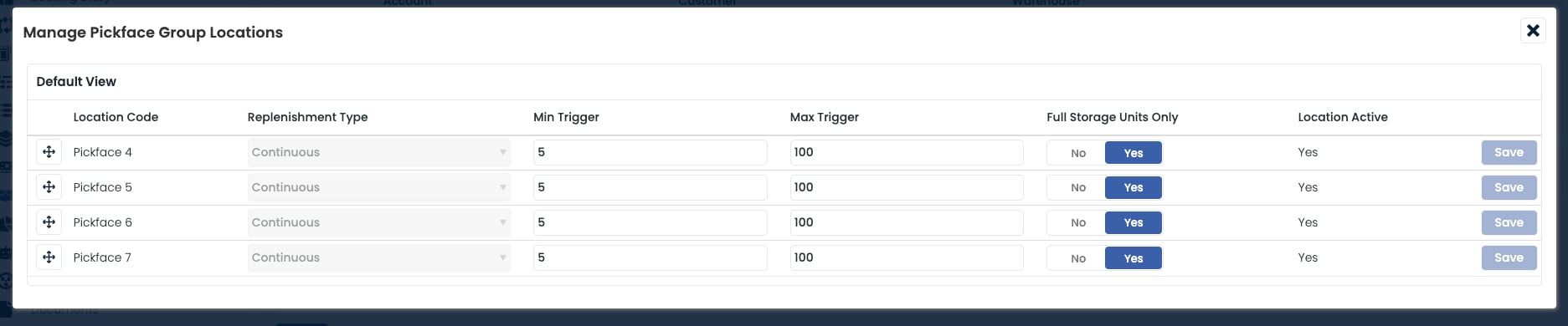 Choose **Demand Replenishment** as the strategy. Minimum and maximum triggers are not used — Clarus always moves a full pallet into the location when the strategy fires.
Use the **arrow controls** on the left of each row to reorder the demand locations. The order determines which empty demand pickface is used first.
Choose **Demand Replenishment** as the strategy. Minimum and maximum triggers are not used — Clarus always moves a full pallet into the location when the strategy fires.
Use the **arrow controls** on the left of each row to reorder the demand locations. The order determines which empty demand pickface is used first.

 ## Combining with continuous replenishment
Demand is most often used as a secondary location alongside a Continuous primary. See [Combining strategies](/knowledgebase/warehouse-setup/replenishment/combining-strategies) for the patterns and a worked example.
## Frequently asked questions
Either no pickface currently holds stock that meets the pick's requirements, or the demand pickface is not yet empty so the replenishment cannot fire. See [Understanding On Hold picks](/knowledgebase/warehouse-setup/replenishment/on-hold-picks) for the full diagnosis.
The pick task and its associated replenishment task both stay on hold until the demand location is empty (quantity reaches 0). Once empty, the replenishment fires and the pick is released.
Yes. A full pallet of specific stock is reserved for both the replenishment and the pick. This is different from continuous pickfaces, which use soft allocation.
Yes. A user can cancel an available replenishment task at any time:
1. Go to the **Tasks** page.
2. Add the **Cancel** button to the data grid if it is not already shown.
3. Locate the available replenishment task and click **Cancel**.
Yes. If only the minimum is set, Clarus picks any stock with a shelf life equal to or greater than the minimum. For example, with Minimum = 5 and Maximum = blank, Clarus looks for stock with 5 or more days remaining.
* **Picking List**: add the **Status** column to the data grid to see whether a pick task is On Hold.
* **Tasks**: locate the task in the Tasks data grid and check the **Status** column. Hovering over the status reveals the reason for any hold.
## Combining with continuous replenishment
Demand is most often used as a secondary location alongside a Continuous primary. See [Combining strategies](/knowledgebase/warehouse-setup/replenishment/combining-strategies) for the patterns and a worked example.
## Frequently asked questions
Either no pickface currently holds stock that meets the pick's requirements, or the demand pickface is not yet empty so the replenishment cannot fire. See [Understanding On Hold picks](/knowledgebase/warehouse-setup/replenishment/on-hold-picks) for the full diagnosis.
The pick task and its associated replenishment task both stay on hold until the demand location is empty (quantity reaches 0). Once empty, the replenishment fires and the pick is released.
Yes. A full pallet of specific stock is reserved for both the replenishment and the pick. This is different from continuous pickfaces, which use soft allocation.
Yes. A user can cancel an available replenishment task at any time:
1. Go to the **Tasks** page.
2. Add the **Cancel** button to the data grid if it is not already shown.
3. Locate the available replenishment task and click **Cancel**.
Yes. If only the minimum is set, Clarus picks any stock with a shelf life equal to or greater than the minimum. For example, with Minimum = 5 and Maximum = blank, Clarus looks for stock with 5 or more days remaining.
* **Picking List**: add the **Status** column to the data grid to see whether a pick task is On Hold.
* **Tasks**: locate the task in the Tasks data grid and check the **Status** column. Hovering over the status reveals the reason for any hold.