> ## Documentation Index
> Fetch the complete documentation index at: https://documentation.claruswms.com/llms.txt
> Use this file to discover all available pages before exploring further.
# Order Volume Replenishment
> Replenish pickfaces dynamically based on real-time pick demand instead of fixed minimum and maximum triggers.
**Order Volume Replenishment** keeps pickfaces stocked based on actual real-time demand. Unlike [Continuous](/knowledgebase/warehouse-setup/replenishment/continuous) and [Demand](/knowledgebase/warehouse-setup/replenishment/demand) replenishment, which rely on fixed minimum/maximum levels, Order Volume calculates what's needed at the moment a pick task is generated — so stock only moves when an order actually requires it.
Before you can use Order Volume Replenishment, it must be added to your HHD implementation. See the step-by-step guide: [Adding a Replenishment Flow to your HHD implementation](https://scribehow.com/viewer/Adding_a_Replenishment_Flow_to_your_HHD_implementation__PK81EEFrT5GsSH86dKyQ_Q).
## How it works
Instead of waiting for stock to hit a pre-set low point, the system calculates needs during pick task generation:
1. **The trigger** — when a pick task is created, the system checks the available stock at the pickface.
2. **The action** — if the required pick quantity exceeds what's currently on the shelf, a replenishment task is automatically generated to cover the gap.
3. **Smart validation** — before creating a new task, the system checks for any existing replenishment tasks that already meet the required quantity, preventing redundant work.
The result is a leaner warehouse flow: stock isn't moved unnecessarily, and replenishment stays focused on active orders.
## Setting up an Order Volume pickface
From the left-hand menu, click **Products** and select the item you want to configure.
Scroll to the **Pickfaces** tab and choose to create a new pickface or edit an existing one.
Locate the **Replenishment Type** dropdown and switch the setting from **Continuous** or **Demand** to **Order Volume**.
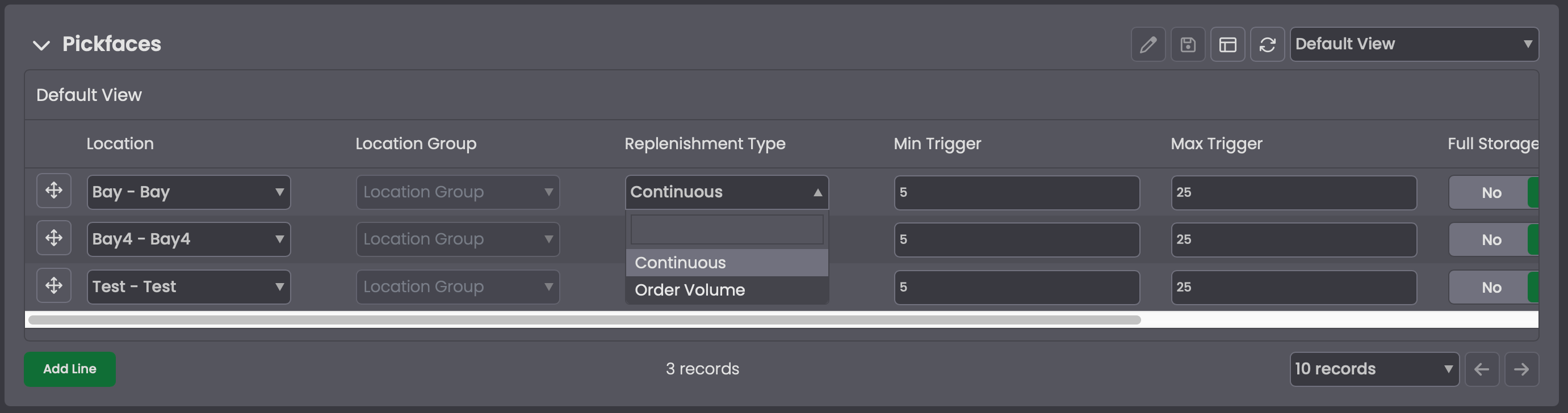 **Domain limitation:** an Order Volume pickface can only be active for one product at a time. Applying this setting to multiple pickfaces within the same product will not function correctly.
## Executing the replenishment
Once active, the system handles the heavy lifting, but the handheld (HHD) workflow has a slight variation. Because quantities are dynamic, the **Confirmed Quantity** field in the Tasks screen stays empty until you enter it — the system waits for your manual input based on current needs.
**Domain limitation:** an Order Volume pickface can only be active for one product at a time. Applying this setting to multiple pickfaces within the same product will not function correctly.
## Executing the replenishment
Once active, the system handles the heavy lifting, but the handheld (HHD) workflow has a slight variation. Because quantities are dynamic, the **Confirmed Quantity** field in the Tasks screen stays empty until you enter it — the system waits for your manual input based on current needs.
 On the HHD:
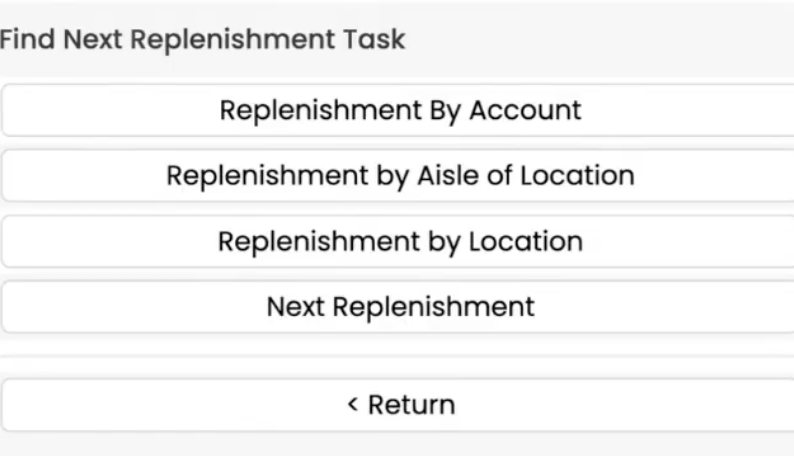
Go to **Replenishment** then **Next Replenishment**.
On the HHD:
Go to **Replenishment** then **Next Replenishment**.
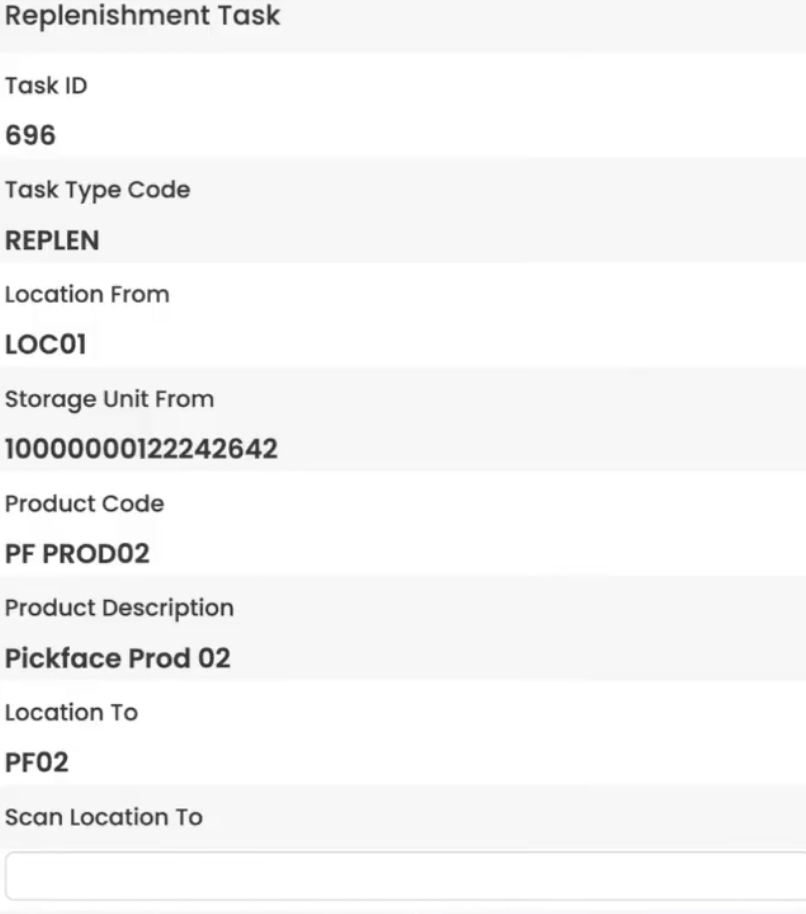
 Confirm the **From Location**, **From Storage Unit**, and **To Location**.
 Enter the **Confirmed Quantity** — the exact amount of stock you are moving to the pickface.
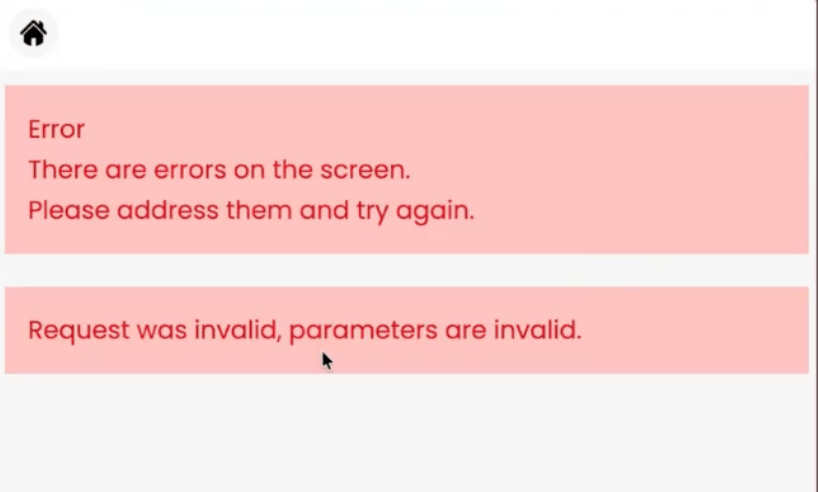
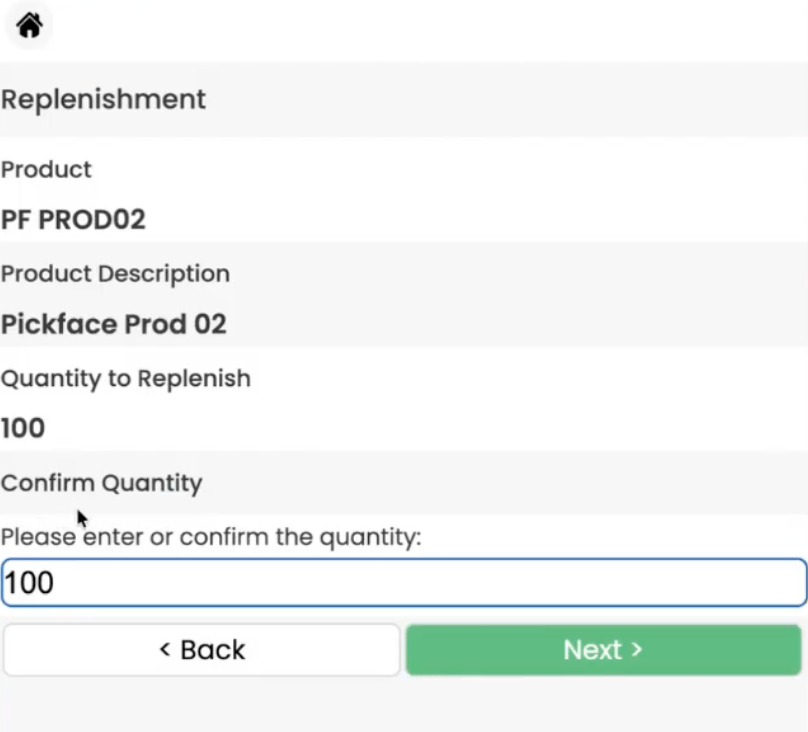 You must enter a value **greater than 0** to complete the task. Entering 0 returns an error and prevents the task from closing.
 ## Related pages
* [Pickface Replenishment](/knowledgebase/warehouse-setup/replenishment/overview) — compare all replenishment strategies
* [Continuous Replenishment](/knowledgebase/warehouse-setup/replenishment/continuous)
* [Demand Replenishment](/knowledgebase/warehouse-setup/replenishment/demand)
## Related pages
* [Pickface Replenishment](/knowledgebase/warehouse-setup/replenishment/overview) — compare all replenishment strategies
* [Continuous Replenishment](/knowledgebase/warehouse-setup/replenishment/continuous)
* [Demand Replenishment](/knowledgebase/warehouse-setup/replenishment/demand)