

Setting up a recurring charge
You add recurring charges directly from a charge card.1
Open the charge card
From the left-hand menu, go to Charges then Charge Card, and select the relevant charge card.
2
Add a recurring charge line
Scroll to the Recurring Charges panel and click Add Line.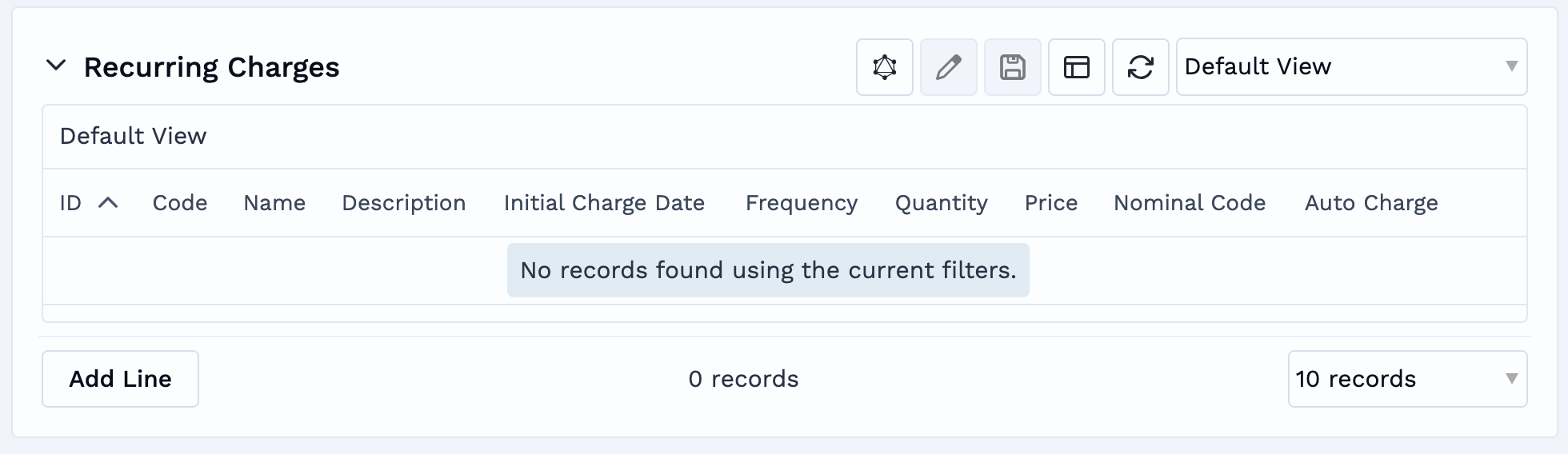
3
Complete the charge details
Fill in the fields for the charge (see Required fields below), including the Initial Charge Date and Frequency that define its schedule.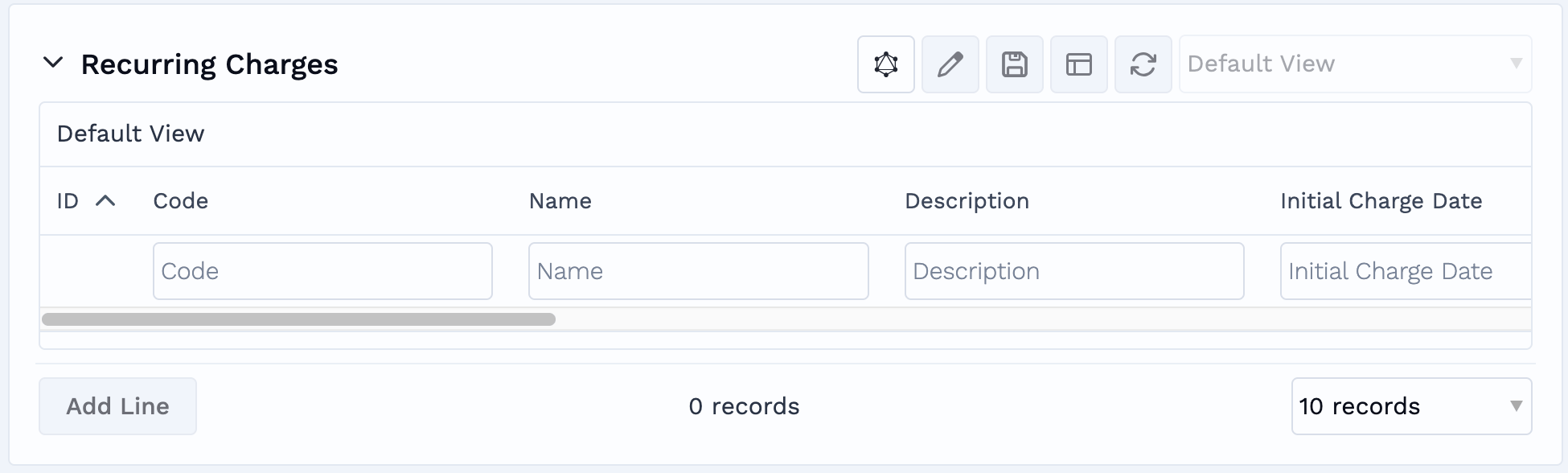
4
Save
Click Save to activate the recurring charge. Charges will start generating automatically from the next scheduled date.
Required fields
The Initial Charge Date should be set in the future. Charges are generated by an overnight process, so setting the date to today will not raise a charge for today.
Available frequencies
Clarus supports four frequency options, calculating repetitions from your chosen Initial Charge Date:How recurring charges appear in charge windows
Once generated, recurring charges behave like any other charge type. They appear on your charge lines, clearly flagged as a Scheduled Recurring Charge, and are picked up by the normal invoicing process. How many times a charge appears depends on how its frequency lines up with the account’s charge window:- Multiple charges in one window: a recurring charge can appear several times within a single charge window if the frequency allows it. For example, a weekly charge can fall five times inside a monthly charge window.
- Skipped windows: if no scheduled recurrence date falls within a particular charge window, no charge is generated for that period. For example, a monthly charge whose date falls outside a short weekly window is simply skipped.
Controlling how recurring charges appear on invoices
You control how recurring charges are presented on an invoice from the Charges Appearance on Invoice panel on the account. Select an option for the recurring charge type:
See Set charges to accounts for more on invoice appearance settings.
Frequently asked questions
What happens if I update or disable a recurring charge?
What happens if I update or disable a recurring charge?
Any changes or deactivations apply only to future scheduled charges. Charges that have already been generated are unaffected.
What happens if a charge card becomes inactive or is removed?
What happens if a charge card becomes inactive or is removed?
If a charge card is made inactive or removed from an account, its recurring charges stop generating. Previously generated charge lines and invoice history remain intact.