

Gradual rollout: Multi-factor authentication is being rolled out gradually, organisation by organisation. You may not see it on your account yet — that’s expected. Once it’s available, you’ll be prompted on your next sign-in.
Why you’re seeing this prompt
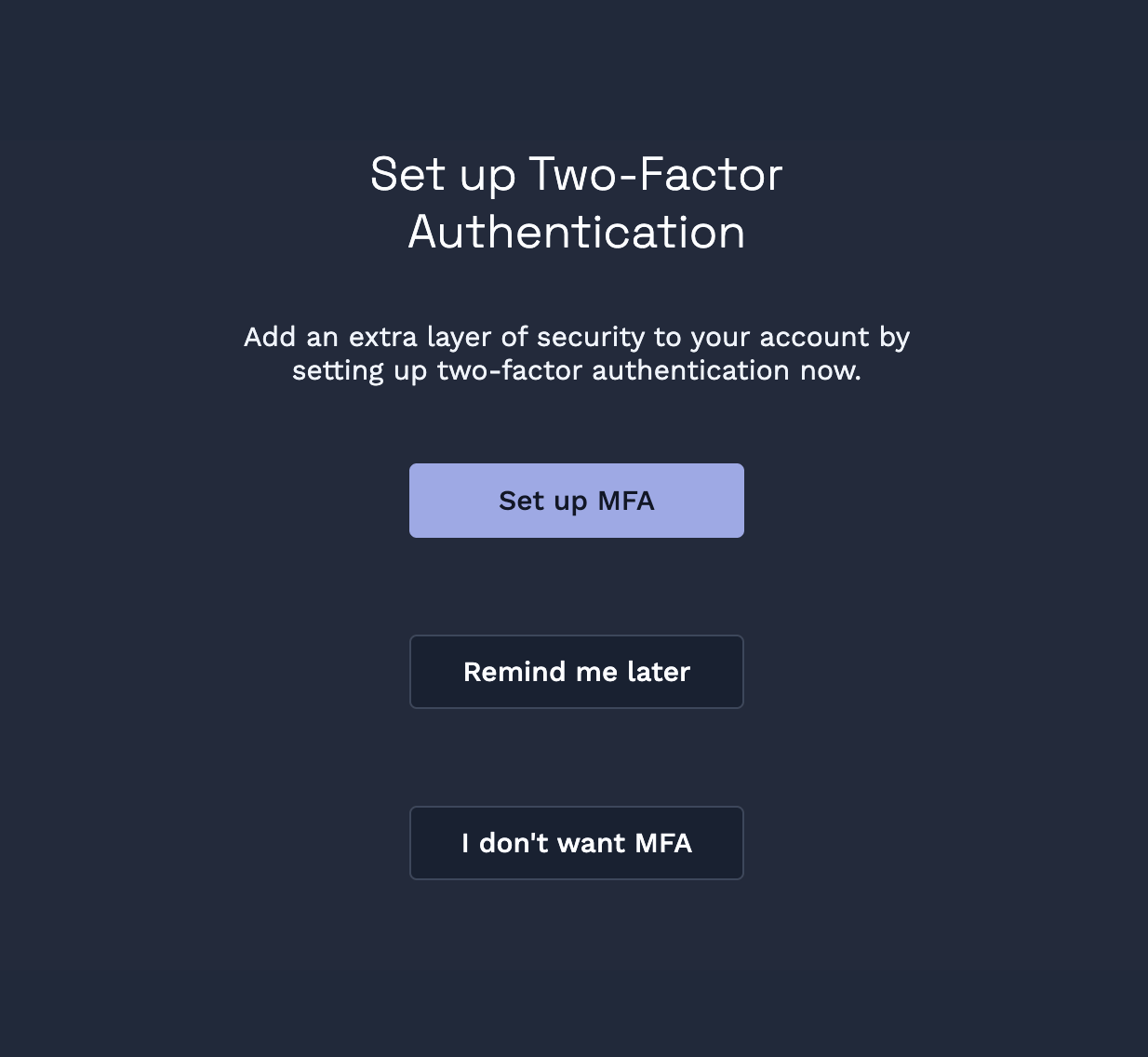
Clarus WMS uses multi-factor authentication (MFA) to keep accounts safer. The prompt appears because your account doesn’t have MFA set up yet — Clarus WMS is inviting you to add a second sign-in step using an authenticator app on your phone. This isn’t a security alert — there’s nothing wrong with your account. It’s a one-time setup prompt.Your options
The prompt gives you three choices:Set up MFA
Set up MFA
The recommended option. You’ll be guided through a quick QR-code setup using your authenticator app. Allow about two minutes. See Set Up MFA for full instructions.
Remind me later
Remind me later
Skips setup for now. You’ll be asked again the next time you sign in. Choose this if you don’t have your phone or an authenticator app to hand right now.
I don't want MFA
I don't want MFA
Dismisses the prompt and stops Clarus WMS from asking you again at sign-in. MFA stays off on your account.
What we recommend
I picked “Remind me later” — what now?
Nothing more to do today. The next time you sign in, you’ll see the prompt again. You can also enable MFA at any time from your Security Settings — see Enable MFA in Security Settings.I picked “I don’t want MFA” and changed my mind
Clarus WMS won’t prompt you at sign-in again, but you can still turn MFA on yourself. Open Enable MFA in Security Settings — that’s the only way to set up MFA from this point on.If the Security Settings option isn’t visible on your account, MFA may not be available for your organisation yet. Try again later or contact your administrator.