

How it works
- Stock is replenished into the pickface either through a manual transfer when first setting up the location, or automatically once picks drop the level below the minimum trigger.
- A pick task is generated. When a sales order needs stock from the product, the system assigns the task to the first available continuous pickface in the order defined on the product setup screen.
- Stock is validated across pickfaces. Before assigning the task, the system checks availability and any shelf-life criteria across all configured pickfaces. If multiple pickfaces qualify, the task goes to the next pickface in rotation. If none qualify, the task goes on hold until a qualifying replenishment occurs.
- Pick tasks are distributed evenly. When several tasks are generated for the same product, the system cycles through all eligible pickfaces in priority order (task 1 → A, task 2 → B, task 3 → C, task 4 → A…).
- Replenishment is triggered automatically. Any movement that drops stock below the minimum trigger — picks, transfers, negative adjustments — creates a new replenishment task to bring the pickface back up to capacity.
Setting up a continuous pickface
1
Navigate to the product
From the left-hand menu, click Products and select the product you want to configure.
2
Assign locations
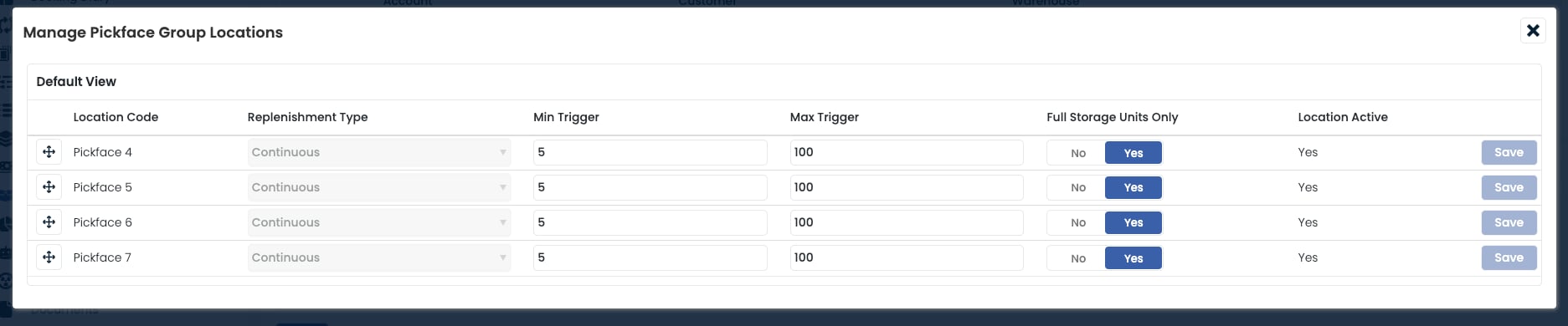
Open the Pickface panel and click New to add a pickface location. You can also assign a Location Group to manage multiple pickfaces in one go — every location in the group must have Is Pickface set to Yes.
3
Select Continuous Replenishment
Choose Continuous Replenishment as the strategy. A replenishment task will be generated automatically each time stock drops below the minimum trigger.
4
Define minimum and maximum triggers
- Minimum Trigger: the stock quantity that triggers a replenishment task when levels drop below it.
- Maximum Trigger: the target quantity to top the pickface up to.
5
Configure Full Storage Units (optional)
- No: the replenishment tops the location up to the maximum trigger exactly, breaking a storage unit if needed.
- Yes: only full storage units are replenished. For example, if the maximum trigger is 100 and each storage unit holds 60, the system brings in two full units totalling 120.

6
Prioritise the locations
Use the arrow controls on the left of each row to reorder locations. The order determines the sequence in which pickfaces are used when assigning pick tasks and replenishments.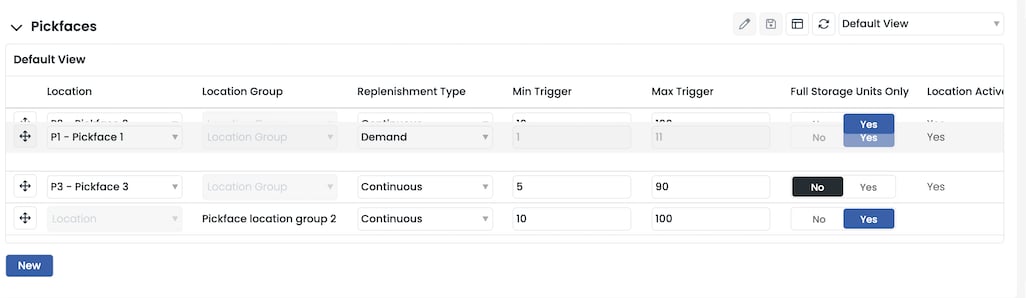
Combining with demand replenishment
The Continuous and Demand strategies can run on the same product by assigning them to different locations — typically a Continuous primary and a Demand secondary for shelf-life-sensitive picks. See Combining strategies.Frequently asked questions
Why does the order of locations matter?
Why does the order of locations matter?
When several continuous pickfaces are assigned to the same product, Clarus distributes pick tasks across them in the configured order, cycling back to the first when it reaches the end. The order in the Pickface panel is the order Clarus uses.
What happens if I make a pickface location inactive?
What happens if I make a pickface location inactive?
Pick tasks are no longer assigned to the inactive pickface and replenishment tasks stop generating, even if stock falls below the minimum trigger. Any existing stock stays in the location and must be moved manually.
What happens when a pick task goes on hold?
What happens when a pick task goes on hold?
If no pickface meets the stock or shelf-life criteria, the pick task is placed On Hold. As soon as a replenishment brings in stock that satisfies the criteria, Clarus releases the task automatically. Hovering over the status in the Tasks data grid shows the reason for the hold.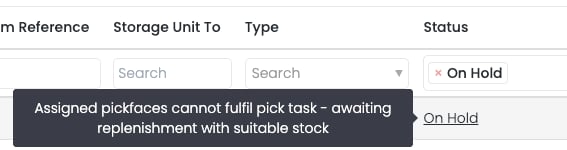
What if my storage units are larger than the maximum trigger?
What if my storage units are larger than the maximum trigger?
With Full Storage Units Only set to Yes, Clarus brings in full storage units even if doing so exceeds the maximum trigger. With it set to No, the system tops up to the maximum trigger exactly and breaks a storage unit if necessary.
Which actions trigger a replenishment?
Which actions trigger a replenishment?
Any movement that drops the pickface stock below the minimum trigger creates a replenishment task — including picks, manual transfers, warehouse transfers, and negative stock adjustments.
Are continuous pickfaces hard-allocated?
Are continuous pickfaces hard-allocated?
No. Continuous pickfaces use soft allocation. Stock is only hard-allocated when it is picked or when demand replenishment is involved.