

Before you can use Order Volume Replenishment, it must be added to your HHD implementation. See the step-by-step guide: Adding a Replenishment Flow to your HHD implementation.
How it works
Instead of waiting for stock to hit a pre-set low point, the system calculates needs during pick task generation:- The trigger — when a pick task is created, the system checks the available stock at the pickface.
- The action — if the required pick quantity exceeds what’s currently on the shelf, a replenishment task is automatically generated to cover the gap.
- Smart validation — before creating a new task, the system checks for any existing replenishment tasks that already meet the required quantity, preventing redundant work.
Setting up an Order Volume pickface
1
Navigate to the product
From the left-hand menu, click Products and select the item you want to configure.
2
Open the Pickfaces tab
Scroll to the Pickfaces tab and choose to create a new pickface or edit an existing one.
3
Select Order Volume
Locate the Replenishment Type dropdown and switch the setting from Continuous or Demand to Order Volume.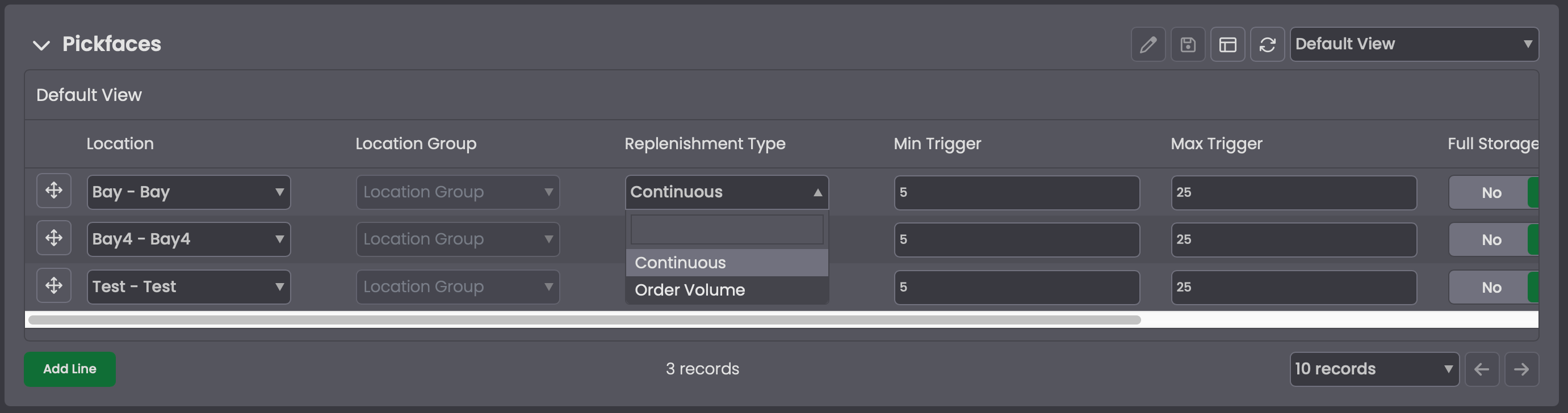
Executing the replenishment
Once active, the system handles the heavy lifting, but the handheld (HHD) workflow has a slight variation. Because quantities are dynamic, the Confirmed Quantity field in the Tasks screen stays empty until you enter it — the system waits for your manual input based on current needs.
1
Open the next replenishment
Go to Replenishment then Next Replenishment.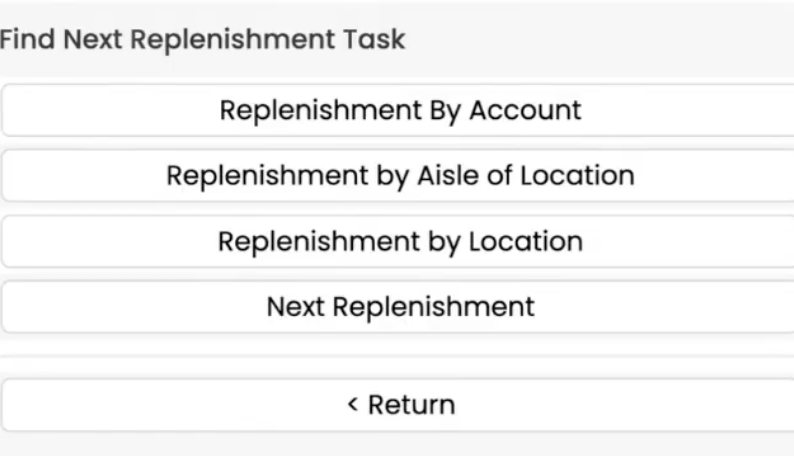
2
Confirm the locations
Confirm the From Location, From Storage Unit, and To Location.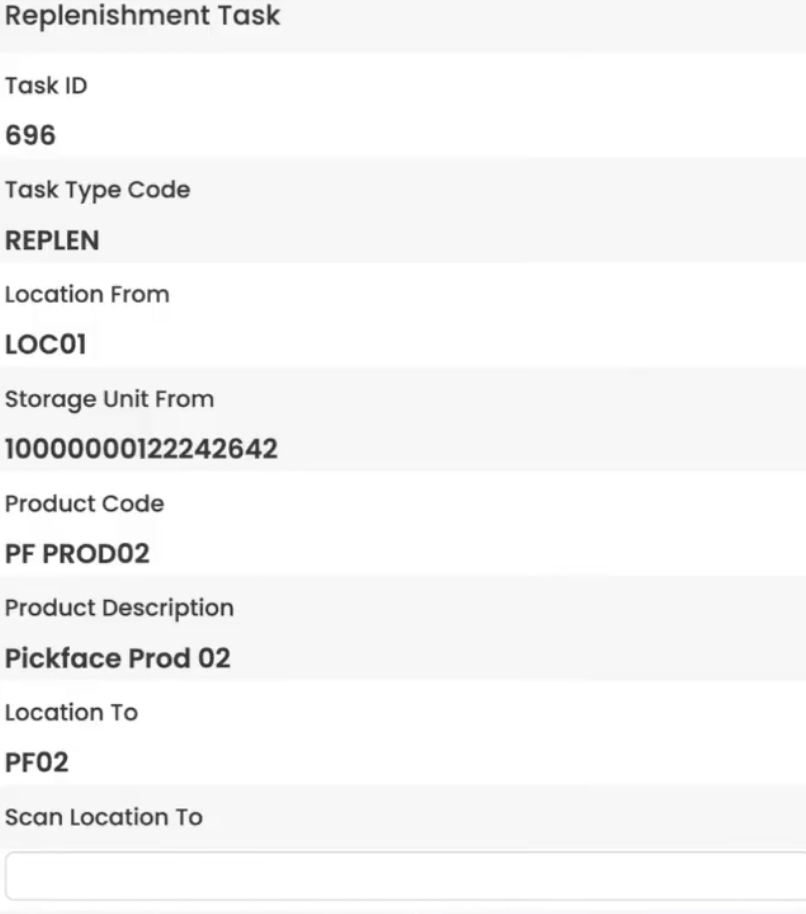
3
Enter the confirmed quantity
Enter the Confirmed Quantity — the exact amount of stock you are moving to the pickface.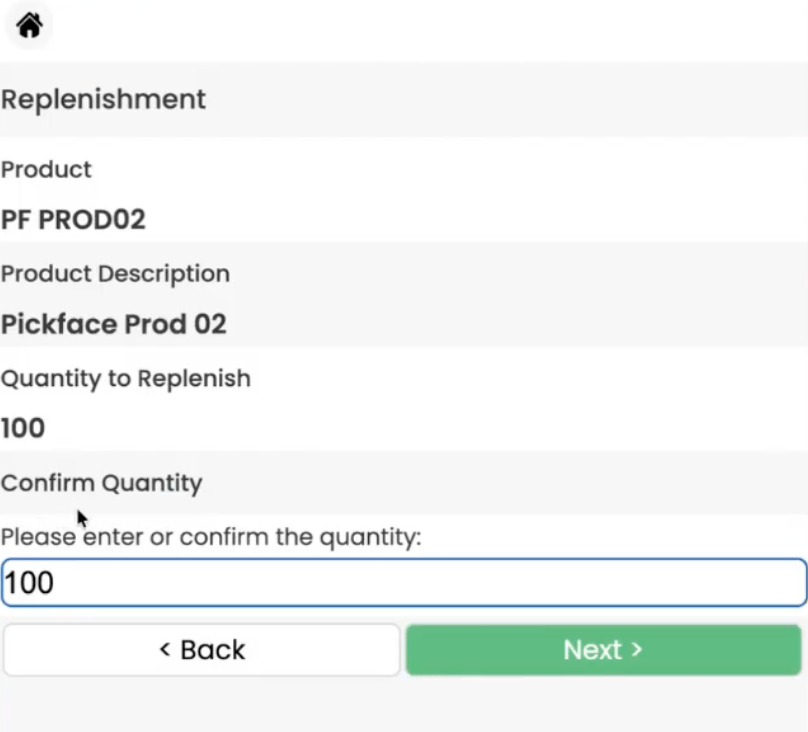
You must enter a value greater than 0 to complete the task. Entering 0 returns an error and prevents the task from closing.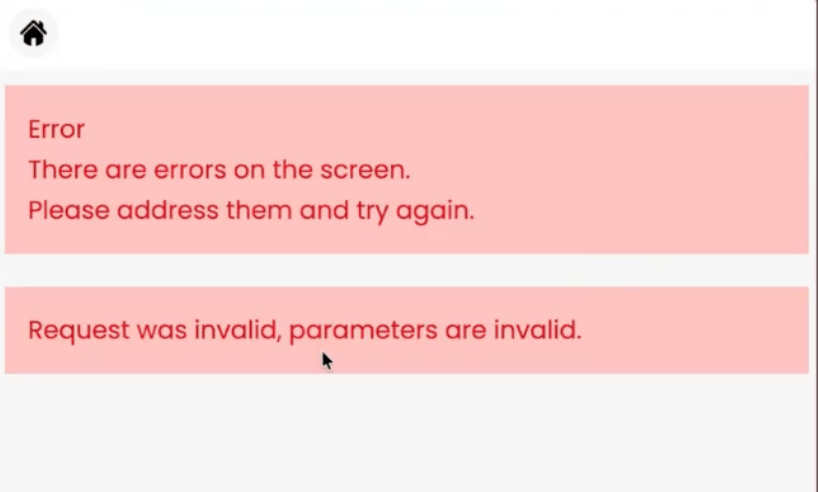
Related pages
- Pickface Replenishment — compare all replenishment strategies
- Continuous Replenishment
- Demand Replenishment