

Before you start
- A Clarus login with administrator rights.
- Your own mobile number to hand — you’ll be added as the first approved user so you can test it immediately.
- The phone numbers of anyone else who needs access, in full international format.
Turn on WhatsApp
1
Open Integrations
In the AI Assistant, click the Settings cog at the bottom of the conversation list, then choose Integrations.
2
Click Set up WhatsApp
On the WhatsApp card, click Set up WhatsApp.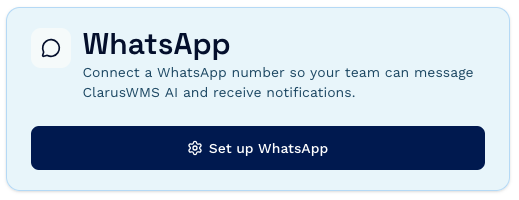
3
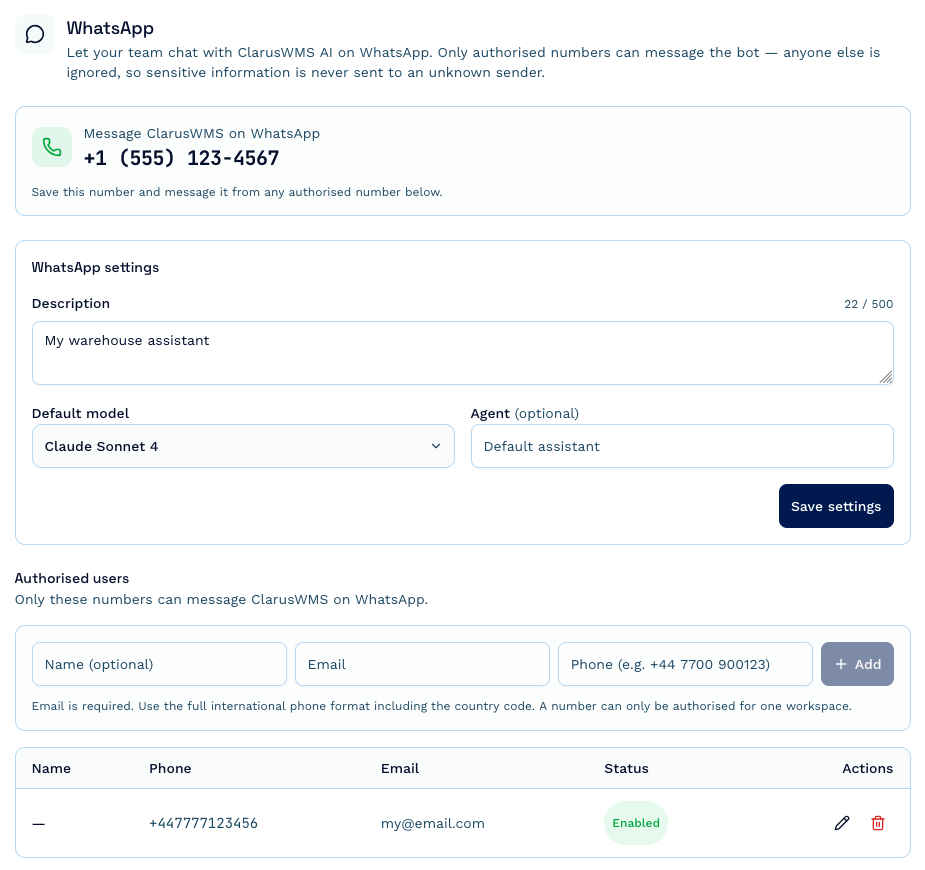
Complete the setup form
- Description — required. A short label such as
Acme Logistics warehouse assistant. - Default model — leave as Sonnet unless you have a reason to change it.
- Agent — optional. Leave blank to use the default assistant.
- Your WhatsApp number — required, and only asked for the first time. Enter it in full international format, for example
+44 7700 900123. This becomes the first approved number.
4
Save the Clarus WhatsApp number
The screen now shows the number your team should message. Save it to your phone’s contacts — this is the number every approved user messages.
5
Approve the rest of your team
In the Authorised users section, add each person who needs access: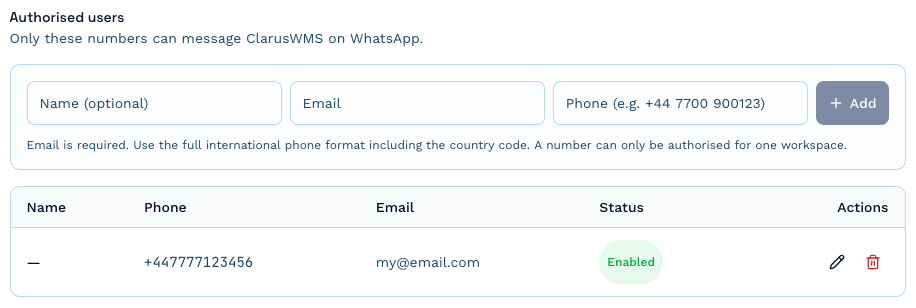
- Name — optional, but it makes the list far easier to manage later.
- Email — required.
- Phone — required, in full international format including the country code, for example
+44 7700 900123.
Manage who has access
Everything happens in the Authorised users table on the same screen.- Pause someone — click their Enabled status to switch it to Disabled. They keep their place in the list but can no longer message the assistant. Click again to re-enable.
- Fix a name — click the pencil icon, type, and save.
- Remove someone — click the bin icon and confirm. Use this when someone leaves.
- Correct a number — phone numbers can’t be edited. Remove the entry and add a new one.
There’s no invitation or confirmation step. Adding someone approves them immediately, so double-check the number before you add it. A phone number can be approved for one Clarus account only — if a number is already on another Clarus organisation’s list, you’ll be told so and it can’t be added.
Using it in WhatsApp
Message the Clarus number as you would any contact:You: how many units of WIDGET-RED-500 are in stock? Clarus: There are 1,240 units across 3 locations…One-to-one chats only. Group chats aren’t supported — the assistant only answers direct messages to the Clarus number. Picking up where you left off. Your chat stays one continuous conversation, so follow-up questions work. After an hour with no messages, the next thing you send starts a fresh conversation — handy when you switch topic, but it means the assistant won’t remember this morning’s questions if you message again in the afternoon. Files. Send a photo or a document with your question and the assistant can read it — for example, photograph a damaged pallet label and ask what product it is. Add your question as the caption. Images up to 3 MB, documents up to 10 MB, 10 files per message. Formatting. Answers use WhatsApp’s own formatting, so tables and headings from the assistant come through as plain bold text and lines. Long answers arrive as several messages.
If someone isn’t approved
Anyone messaging from a number that isn’t on your list gets:This number isn’t authorised to use ClarusWMS. Please contact your ClarusWMS admin to be added.Their message never reaches your data, and the reply deliberately doesn’t reveal which Clarus organisation the number belongs to.
Turning it off
There’s no single disconnect button for WhatsApp. To stop people using it, remove them from the Authorised users list — or set each one to Disabled if you want to keep the list and re-enable it later. With no approved numbers, nobody can message the assistant.Troubleshooting
'That number is already linked to another ClarusWMS workspace'
'That number is already linked to another ClarusWMS workspace'
A phone number can be approved for one Clarus account at a time. That number is on another Clarus organisation’s approved list and must be removed there before you can add it here.
Which number should we message?
Which number should we message?
The one shown on the WhatsApp setup screen in Settings → Integrations → Set up WhatsApp. It’s the same number for every approved user. If the panel doesn’t show a number, WhatsApp hasn’t finished being enabled for your account — contact Clarus support.
It's forgotten what we were talking about
It's forgotten what we were talking about
Conversations reset after an hour of inactivity. Anything before that gap is no longer in context, so include the detail again — the order number, the product code — in your new message.
Can we use it in a WhatsApp group?
Can we use it in a WhatsApp group?
No. Group chats aren’t supported; the assistant answers direct messages to the Clarus number only. If you need a shared conversation the whole team can see, use Slack or Microsoft Teams instead.
Does Clarus send us alerts on WhatsApp?
Does Clarus send us alerts on WhatsApp?
Not yet — WhatsApp is for conversations you start. For notifications pushed to your team, connect Slack and set a default alert channel.
Nobody gets a reply any more
Nobody gets a reply any more
Check your organisation hasn’t used up its monthly AI credits — see Credits and usage. Also confirm the person’s status in the Authorised users table is Enabled rather than Disabled.