

WIDGET-RED-500 are left?” in a Slack channel, or message the Clarus number on WhatsApp from the warehouse floor, and the reply comes back in the same thread.
Choose a channel
Slack
The quickest to set up. Approve the app once and your whole workspace can use it.
Best for people on the move. You choose exactly which phone numbers are allowed.
Microsoft Teams
Add the ClarusWMS app to Teams, then link it to your Clarus account.
Where you set them up
All three are managed in one place in the AI app:- Open the AI Assistant and click the Settings cog at the bottom of the conversation list.
- Choose Integrations.
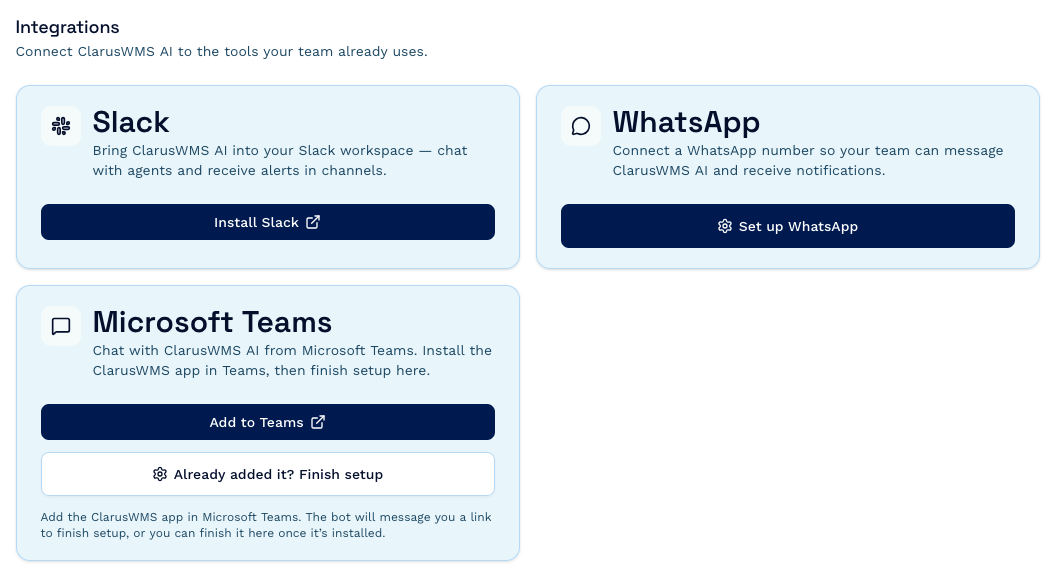
Integrations is administrator-only. If you don’t see the Settings cog or the Integrations section, your Clarus role doesn’t include settings management — ask an administrator to set the channel up for you.
What each channel can do
Everywhere it’s supported, you can send images (PNG, JPEG, GIF, WebP up to 3 MB) and documents (PDF, CSV, text, Markdown, HTML, DOCX, XLSX up to 10 MB), up to 10 files in one message.
Replies aren’t streamed word by word as they are in the AI app — the assistant thinks, then posts its answer. A long answer may arrive as more than one message.
Settings shared by every channel
Whichever channel you connect, you’ll be asked for:- Description — a short label for the connection, so you can tell your integrations apart. Required.
- Default model — which Claude model answers messages on this channel. Sonnet is the default and the right choice for everyday use. See Overview for what the others are for.
- Agent — optional. Route this channel’s messages to a specific agent you’ve set up, instead of the default assistant.
One Clarus account per workspace
A Slack workspace, or a Microsoft organisation, can be connected to one Clarus account at a time. If you try to connect one that’s already linked elsewhere, you’ll be told so — whoever set it up first needs to disconnect before you can claim it.Credits
Messages sent through Slack, WhatsApp, and Teams draw on the same monthly credit allowance as the AI app. Answers to chat messages aren’t billed differently — but a channel that’s open to a whole workspace can use credits faster than you’d expect. See Credits and usage.Before you start
- The AI Assistant enabled on your Clarus account.
- A Clarus login with administrator rights, to reach Settings → Integrations.
- Admin rights in the channel you’re connecting: permission to add apps to your Slack workspace, or to upload and approve apps in Microsoft Teams. WhatsApp needs no third-party admin access.
Learn more
Access & controls
What the assistant can reach, how actions are audited, and how to turn it on or off.
AI Assistant data protection
Data handling, processing location, retention, and subprocessors.