

{subdomain} with your Clarus subdomain. See Connect AI assistants to Clarus if you’re unsure what yours is.
Custom apps (connectors) are available on ChatGPT plans that support them and may need enabling by your workspace owner. Menu names can vary between ChatGPT versions.
Add the Clarus app
1
Open Apps
In ChatGPT, open Settings → Apps.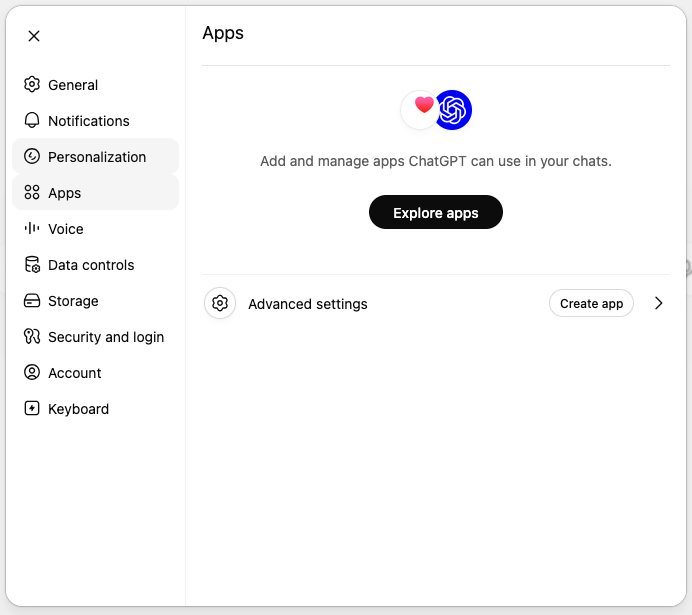
2
Create an app
Next to Advanced settings, click Create app.
3
Enter the Clarus details
In the New App dialog: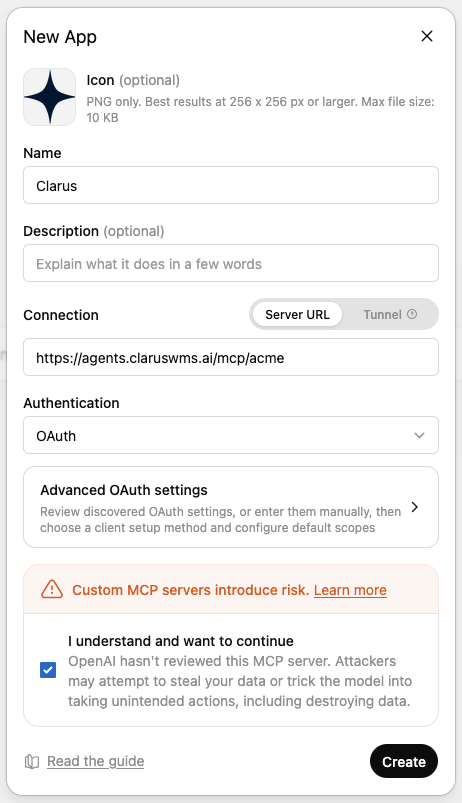
- Name:
Clarus. Optionally add a Description, and an Icon — you can download the Clarus logo (PNG, 256×256 or larger) to use here. - Connection: choose Server URL and paste your connection address (
https://agents.claruswms.ai/mcp/{subdomain}) - Authentication: choose OAuth. Leave Advanced OAuth settings on the discovered defaults — you don’t need to enter a client ID or secret.
- Tick I understand and want to continue, then click Create.

4
Sign in to Clarus
In the Add Clarus to ChatGPT dialog, click Sign in with Clarus and complete the Clarus login. ChatGPT only ever has the permissions your Clarus account has.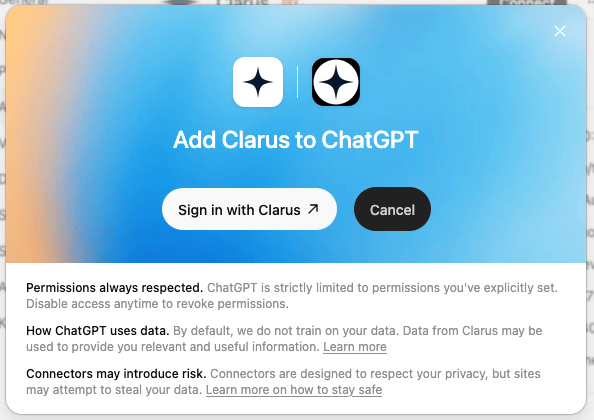
5
Use it in a chat
Start a chat, make sure the Clarus app is enabled, and ask a question such as “What’s the status of sales order
SO-2026-0042?”Troubleshooting
Do I need to enter OAuth client details?
Do I need to enter OAuth client details?
No. Set Authentication to OAuth and leave the Advanced OAuth settings on the discovered defaults — Clarus sets these up automatically, so you don’t create or paste a client ID or secret.
What's the 'Custom MCP servers introduce risk' warning?
What's the 'Custom MCP servers introduce risk' warning?
That’s ChatGPT’s standard notice for any custom app — it just means OpenAI hasn’t reviewed it. The Clarus app connects to your own Clarus account over a secure connection. Tick I understand and want to continue to proceed, and keep the AI-accuracy guidance above in mind when acting on responses.
I can't find Apps in Settings
I can't find Apps in Settings
Apps may need to be enabled for your workspace by an owner/admin, and they require a ChatGPT plan that supports them. Check with whoever manages your ChatGPT workspace.
The app won't create or shows an error
The app won't create or shows an error
Make sure Connection is set to Server URL (not Tunnel) and the address is exactly
https://agents.claruswms.ai/mcp/{subdomain} with your real subdomain in place of {subdomain} and no trailing spaces. Your subdomain is your organisation’s short name in Clarus (see the overview).ChatGPT says it can't find data or isn't allowed
ChatGPT says it can't find data or isn't allowed
The assistant can only see and do what your Clarus account can. If data is missing or an action fails, check your own Clarus permissions for that account, warehouse, or feature — or ask your administrator.