

{subdomain} with your Clarus subdomain. See Connect AI assistants to Clarus if you’re unsure what yours is.
Custom connectors are a Claude feature (currently in beta) available on plans that support them — Pro, Max, Team, and Enterprise. Menu names can vary between Claude versions.
Add the connector
- For your own account (Pro / Max)
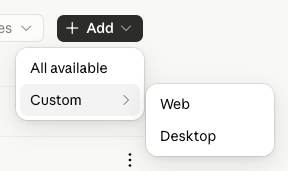
- For your whole organisation (Team / Enterprise)
1
Open Connectors
In Claude, go to Customize → Connectors. (You can also open the + menu in a chat, choose Connectors, then Manage connectors.)
2
Add a custom connector
Click the + next to Connectors, then choose Add custom connector.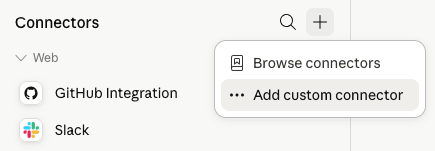
3
Enter the Clarus details
In the dialog, give it a name like 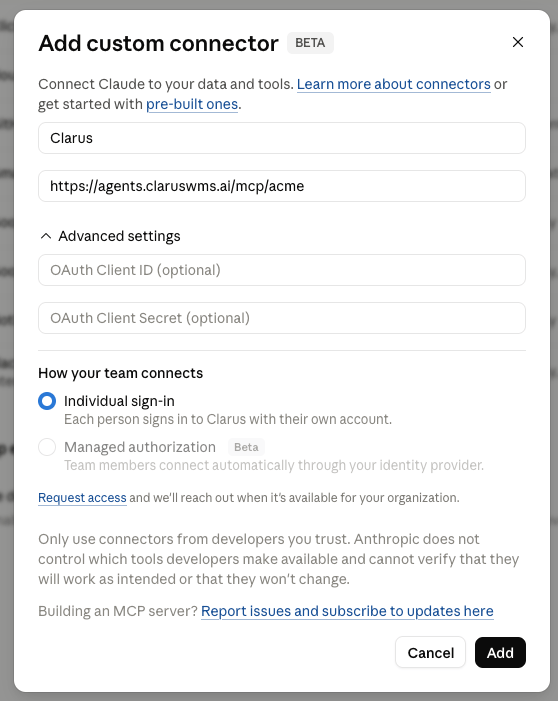
Clarus and paste your connection address (https://agents.claruswms.ai/mcp/{subdomain}). Under Advanced settings, leave OAuth Client ID and OAuth Client Secret blank — Clarus handles sign-in for you. Then click Add.4
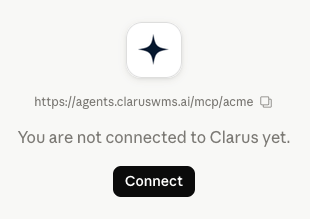
Sign in to Clarus
Claude opens a Clarus sign-in window — sign in with your Clarus username and password and approve access.
5
Use it in a chat
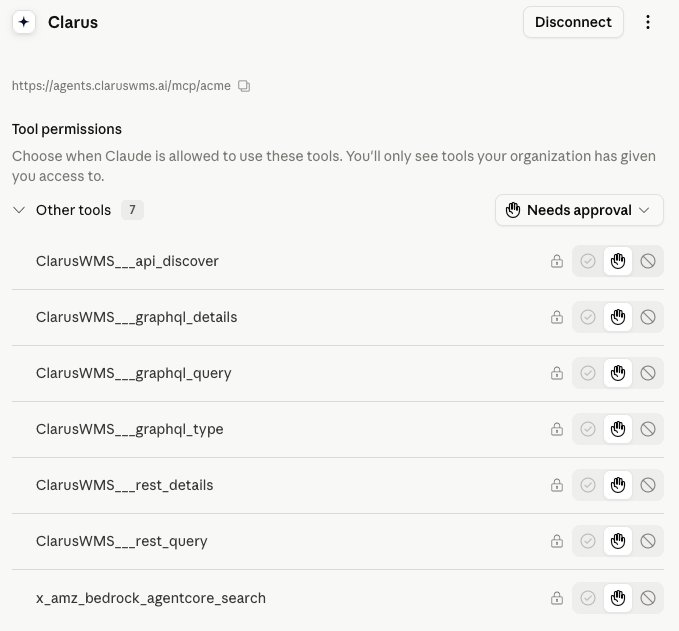
Start a new chat, make sure the Clarus connector is enabled (via the + menu), and ask a question such as “How many units of
WIDGET-RED-500 are in stock?”
Troubleshooting
Should I fill in OAuth Client ID / Secret?
Should I fill in OAuth Client ID / Secret?
No — leave both blank. Clarus uses a sign-in (OAuth) flow that’s set up automatically, so you don’t create or paste any client ID or secret.
I can't find Connectors
I can't find Connectors
On a personal account, connectors live under Customize → Connectors. On a Team or Enterprise account, an owner adds connectors under Organization settings → Connectors, and members then manage their own sign-in under Customize → Connectors.
The connector won't add or shows an error
The connector won't add or shows an error
Double-check the address is exactly
https://agents.claruswms.ai/mcp/{subdomain} with your real subdomain in place of {subdomain} and no trailing spaces. If you’re an organisation owner, make sure you chose Web (not Desktop). Your subdomain is your organisation’s short name in Clarus (see the overview).It keeps asking me to sign in
It keeps asking me to sign in
Make sure you complete the Clarus sign-in and approve access in the pop-up window. If your browser blocks pop-ups, allow them for claude.ai and try again.
Claude says it can't find data or isn't allowed
Claude says it can't find data or isn't allowed
The assistant can only see and do what your Clarus account can. If you’re missing data or an action fails, check your own Clarus permissions for that account, warehouse, or feature — or ask your administrator.
Can Claude change my data?
Can Claude change my data?
Yes — within your permissions it can make changes as well as read. Ask precisely and confirm anything important before it acts.