

Overview
You can create Handheld Device (HHD) users without requiring a unique email address, making it faster to onboard warehouse staff. The process has two phases: creating the system user, then configuring their HHD login.Video walkthrough
Phase 1: Create the system user
1
Navigate to Users
Go to Settings > Users > Users from the homepage.
2
Open the creation form
Click New to open the user creation form.
3
Enter user details
Fill in the required fields: Name, Language, Role, etc.
4
Set the User Type to Handheld Devices
Set the User Type to Handheld Devices. This is the crucial step that bypasses the email verification requirement.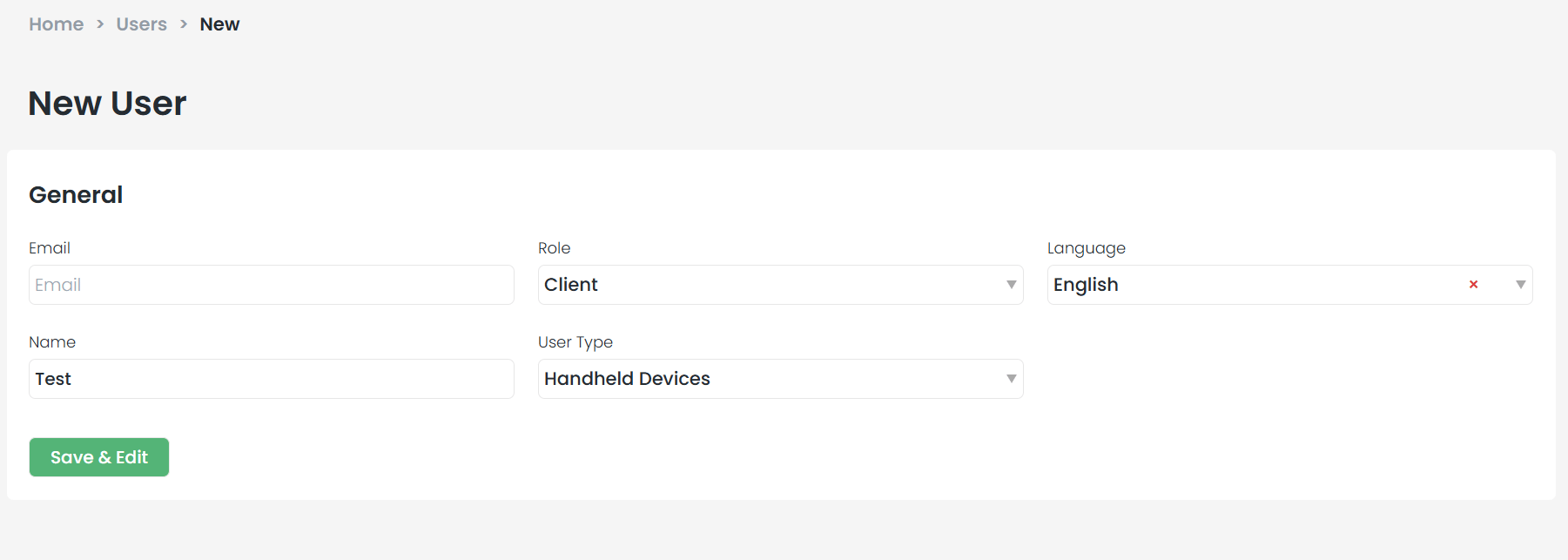
5
Save
Click Save to create the system user.
Phase 2: Configure the HHD login
Once the system user is saved, set up their handheld credentials:1
Go to HHD Users
Navigate to Handheld Devices > HHD Users.
2
Create a new login
Click New to create a login.
3
Enter credentials
Fill in the Username, Password, and assigned Warehouse.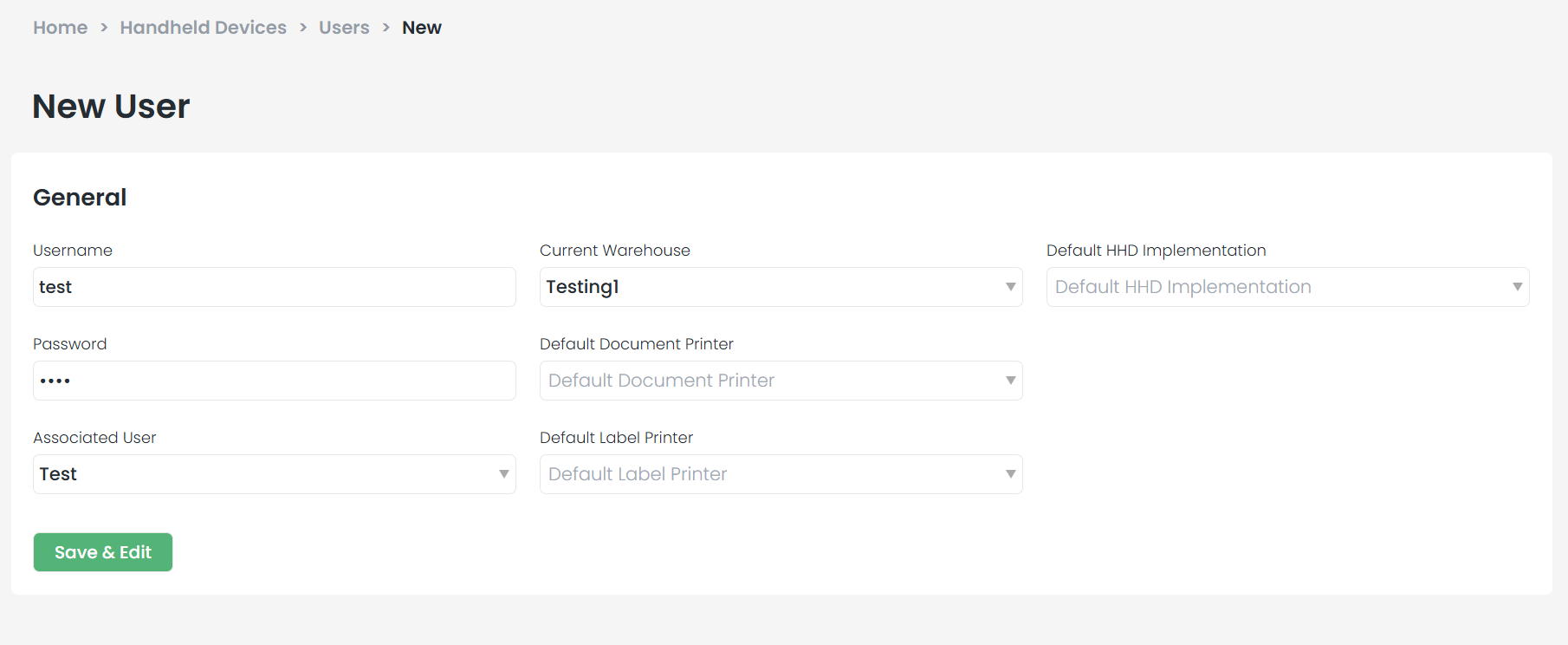
4
Configure optional settings
Optionally select preferred Printers and Implementation settings.
5
Link to the system user
In the Associated User field, select the user you created in Phase 1.
6
Save
Click Save to complete the setup.